Home / Help / How to use / Financial statements
How to use Financial statements
This guide shows every screen of the financial statements on a phone. The example is a sample spaza shop, Demo Spaza Mmapela (sample), for its year from 1 March 2025 to 28 February 2026. Type your own figures where the guide gives the example. Part A is your financial statements: you type what each account held at the end of the year, and Super Deal Maker makes your income statement and balance sheet. Part B is the Financial statements project plan: the steps you will take to keep your books every month.
Before you start
Have these ready
- You need a Super Deal Maker account. Sign in first.
- Have these ready for the year you want: your sales and what you bought for the year, your costs (wages, rent, electricity, transport and so on), your bank statement on the last day of the year, your stock count on the last day, a list of the things the business owns (with what each cost), and what the business owes (for example a loan from the owner).
- A bookkeeper's trial balance or last year's statements help a lot. If you have none, use your cash book and slips.
- It takes about 30 minutes the first time. Every amount saves as you type, so you can stop and carry on later.
- On every screen: **Save & exit** at the top stops for now. **?** gives help.
Step by step
Part A. Start: open your financial statements
-
Step 1 of 62
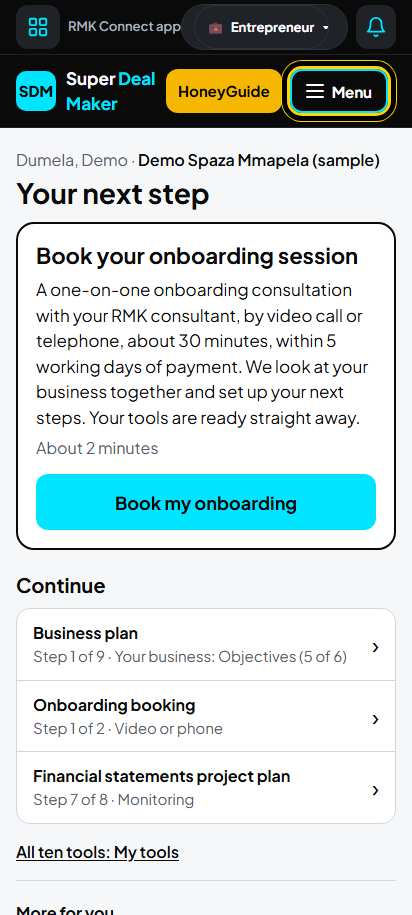
Open the menu
On Home, tap Menu.
Tip: Home's Your next step card, or a row under Continue, may open your financial statements straight away.
-
Step 2 of 62
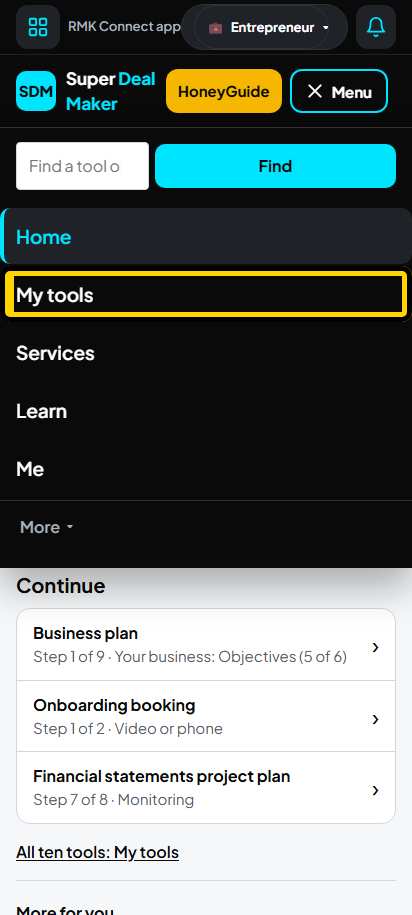
My tools
Tap My tools.
-
Step 3 of 62
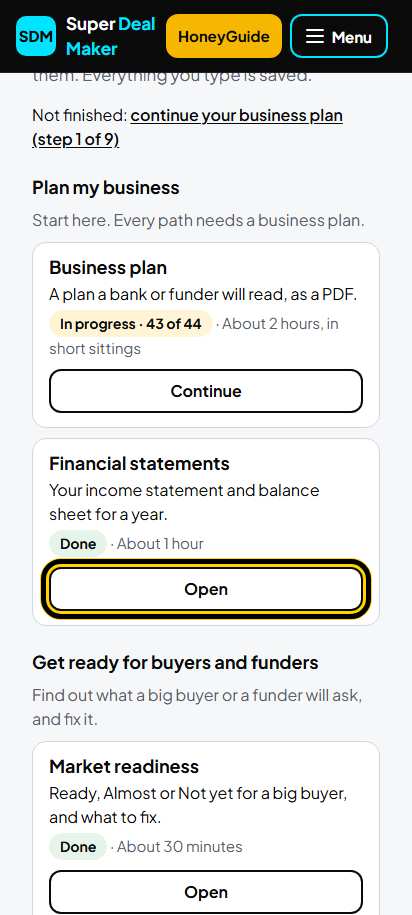
Financial statements
On the Financial statements card, tap Start.
Tip: The first time the button says Start. Once you have a year it says Open.
-
Step 4 of 62
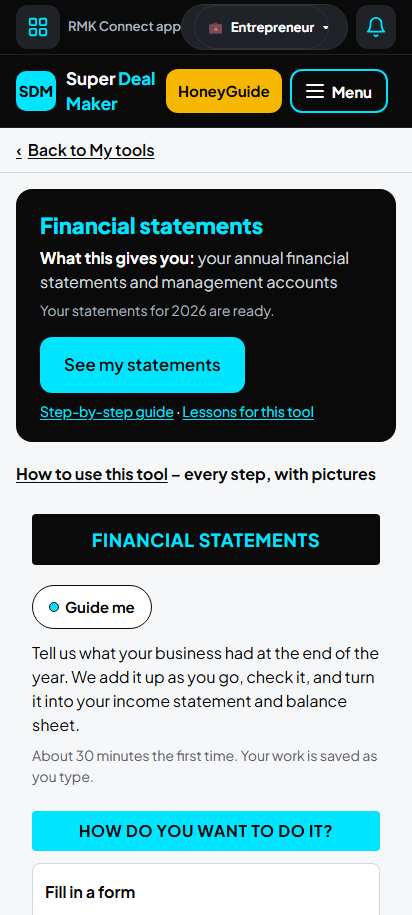
Your financial statements page
The black box at the top, Financial statements, says where you are. The first time it says "Not started yet" with a Fill in a form button. Once your statements are made, it says See my statements.
-
Step 5 of 62
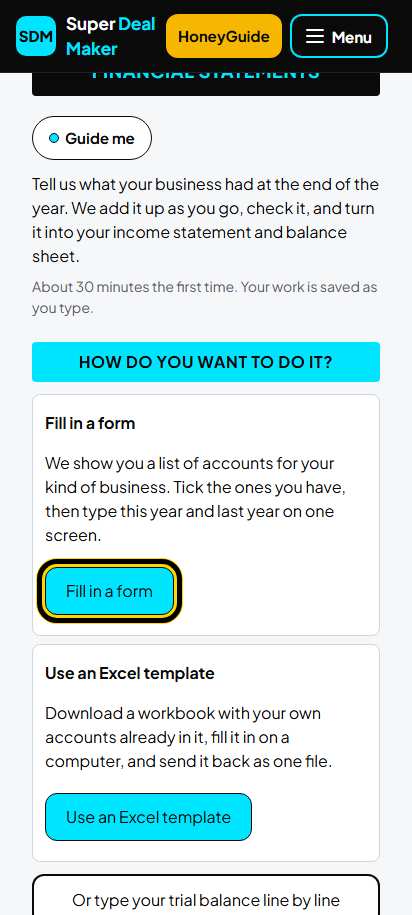
How do you want to do it?
Scroll down. Under "How do you want to do it?", tap Fill in a form.
Tip: Have a computer? Use an Excel template lets you fill in a workbook and send it back as one file. This guide uses the form, which works on a phone.
Part A, step 1 of 4. Choose your accounts
-
Step 6 of 62
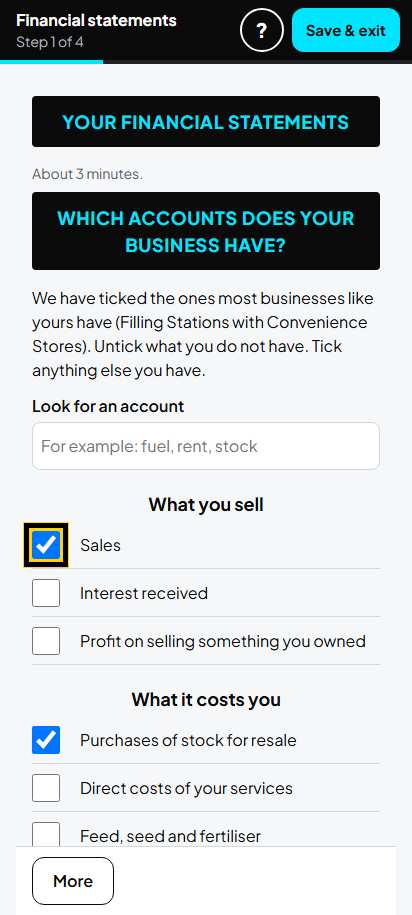
Which accounts does your business have?
Some accounts are already ticked for your kind of business. Tap a box to tick or untick it. Untick what you do not have. Tick what you do have. Example for the spaza: under What you sell, tick Sales only. Under What it costs you, tick Purchases of stock for resale.
Tip: Looking for one account? Type its name in "Look for an account".
-
Step 7 of 62
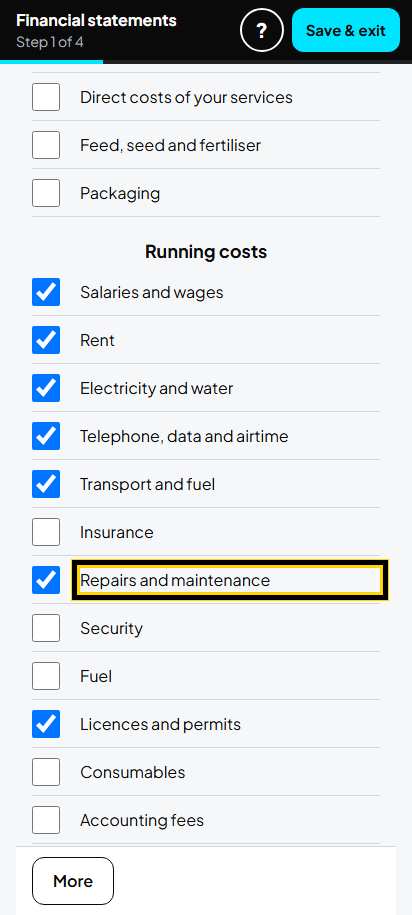
Your running costs
Tick each cost you pay. Example: Salaries and wages, Rent, Electricity and water, Telephone, data and airtime, Transport and fuel, Repairs and maintenance, Licences and permits, Bank charges, Depreciation (wear and tear) and Tax. Untick the ones you do not pay, for example Insurance, Accounting fees and Interest paid.
-
Step 8 of 62
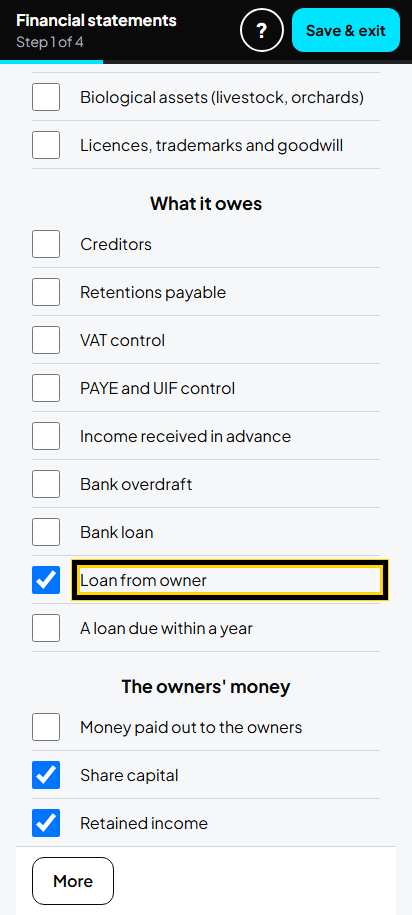
What the business owns and owes
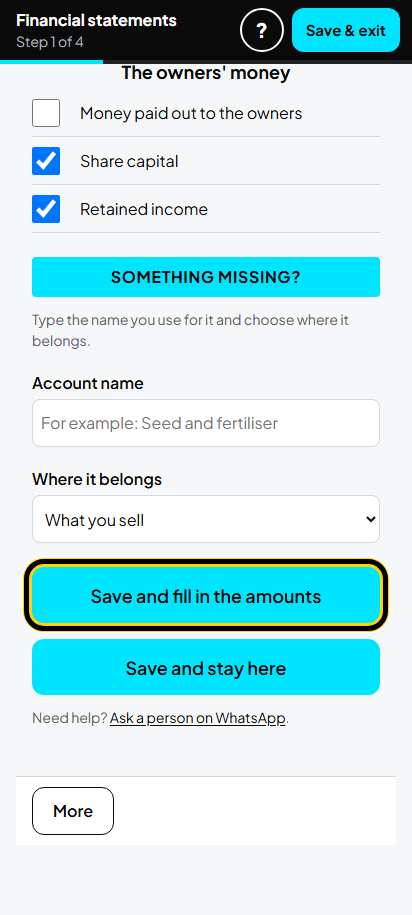
Owns: tick Bank, Stock for resale and Machines, tools and equipment. Owes: tick Loan from owner if the owner lent the business money. Untick Debtors, Creditors, VAT, PAYE and Bank loan if you do not have them. The owners' money: tick Share capital and Retained income.
Tip: The spaza ends with 18 accounts ticked. Not VAT registered? Untick VAT control.
-
Step 9 of 62
Save and fill in the amounts
At the bottom, tap Save and fill in the amounts.
Tip: You can change the list later. Nothing you have typed is lost.
Part A, step 2 of 4. Fill in the amounts
-
Step 10 of 62
One box for each account
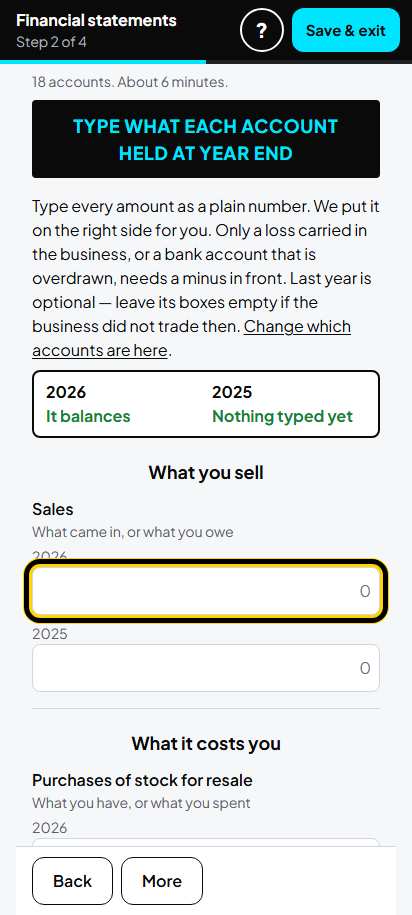
Each account you ticked has a box for this year (2026) and last year (2025). The year is the year your financial year ENDS in: March 2025 to February 2026 is 2026. Type each amount as a plain number, for example 560000. Last year is optional: leave its boxes empty.
-
Step 11 of 62
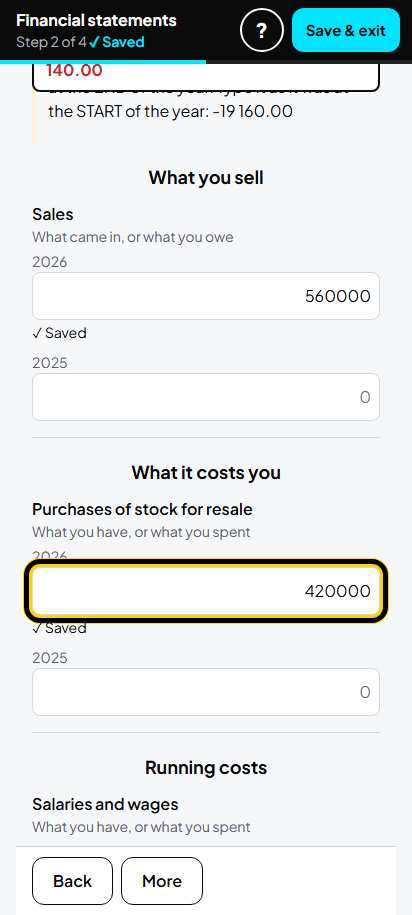
Type your sales and costs
Example for 2026: Sales 560000. Purchases of stock 420000. Salaries and wages 54000. Rent 18000. Electricity 10500. Telephone 2400. Transport 14000. Repairs 2000. Licences 3000. Bank charges 1800. Depreciation 4160. Leave Tax empty if you paid none. Each box says Saved as you go.
-
Step 12 of 62
What the business owns, and the stock list
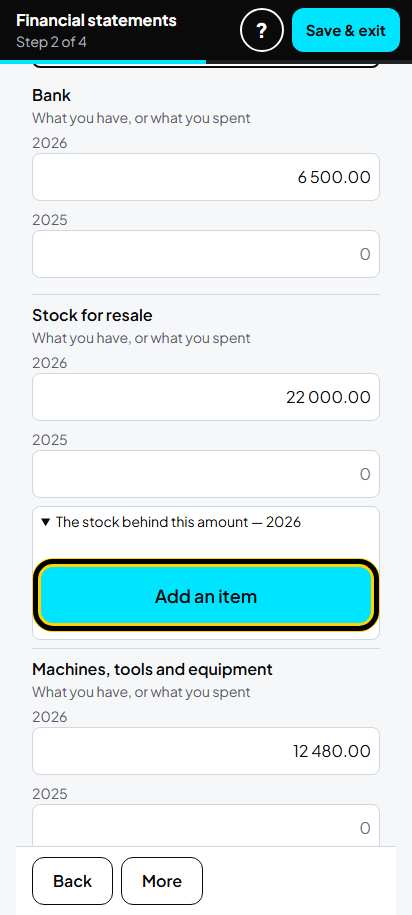
Type what the business owns and owes. Example: Bank 6500 (the bank statement on the last day), Stock for resale 22000 (your stock count), Machines, tools and equipment 12480 (what they cost, less wear and tear so far), Loan from owner 29900, Share capital 100. Under Stock for resale, open "The stock behind this amount" and tap Add an item. Type what it is, how many, the cost of each and the value. One line for the stock you counted is enough. Example: Groceries, drinks, bread, paraffin (counted 28/02/2026), 1, 22000, 22000.
-
Step 13 of 62
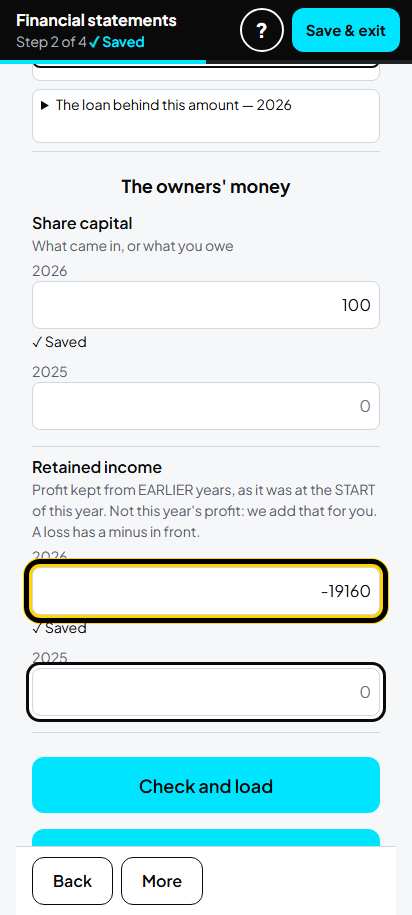
Retained income: the START of the year
Type the profit kept from EARLIER years, as it was at the START of this year. Not this year's profit: Super Deal Maker adds that for you. A loss has a minus in front. Example: -19160.
Tip: For the spaza: retained income at the end of the year is 10 980. This year's profit is 30 140. So at the start it was 10 980 - 30 140 = -19 160.
-
Step 14 of 62
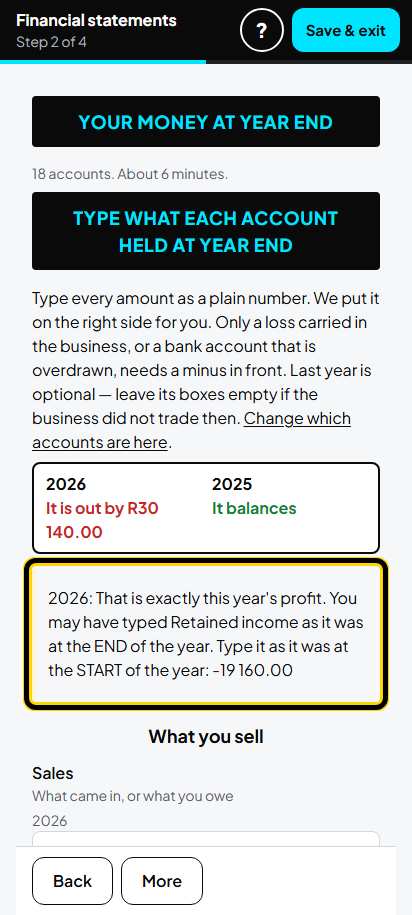
If it is out by this year's profit
The box at the top says "It balances" or "It is out by R...". If you typed retained income at the END of the year, a yellow box says "That is exactly this year's profit" and shows the START figure to type. Type that figure in Retained income.
-
Step 15 of 62
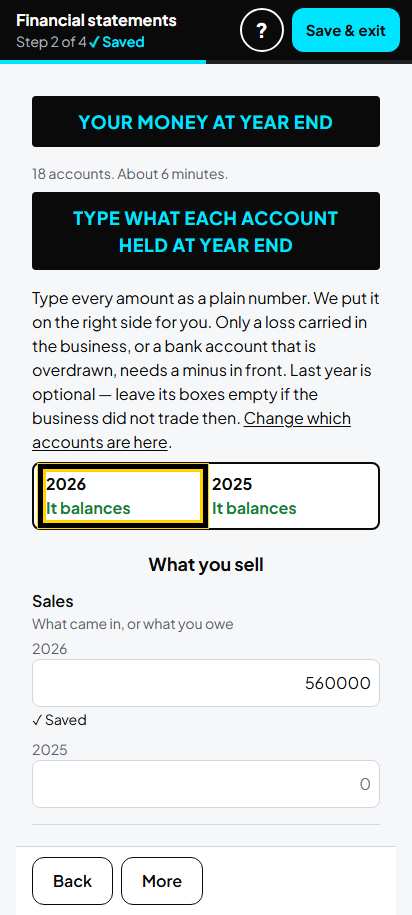
It balances
When the box at the top says It balances for 2026, your figures add up.
Tip: Still out? Check each amount, and check that a cost is not typed twice. Only a loss or an overdrawn bank needs a minus.
Part A, step 2 of 4. The lists behind equipment and loans
-
Step 16 of 62
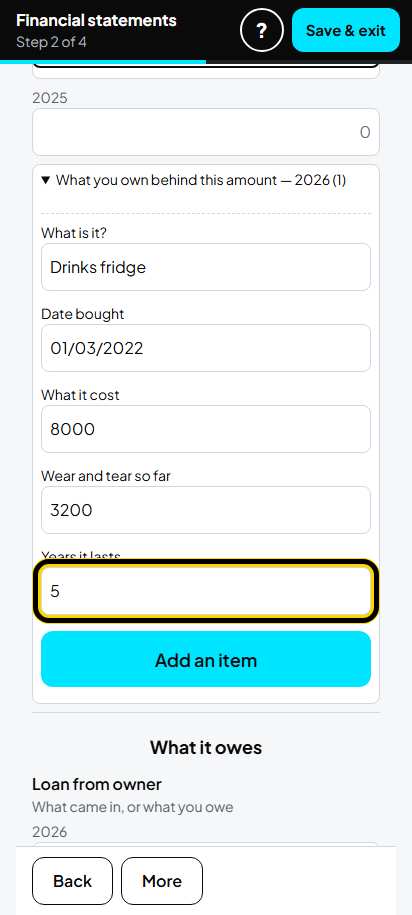
Equipment: one item for each thing
Under Machines, tools and equipment, tap Add an item for each thing the business owns. Type what it is, the date bought (dd/mm/yyyy), what it cost, the wear and tear so far, and the years it lasts. Example: Drinks fridge, 01/03/2022, 8000, 3200, 5. Then tap Save draft. Do the same for the freezer, shelving, till and solar kit.
Tip: The costs added up, less the wear and tear, must equal the amount in the box (here 20 800 - 8 320 = 12 480).
-
Step 17 of 62
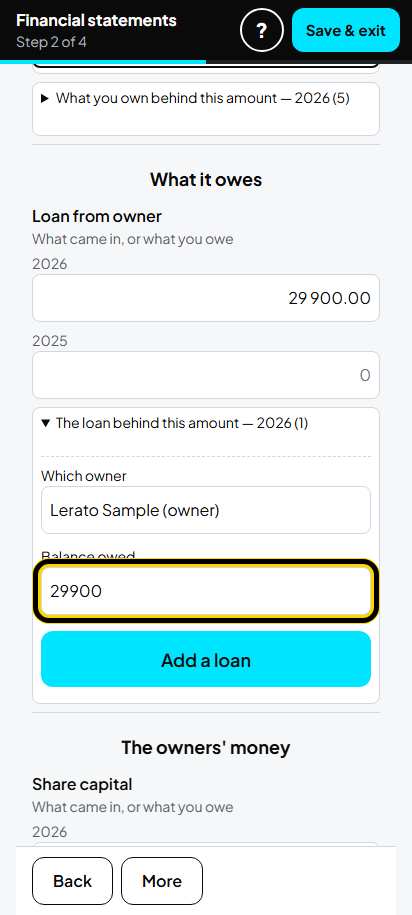
Loan from owner
Under Loan from owner, tap Add a loan. Type which owner and the balance owed. Example: Lerato Sample (owner), 29900. Tap Save draft.
-
Step 18 of 62
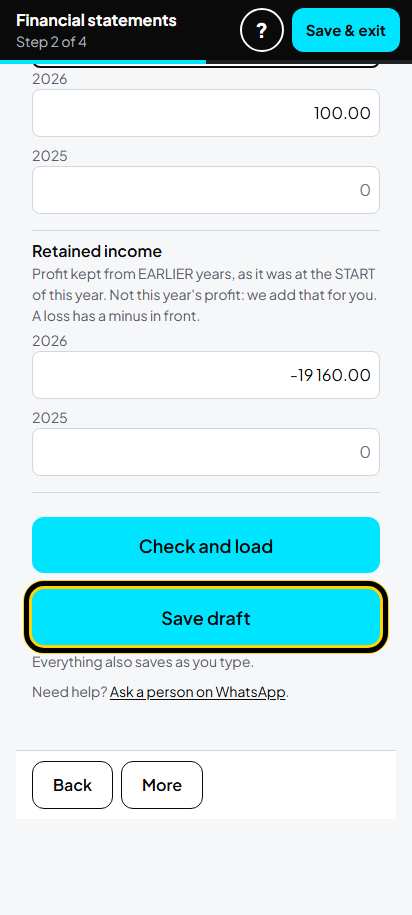
Save draft
Tap Save draft at the bottom to save the lists. Everything else saves as you type.
Part A, step 3 of 4. Check and load
-
Step 19 of 62
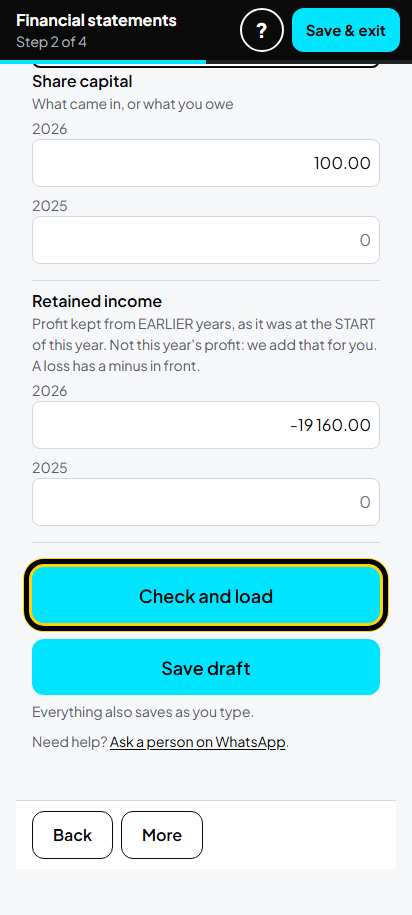
Check and load
When it balances and the lists are filled in, tap Check and load.
-
Step 20 of 62
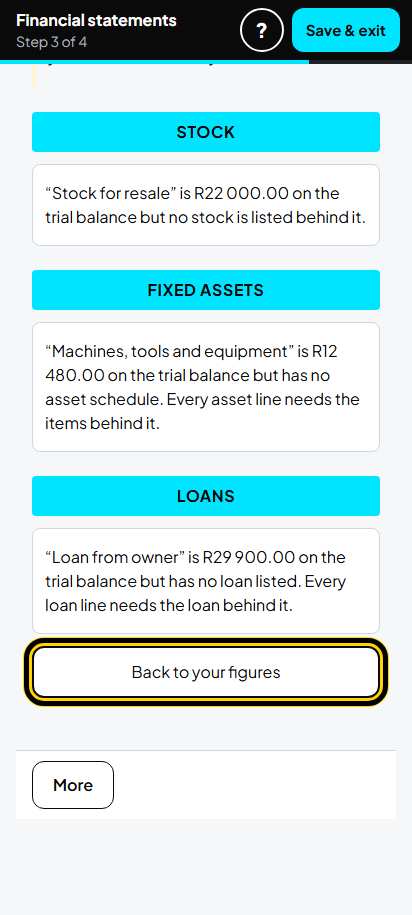
If something is missing
If something is missing, a page lists what to fix, by account name. Example: "Stock for resale has an amount but no stock is listed behind it." Tap Back to your figures, fix it, and tap Check and load again. Nothing is lost.
Tip: When nothing is missing, this page is skipped and your statements open straight away.
Part A, step 4 of 4. Your statements
-
Step 21 of 62
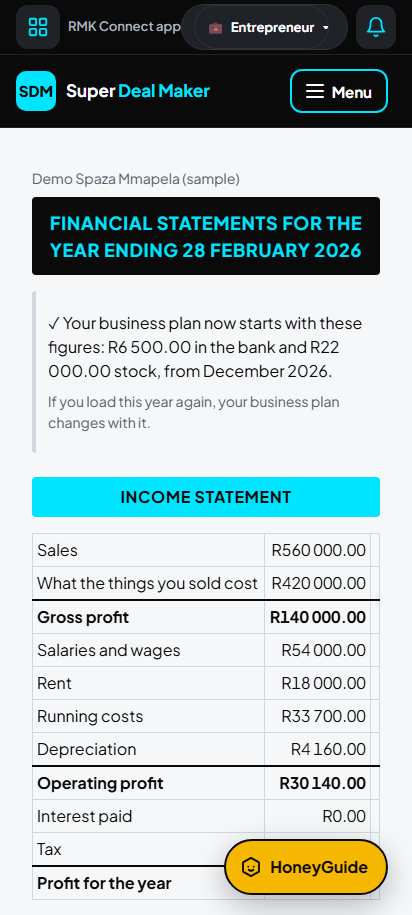
Your financial statements
Your statements open. At the top it says your business plan now starts from these figures (the money in the bank and the stock).
Tip: If you load the year again later, your business plan changes with it.
-
Step 22 of 62
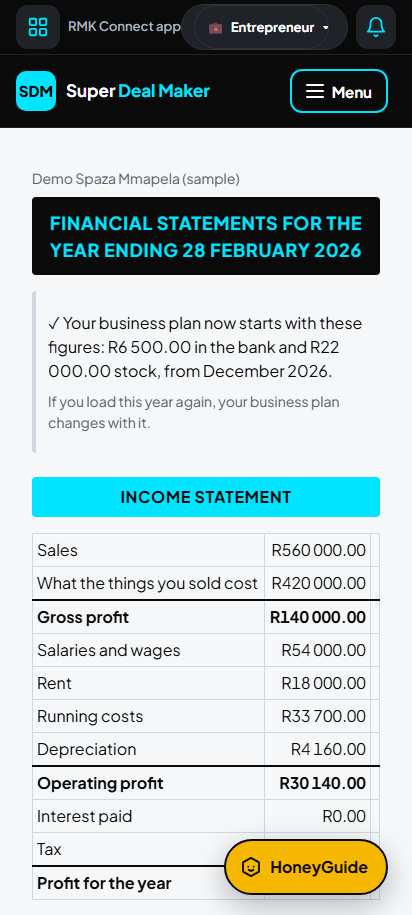
Income statement
What came in, what it cost and the profit. Check it against your figures. Example: Sales R560 000, Gross profit R140 000, Profit for the year R30 140.
-
Step 23 of 62
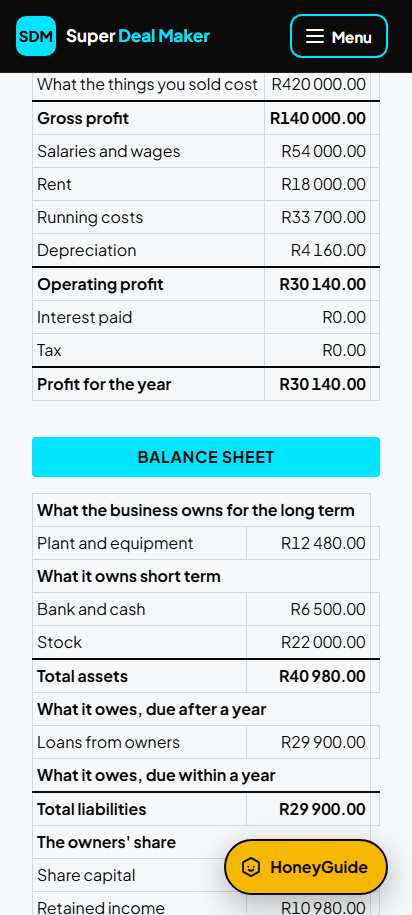
Balance sheet
What the business owns, what it owes and the owners' share. Example: Total assets R40 980; Loans from owners R29 900; Total equity R11 080. Below it: how the owners' share changed (Retained income -R19 160 at the start, plus the profit R30 140, makes R10 980 at the end).
-
Step 24 of 62
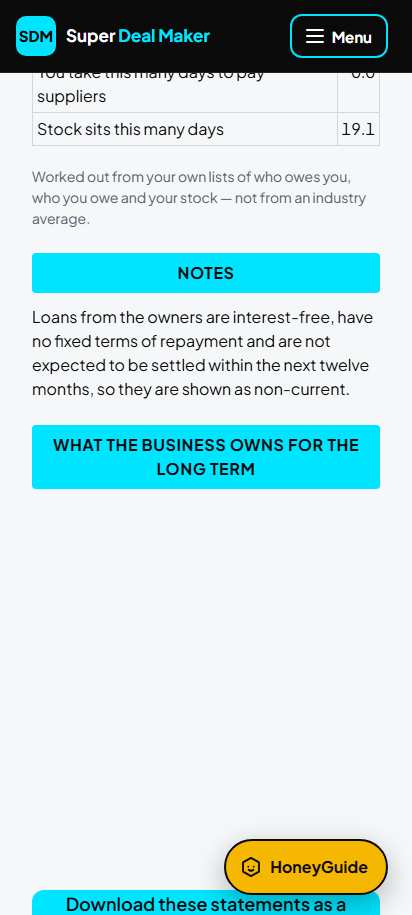
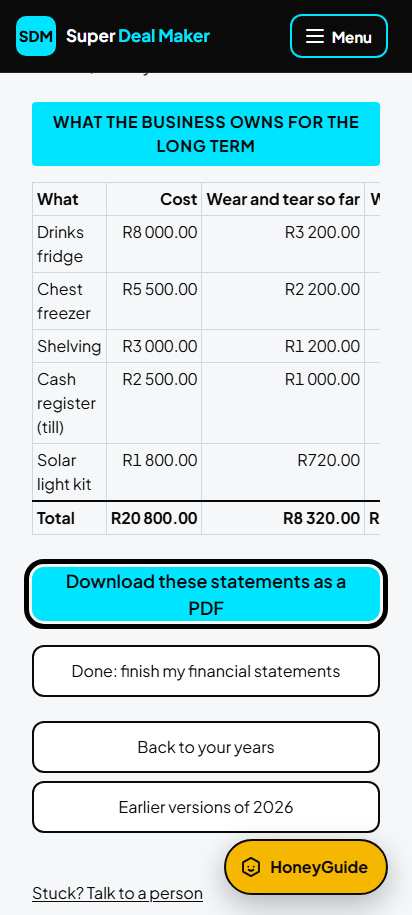
What the business owns for the long term
Each thing from your equipment list, with what it cost, the wear and tear so far and what it is worth now.
Tip: The table is wide: slide it to the left with your finger to see "Worth now".
-
Step 25 of 62
Download the PDF
Tap Download these statements as a PDF. The PDF saves on your phone. You can send it to a funder or a bank.
-
Step 26 of 62
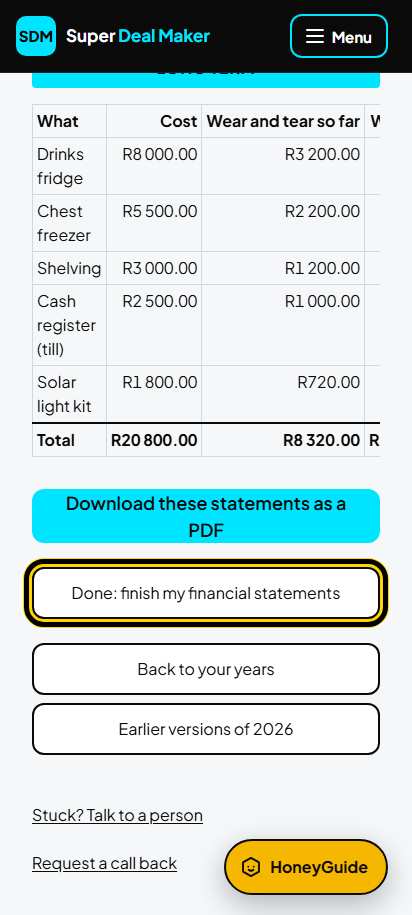
Done
Tap Done: finish my financial statements.
-
Step 27 of 62
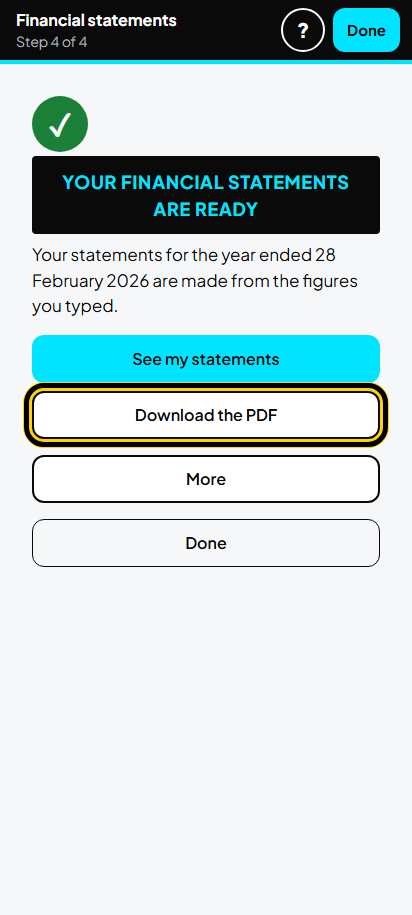
Your financial statements are ready
Tap See my statements to read them again, or Download the PDF.
-
Step 28 of 62
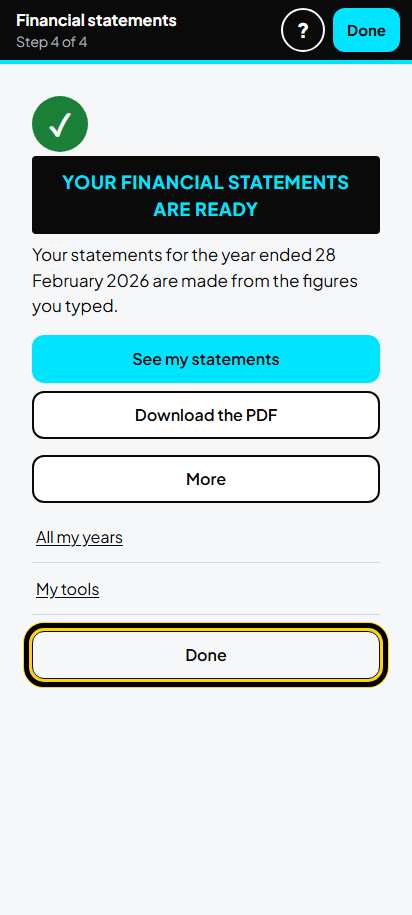
More
Tap More for All my years and My tools. Tap Done to go to your next step.
-
Step 29 of 62
The years you have
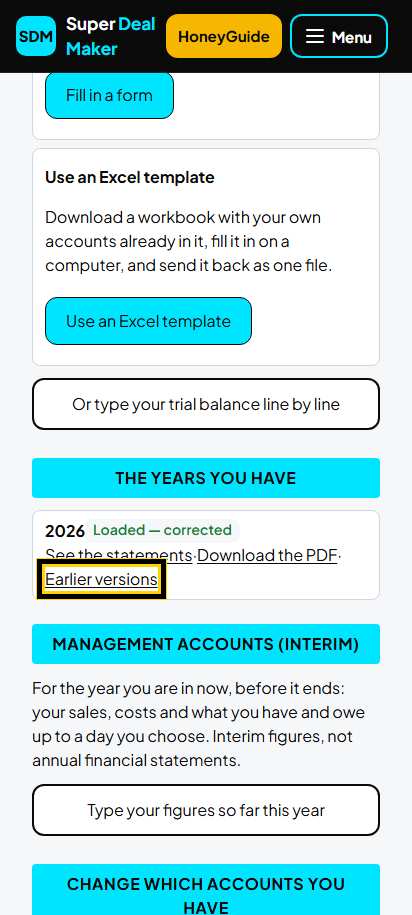
On your financial statements page, under THE YEARS YOU HAVE, each year shows "Loaded" with See the statements, Download the PDF and Earlier versions. Do the same steps for another year.
Part A. Change a year you already loaded
-
Step 30 of 62
Change the figures
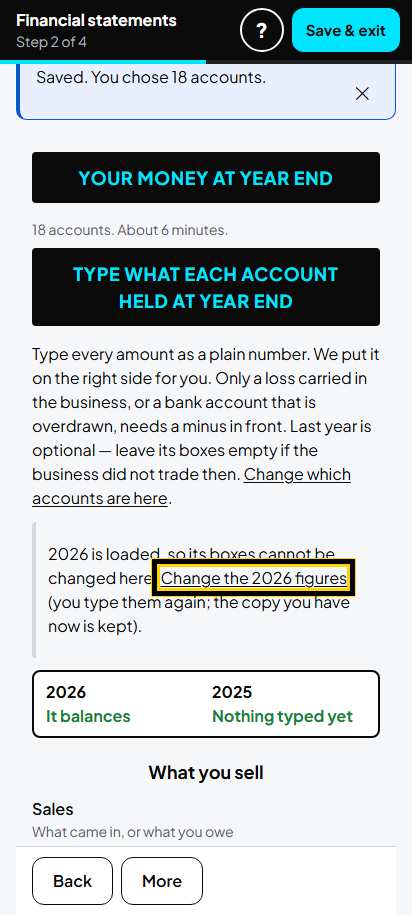
A loaded year cannot be typed over: its boxes are grey. To change it, open Fill in a form and tap Change the 2026 figures. You type the year again; the copy you have now is kept.
-
Step 31 of 62
Yes, replace 2026
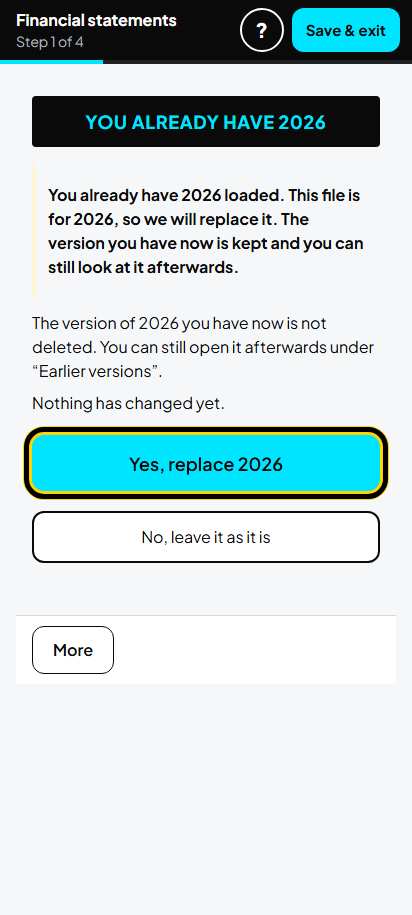
The page says "You already have 2026". Nothing has changed yet. Tap Yes, replace 2026 to type the year again, or No, leave it as it is. Then type the amounts and the lists again (Part A, step 2) and tap Check and load.
-
Step 32 of 62
Earlier versions
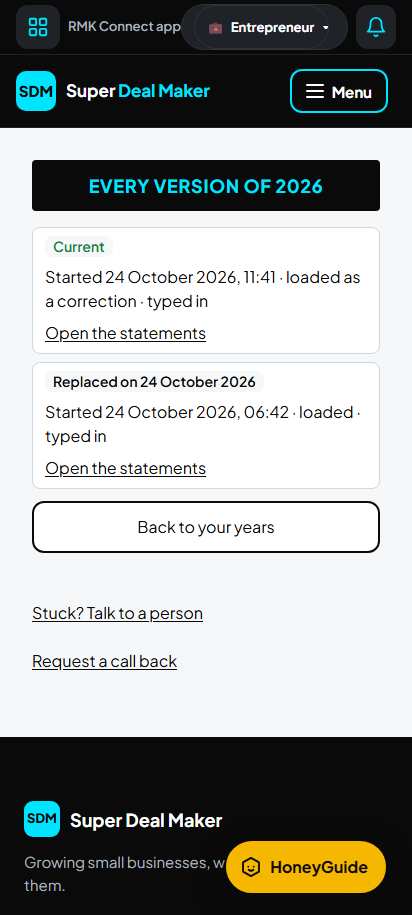
Every version of a year is kept. Earlier versions shows them: the Current one, and the one it replaced, each with Open the statements.
-
Step 33 of 62
Other way: an Excel template
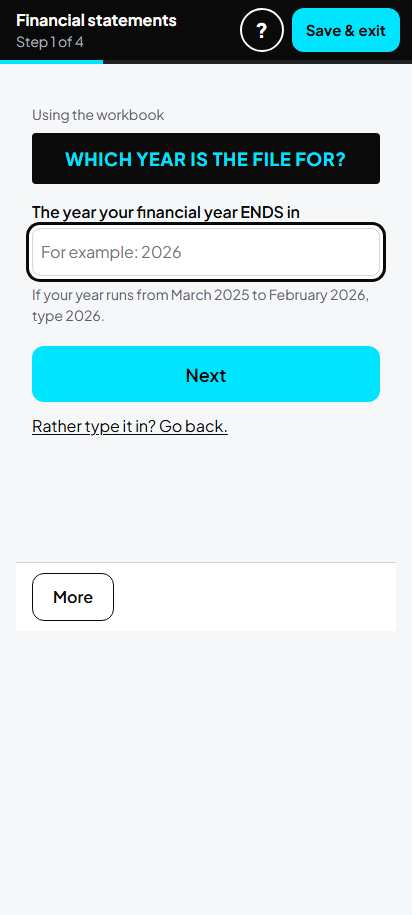
On a computer you can tap Use an Excel template: type the year your financial year ends in, tap Next, download the workbook, fill it in and upload it. It makes the same statements.
Part B. Financial statements project plan
-
Step 34 of 62
Open the project plan
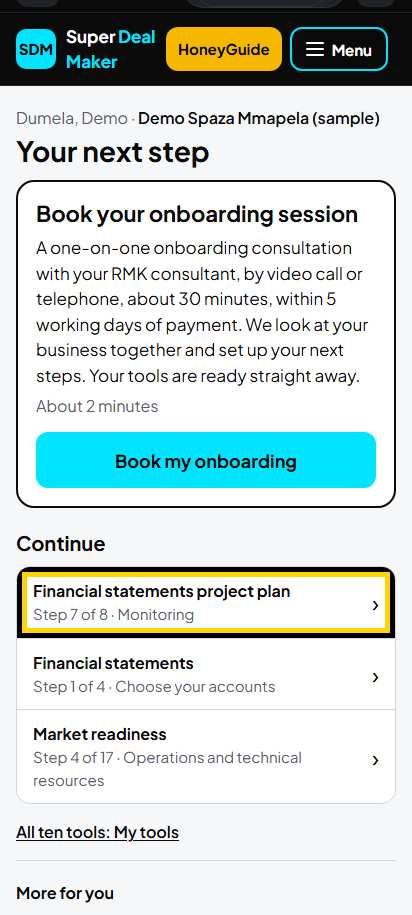
On Home, under Continue, tap Financial statements project plan.
Tip: The row shows once your project plan is started. Not there? Tap Menu, More, Talk to a person and RMK starts it with you.
-
Step 35 of 62
Your project home
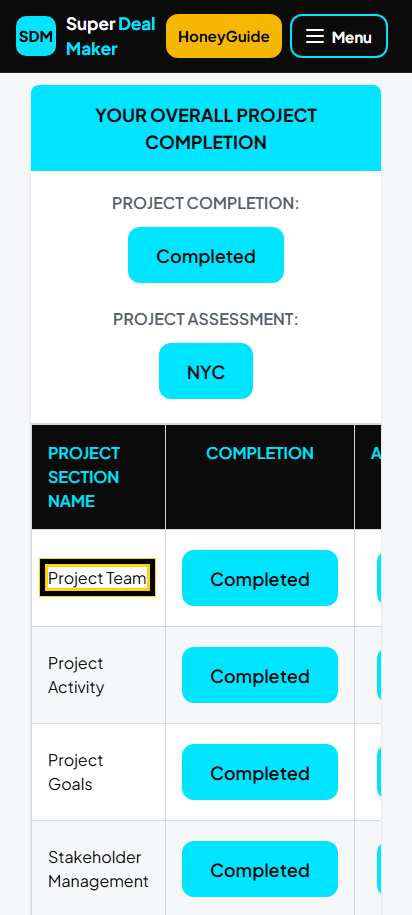
The project has 7 parts: Project Team, Project Activity, Project Goals, Stakeholder Management, Project Resources, Project Risk, Project Monitoring. Tap a part to open it. Each part says Incomplete until you confirm it.
Tip: The example rows ("Define financial management project objectives") are for any business. Change them to your own, or delete them.
-
Step 36 of 62
1. Project team: the list
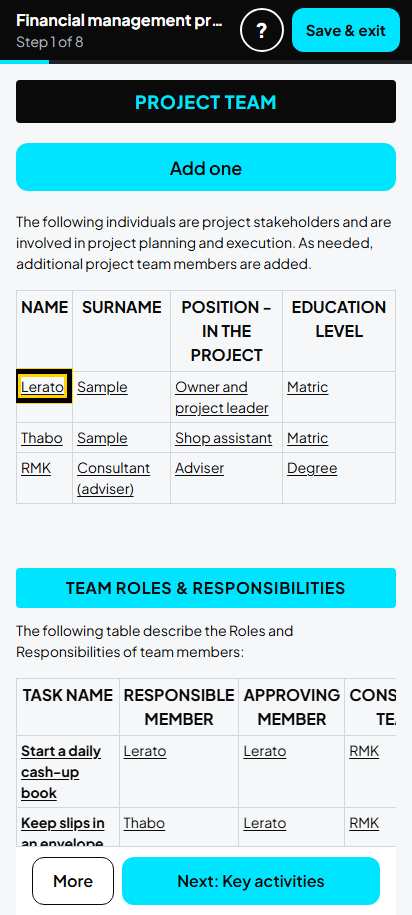
Tap Edit on a person to change it. Tap Add one to add a person. Delete example people you do not have.
-
Step 37 of 62
1. Project team: one person
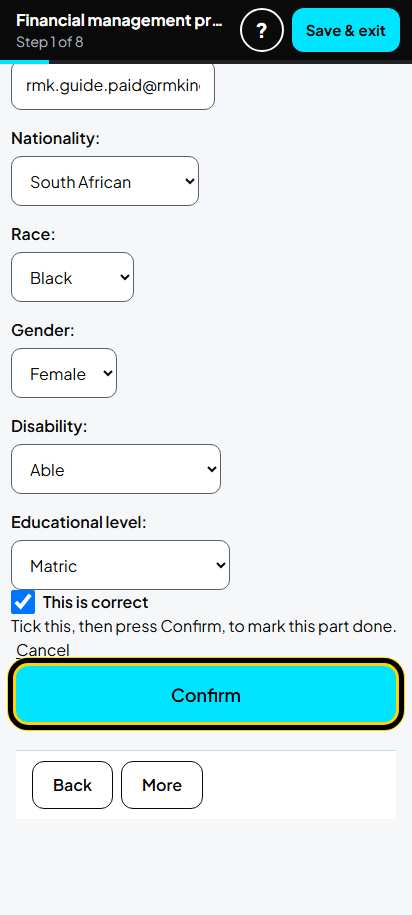
Type the name, the position in the project and the education. Example: Lerato Sample, Owner and project leader, Matric. Tick This is correct. Tap Confirm.
-
Step 38 of 62
2. Project activities: the list
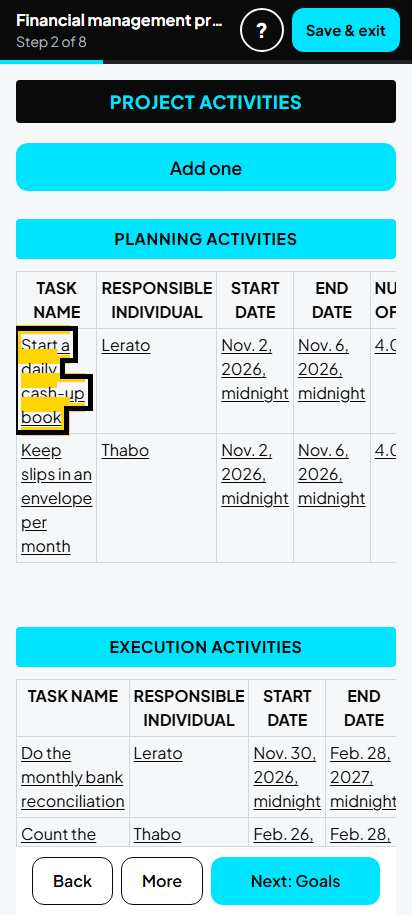
The tasks are grouped by stage: Planning, Execution, Feedback and Reporting. Tap a task to edit it. Tap Add one for a new task. Delete the example tasks you do not need.
-
Step 39 of 62
2. Project activities: one task
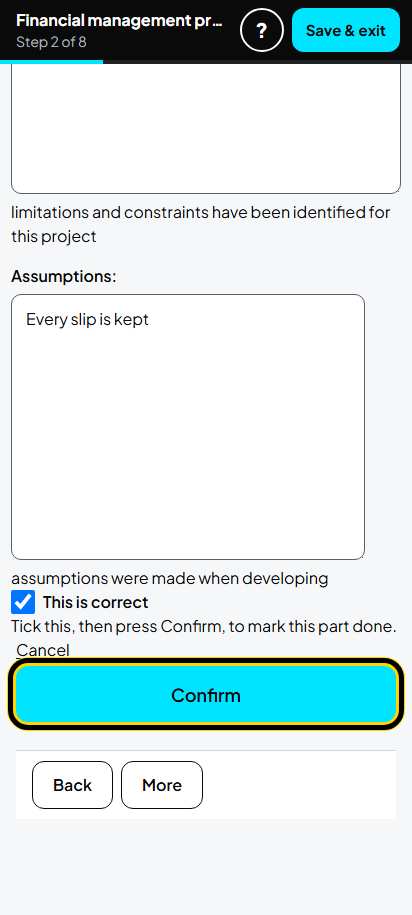
Choose the stage. Type the task, what it is for, the start and end dates, and who does it. Example tasks for your money: Start a daily cash-up book (2 to 6 Nov 2026, Lerato); Keep slips in an envelope per month (Thabo); Do the monthly bank reconciliation; Count the stock at year end (26 to 28 Feb 2027); See a bookkeeper and make the statements (March 2027). Tick This is correct. Tap Confirm.
-
Step 40 of 62
3. Project goals: the list
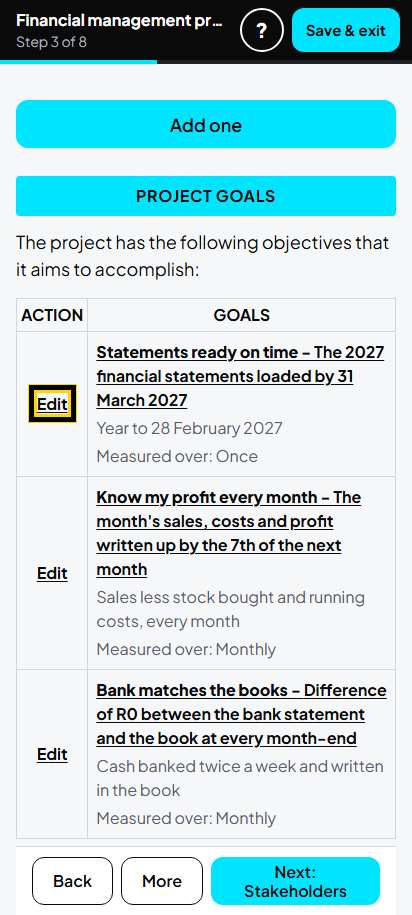
Tap Edit on each goal. Tap Add one for a new goal.
-
Step 41 of 62
3. Project goals: one goal
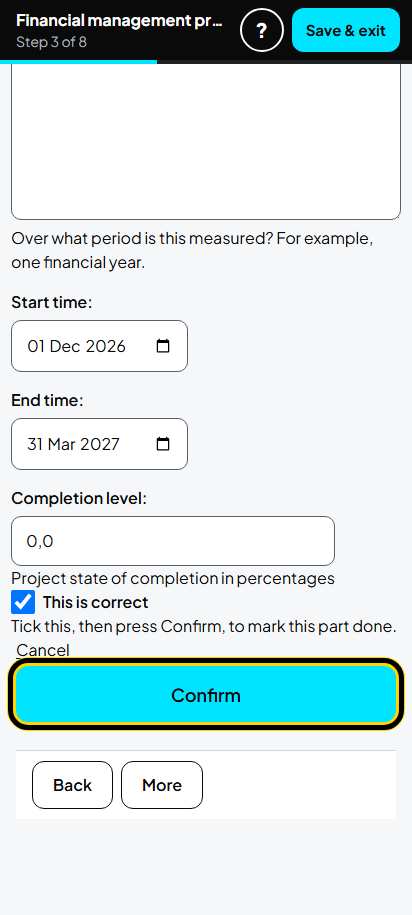
Type the goal and how you will measure it. Example: Know my profit every month, written up by the 7th of the next month. Others: the bank matches the books (R0 difference every month-end); the statements ready on time (2027 loaded by 31 March 2027). Tick This is correct. Tap Confirm.
-
Step 42 of 62
4. Stakeholders: the list
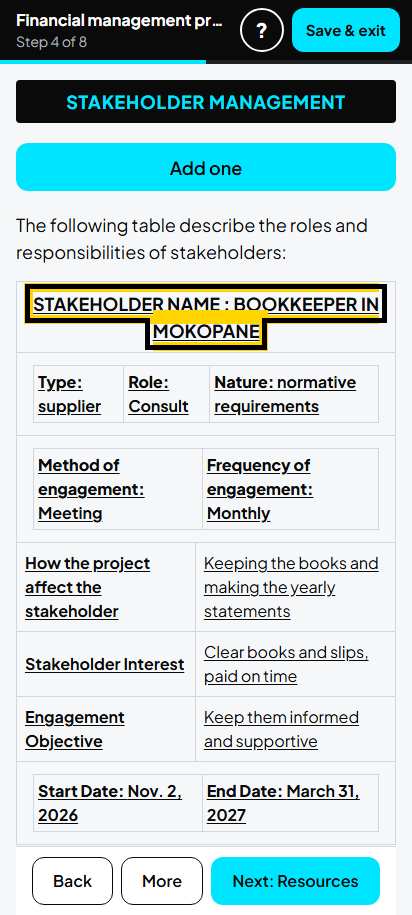
Tap a name to edit it. Tap Add one to add one. Example: the bookkeeper, the bank, the funder, SARS, the shop assistant.
-
Step 43 of 62
4. Stakeholders: one stakeholder
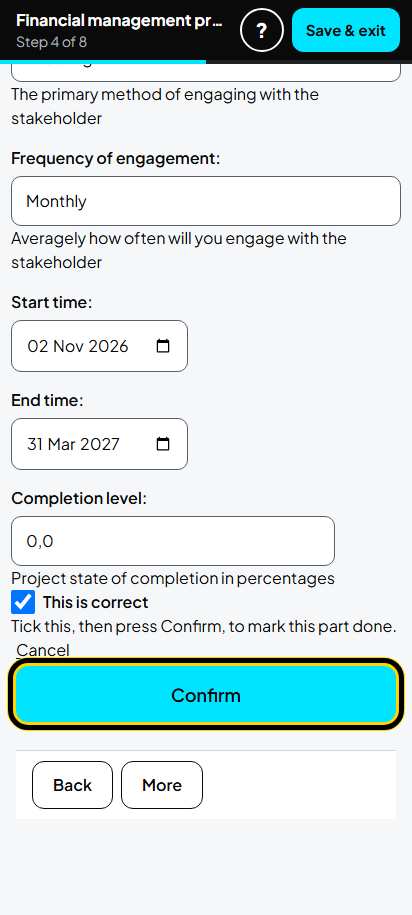
Type the name, choose the type and role, say what they want and how often you meet. Example: Bookkeeper in Mokopane, supplier, Consult, "Clear books and slips, paid on time", monthly. Tick This is correct. Tap Confirm.
-
Step 44 of 62
5. Project resources: the list
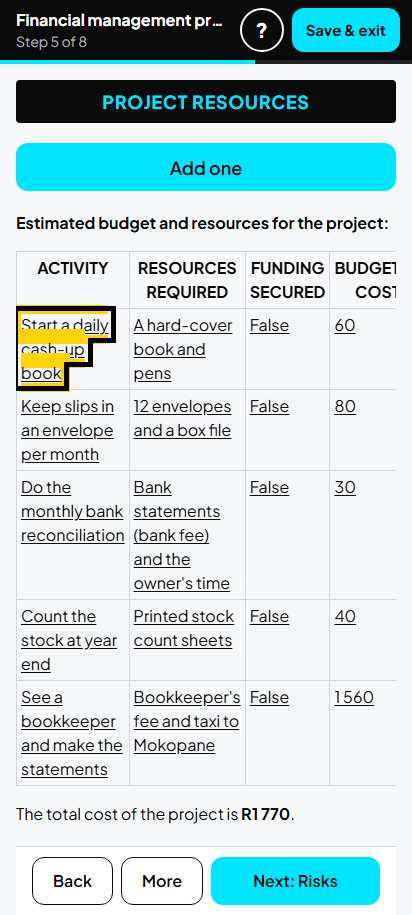
One row for each task. Tap the task to edit it. The total cost shows at the bottom (example R1 770).
-
Step 45 of 62
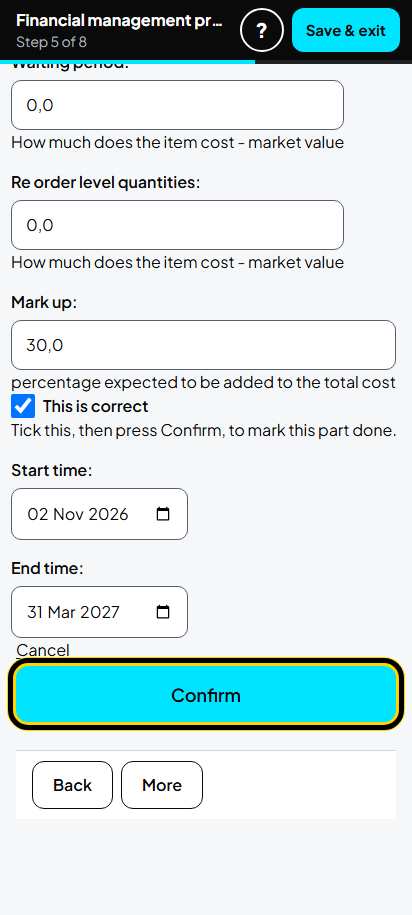
5. Project resources: one row
Type what the task needs and what it costs. Example: Start a daily cash-up book, a hard-cover book and pens, 60. The bookkeeper's fee and taxi: 1560. Tick This is correct. Tap Confirm.
-
Step 46 of 62
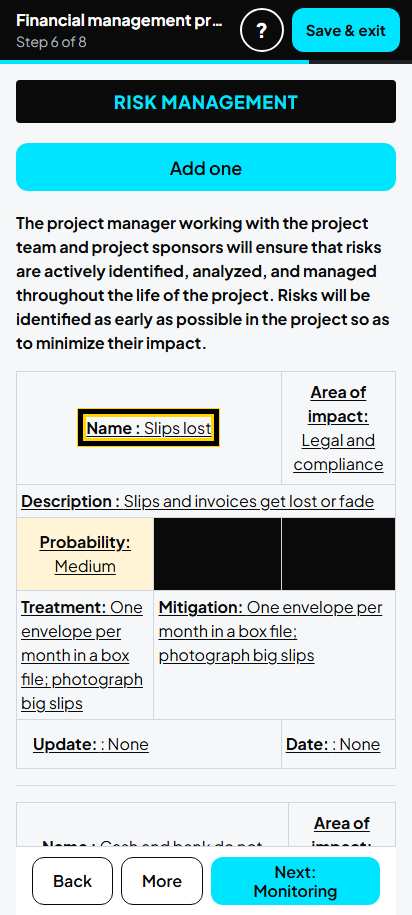
6. Project risks: the list
Tap a risk name to edit it. Tap Add one for a new risk.
-
Step 47 of 62
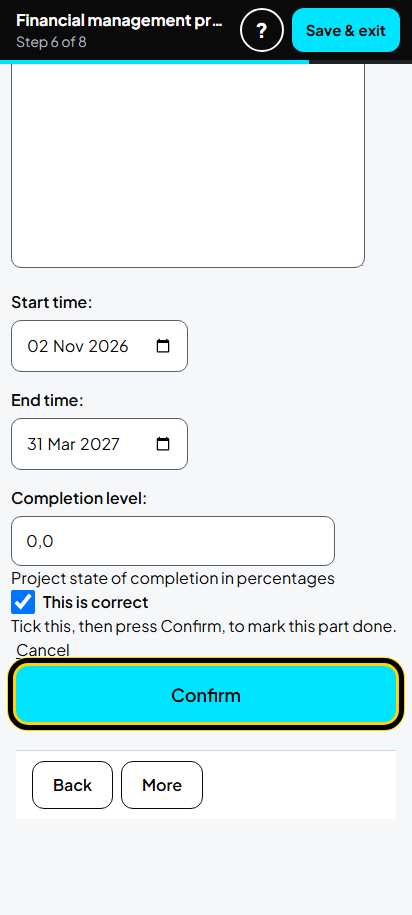
6. Project risks: one risk
Type the risk and what you will do about it. Example: Slips lost; one envelope per month in a box file. Choose every box: area, impact, likelihood, ranking and action. Tick This is correct. Tap Confirm.
Tip: If you leave a box empty, the page tells you which one. Choose it, then tap Confirm again.
-
Step 48 of 62
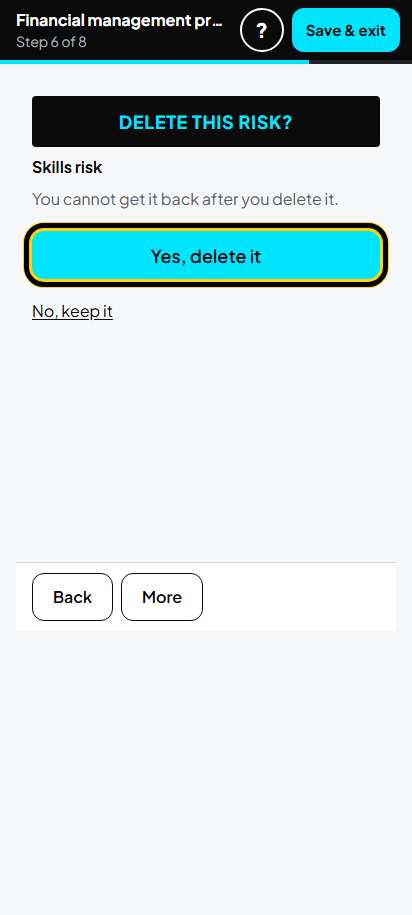
6. Delete an example risk
To remove an example risk you do not need, open it and delete it. The page asks "Delete this risk?". Tap Yes, delete it, or No, keep it.
-
Step 49 of 62
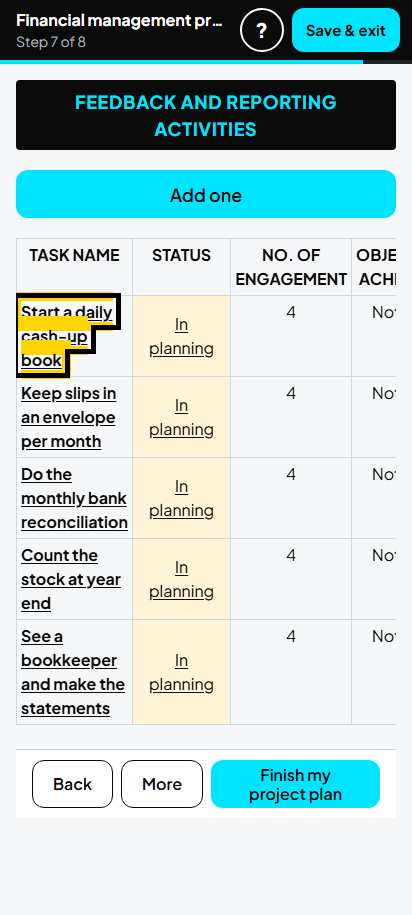
7. Monitoring: the list
One row for each task. Tap the task to edit it.
-
Step 50 of 62
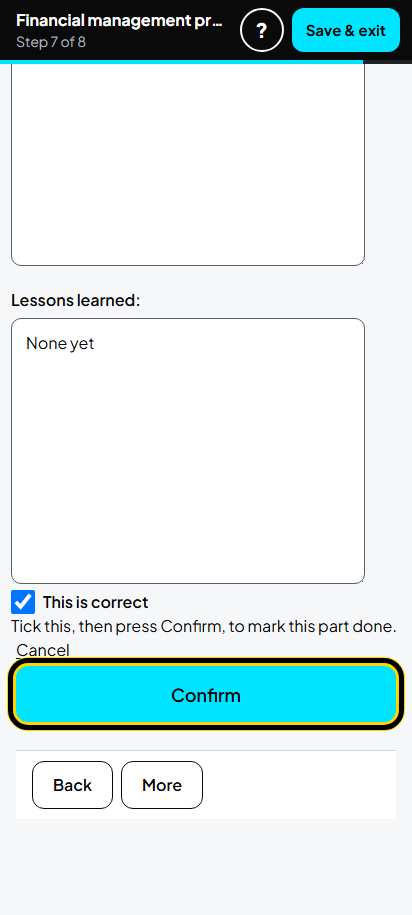
7. Monitoring: one row
Say how you check the task. Example: meeting; check the cash-up book every Sunday and review with the consultant once a month. Tick This is correct. Tap Confirm.
-
Step 51 of 62
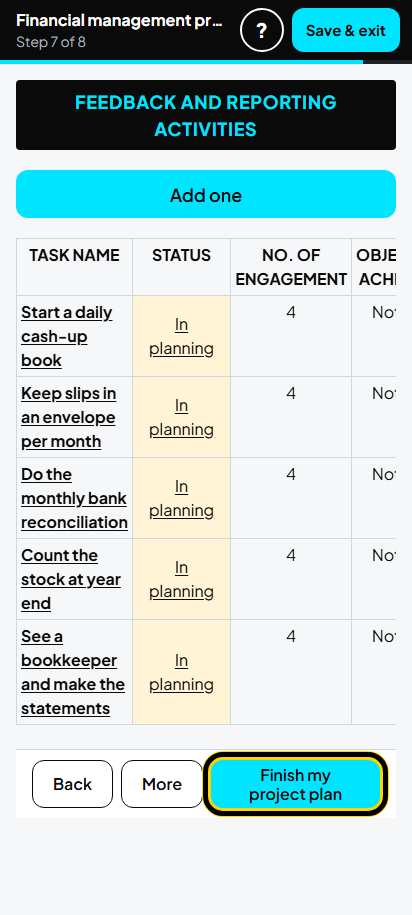
Finish my project plan
On the Monitoring list, tap Finish my project plan.
-
Step 52 of 62
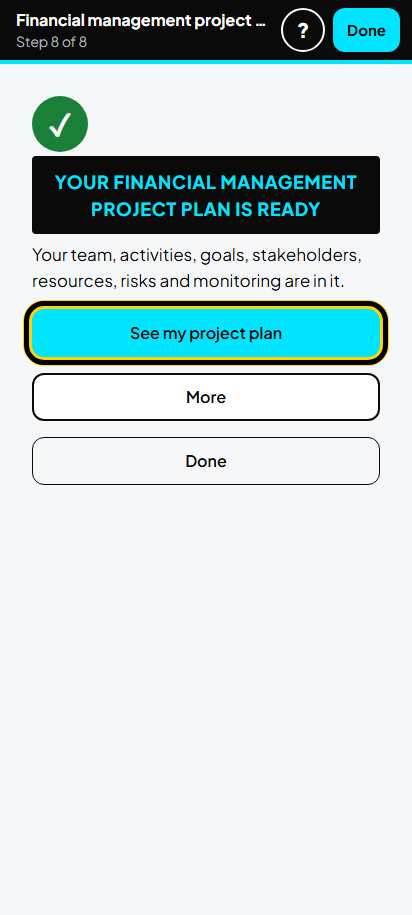
Your project plan is ready
This page says your Financial statements project plan is ready. Tap See my project plan to read it. More has the download, where the project is, and the final report.
Tip: If a part is still empty, this page says which one. Open it, fill it in, and tap Finish my project plan again.
-
Step 53 of 62
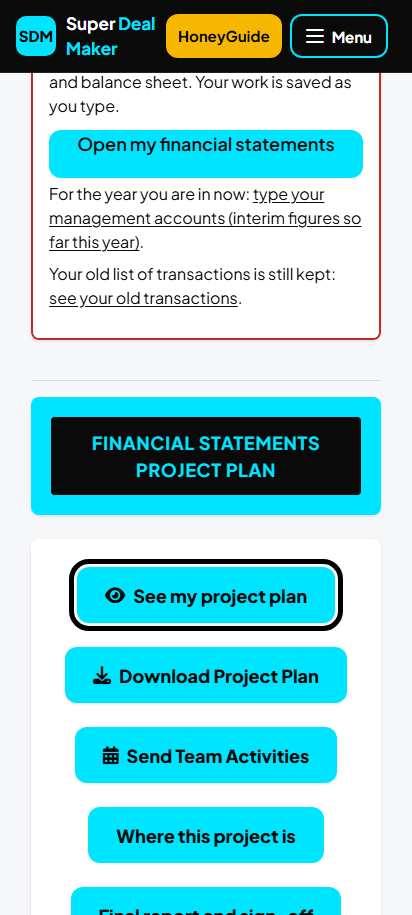
See your project plan
On your project home every part now says Completed. Tap See my project plan.
-
Step 54 of 62
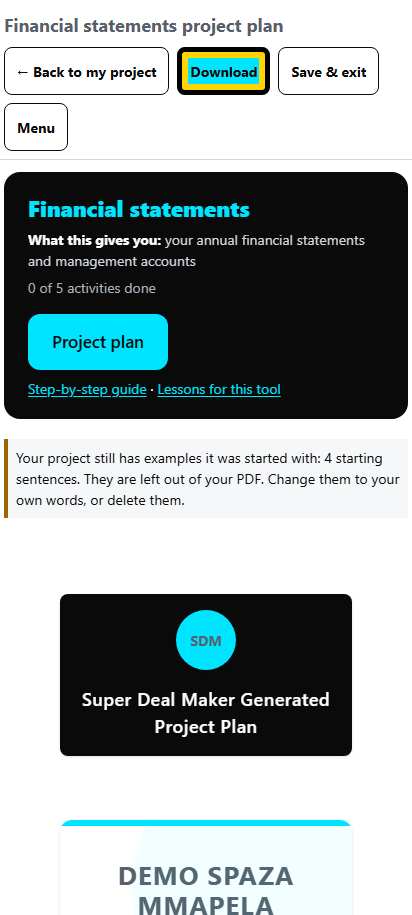
Your project plan on screen
Read it on your phone. Tap Download at the top to save the PDF, or Back to my project.
-
Step 55 of 62
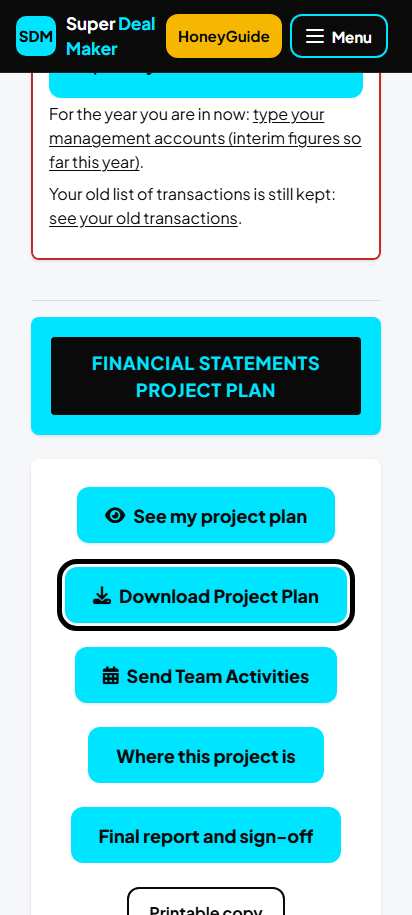
Download the project plan
On your project home you can also tap Download Project Plan.
Tip: Do not tap Send Team Activities unless you want your team to get the tasks.
Stop, carry on, and get help
-
Step 56 of 62
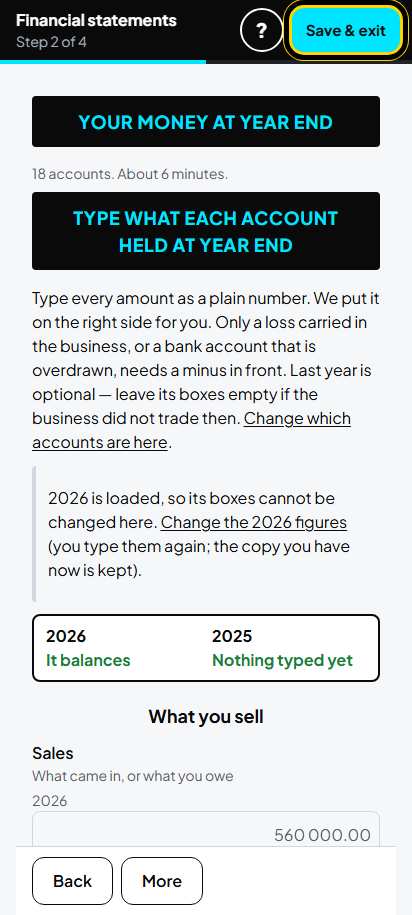
Stop for now
Tap Save & exit at the top. Your amounts are already saved; tap Save draft first if you were typing a list.
-
Step 57 of 62
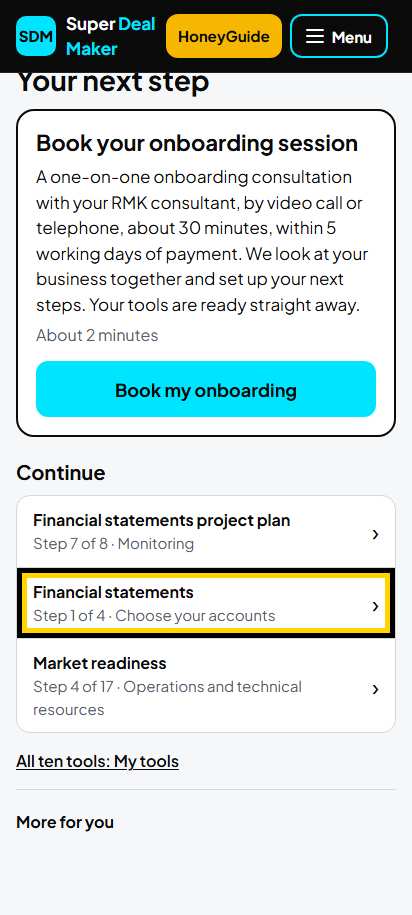
Carry on later
On Home, under Continue, tap Financial statements. It says where you stopped, for example "Step 1 of 4 · Choose your accounts".
-
Step 58 of 62
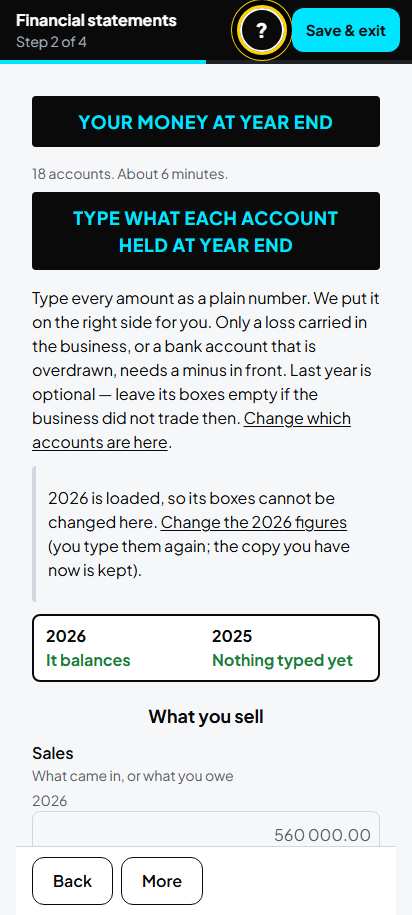
Help for this screen
Tap ? at the top of any screen.
-
Step 59 of 62
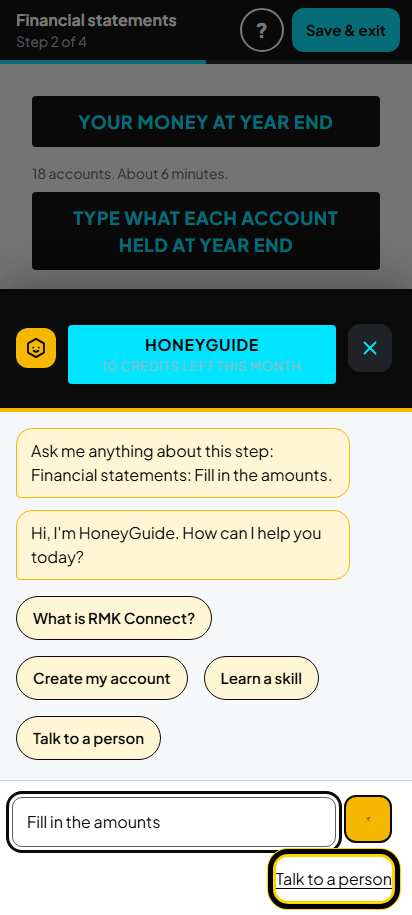
HoneyGuide
HoneyGuide, the RMK assistant, opens over the screen and already knows which step you are on. Type your question, or tap Talk to a person. Tap X to close it.
-
Step 60 of 62
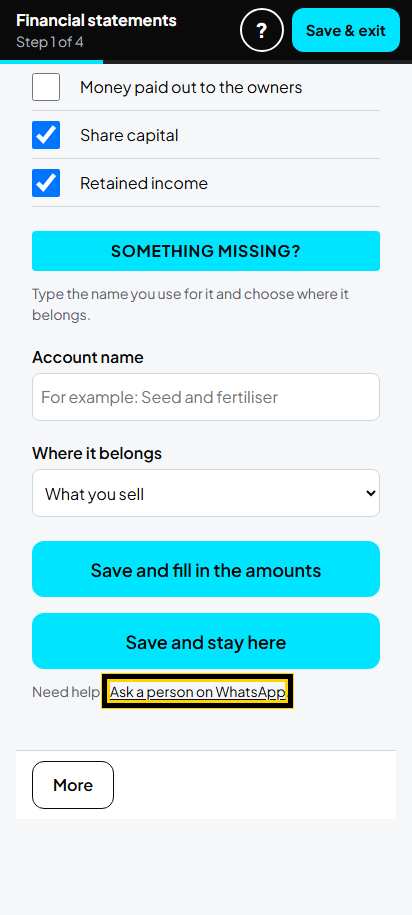
Ask a person on WhatsApp
At the bottom of the accounts and amounts screens: "Need help? Ask a person on WhatsApp". The message already says what you need help with.
-
Step 61 of 62
Get help from a person
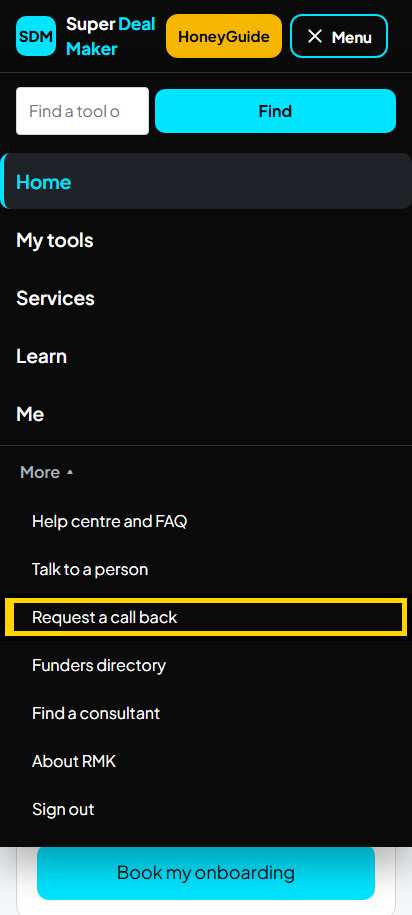
Tap Menu, then More: Talk to a person (WhatsApp) or Request a call back. Many pages also have Stuck? Talk to a person and Request a call back at the bottom.
-
Step 62 of 62
Ask us to phone you
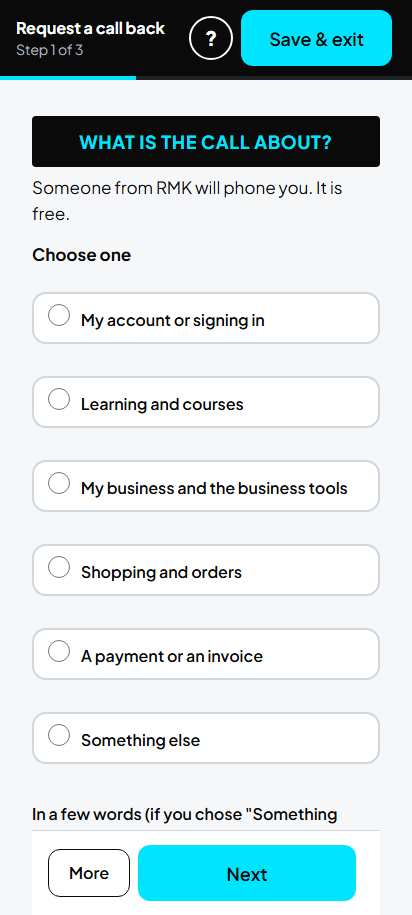
Choose what the call is about, tap Next, and follow the short steps. Someone from RMK will phone you. It is free.
Stop and carry on later
- Every amount saves as you type (it says **Saved**). Tap **Save draft** after typing a list, then **Save & exit** at the top.
- Next time, on **Home** under **Continue** tap **Financial statements**. Or open **Menu**, **My tools**, Financial statements (**Start** or **Open**), and tap **Fill in a form**: your figures are still there.
- The project plan works the same way: **Save & exit** at the top; next time on **Home** under **Continue** tap **Financial statements project plan**.
Download your work
- Financial statements: on your statements tap **Download these statements as a PDF**, or **Download the PDF** on the "ready" page or under The years you have (Standard and up). About 3 seconds, 3 pages.
- Project plan: on your project home tap **Download Project Plan**, or **See my project plan** and then **Download** (Standard and up). About 4 seconds, 14 pages.
- Free account: you see your statements and project plan on screen; to download you see a note "Your financial statements need Standard", with **See it on screen**. The blank Excel workbook can be downloaded by everybody.
- You can download up to 10 documents a day. After that a page says to come back tomorrow.
If something goes wrong
- "It is out by" exactly this year's profit: you typed Retained income at the END of the year. Type the START figure the yellow box shows.
- "It is out by" another amount: check each box against your papers. A cost typed as a minus, or a figure typed twice, are the usual mistakes.
- Check and load lists "no stock is listed behind it" or "has no asset schedule": tap **Back to your figures**, open the list under that account, tap **Add an item**, fill it in and tap **Save draft**.
- The list under an account looks closed: tap its line ("The stock behind this amount") to open it.
- The check page says "Worth knowing" about wear and tear: this is only a note from the date bought. If your bookkeeper used another figure, keep yours.
- The boxes are grey and cannot be changed: the year is loaded. Tap **Change the 2026 figures** (see "Change a year you already loaded").
- The accounts screen ticks accounts for the wrong kind of business: untick them. To change your kind of business, ask us to phone you.
- "Something went wrong on our side": tap **Go back** and try again. If it happens again, ask us to phone you.
Ask for help
- Tap **?** at the top of any screen for help on that screen (HoneyGuide).
- On the accounts and amounts screens: "Need help? **Ask a person on WhatsApp**".
- Tap **Menu**, then **More**: **Talk to a person** on WhatsApp, or **Request a call back** (free).
- On many pages: **Stuck? Talk to a person** and **Request a call back**.
- With Standard: your RMK consultant helps you in the onboarding session and the monthly group session.
Still stuck?
Ask HoneyGuide (the “?” on every screen of the tool), or a real person answers.