Home / Help / How to use / Market readiness
How to use Market readiness
This guide shows every screen of market readiness on a phone. The example is a sample spaza shop, Demo Spaza Mmapela (sample). Choose your own answers where the guide gives the example. Part A is market readiness: the questions a bigger buyer asks, your score and your report. Part B is the Market readiness project plan: the steps you will take to reach more buyers.
Before you start
Have these ready
- You need a Super Deal Maker account. Sign in first. Do your business plan first: market readiness reads your sales from it.
- Have these ready if you have them: your CIPC company papers, tax compliance letter (SARS PIN), B-BBEE affidavit, proof of address, lease, trading licence and bank statements.
- There are 16 screens with about 240 questions, in 5 parts. It takes long: do one or two screens at a time. Everything you save stays saved.
- Funding readiness asks the same questions. If you did funding readiness first, most answers are already here: just check them and save.
- On every screen: **Save & exit** at the top stops for now. **?** gives help. **Next:** at the bottom takes you to the next screen.
Step by step
Part A. Start: open your market readiness
-
Step 1 of 61
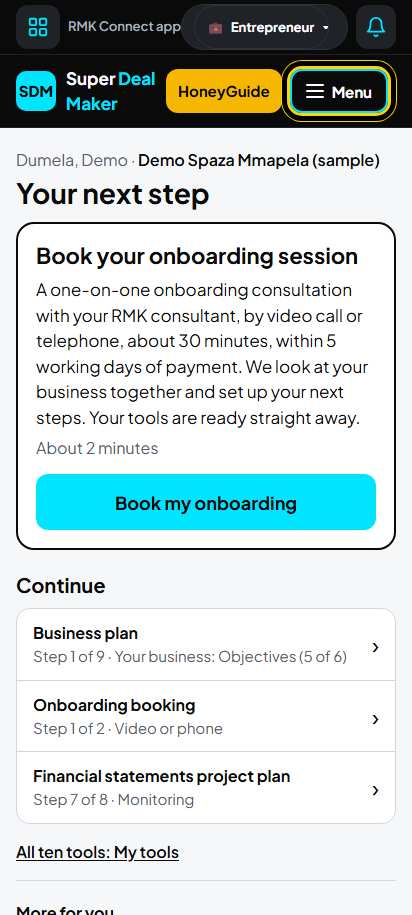
Open the menu
On Home, tap Menu.
Tip: Home's Your next step card, or a row under Continue, may open your market readiness straight away.
-
Step 2 of 61
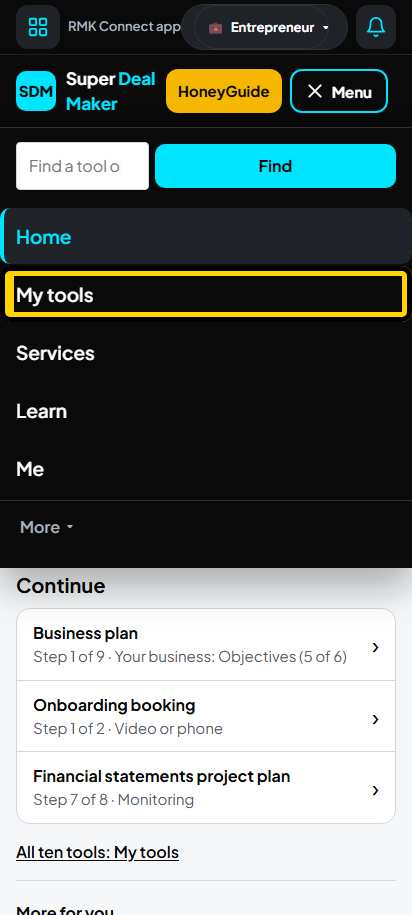
My tools
Tap My tools.
-
Step 3 of 61
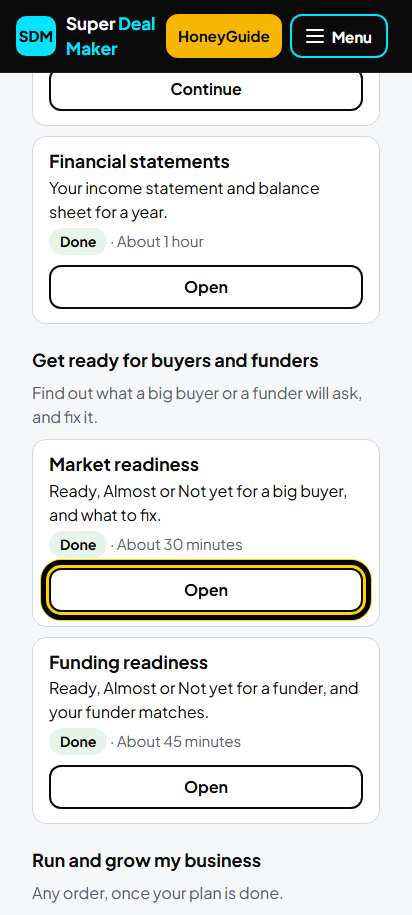
Market readiness
On the Market readiness card, tap Start.
Tip: The first time the button says Start, later Continue. When every screen is answered it says Open.
-
Step 4 of 61
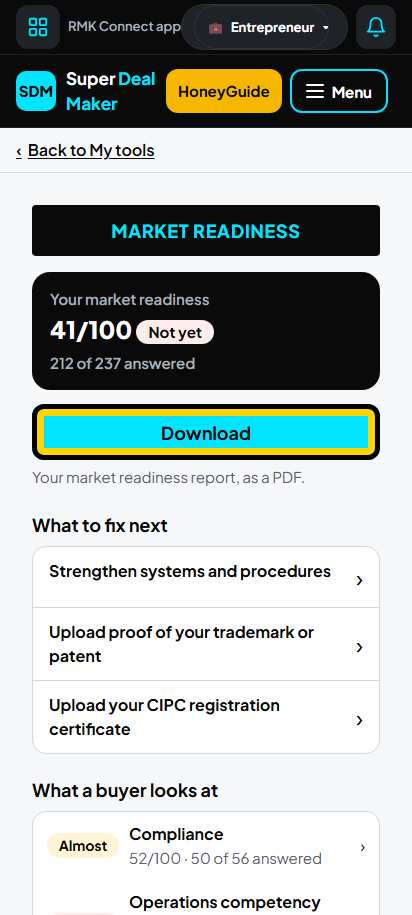
Your market readiness page
At the top is your score, for example "41/100 Not yet", and how many questions you answered. The first time, tap Start the questions. Later the big button says Continue where you left off. When every screen is answered it says Download: your market readiness report as a PDF.
Part A. How each of the 16 screens works
-
Step 5 of 61
Your answers
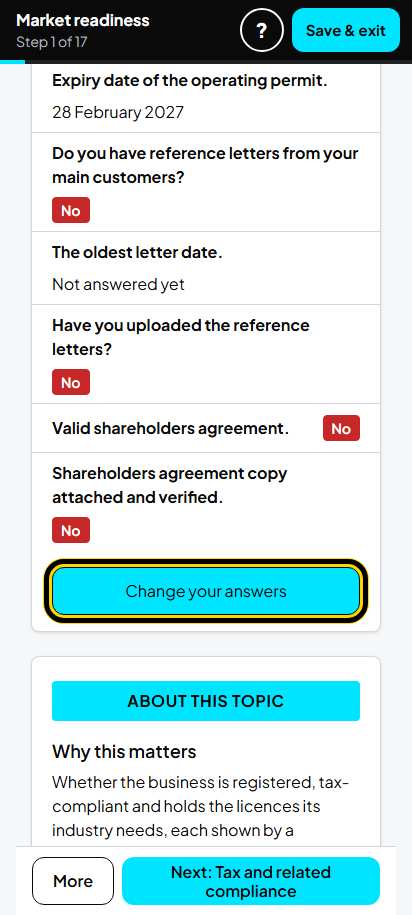
Each screen first shows your answers and a score. The first time, tap Answer these questions. Later it says Change your answers.
Tip: The bar at the top says where you are: "Step 1 of 17". There are 16 screens, then your result.
-
Step 6 of 61
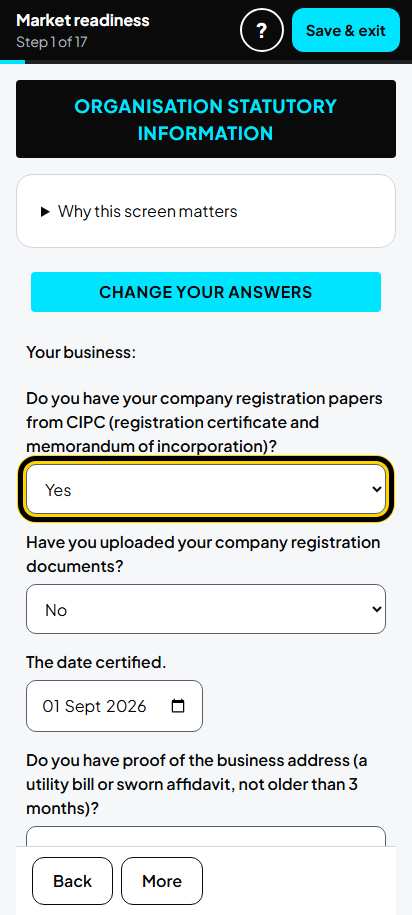
Choose an answer in each box
Tap a box and choose. Most questions are Yes, No, Not sure yet or Does not apply to me. Type a date where it asks one. Example, screen 1 (Organisation statutory information): CIPC papers Yes, uploaded No, date certified 1 Sep 2026, proof of address Yes, lease Yes until 28 Feb 2027, permit to trade Yes.
Tip: "Uploaded" means the document is on Super Deal Maker. Say No until you upload it (see "Upload a document" below).
-
Step 7 of 61
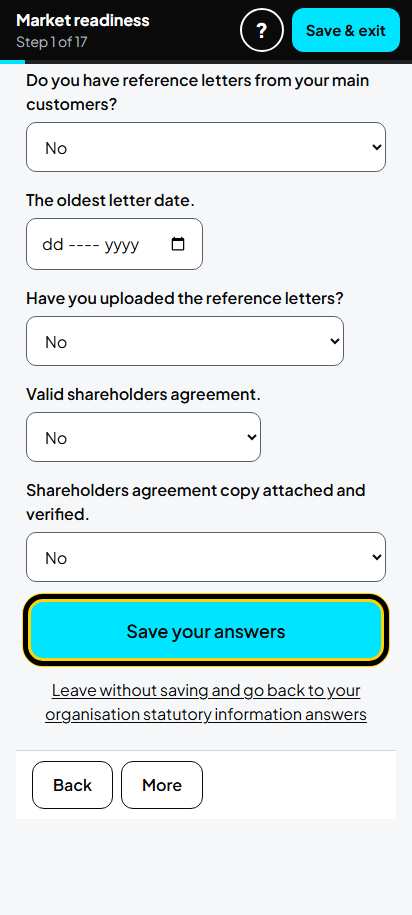
Save your answers
Scroll down. Tap Save your answers.
-
Step 8 of 61
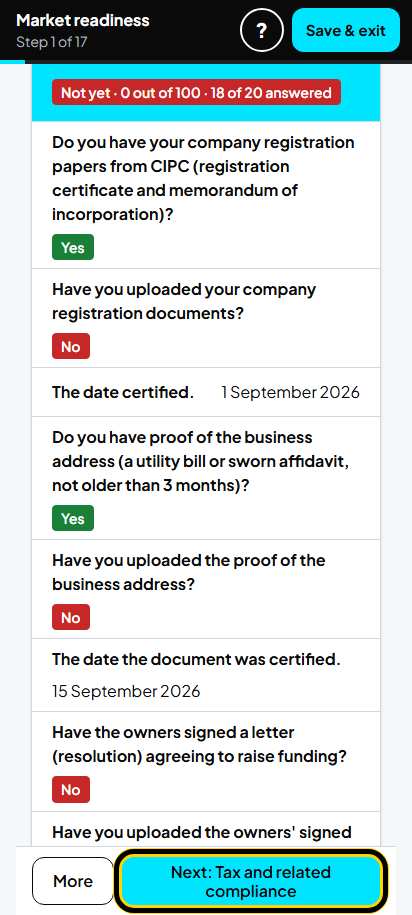
Go to the next screen
You see your answers again. Tap Next: at the bottom (here Next: Tax and related compliance). Do the same on every screen.
Part A, part 1 of 5. Compliance
-
Step 9 of 61
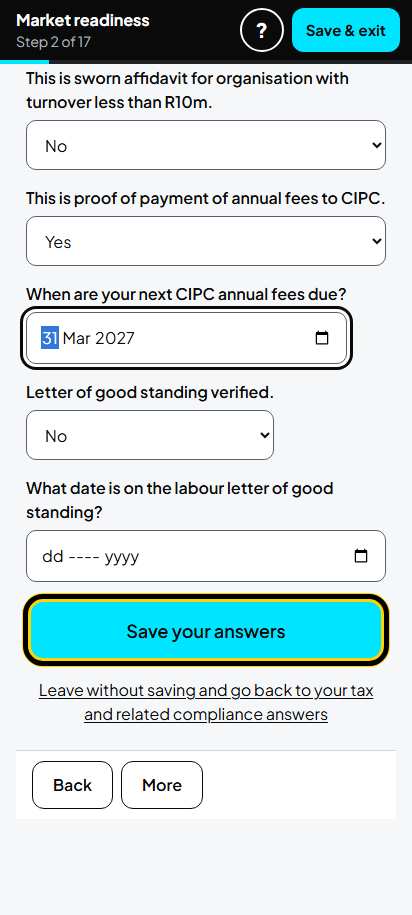
Screen 2. Tax and related compliance
Tax clearance: Yes, and the date it runs out (example 28 Feb 2027). Business bank account and statements: Yes. Not on the government supplier list (CSD): No. B-BBEE affidavit: Yes, until 28 Feb 2027. CIPC annual fees paid: Yes, next due 31 Mar 2027. Tap Save your answers.
-
Step 10 of 61
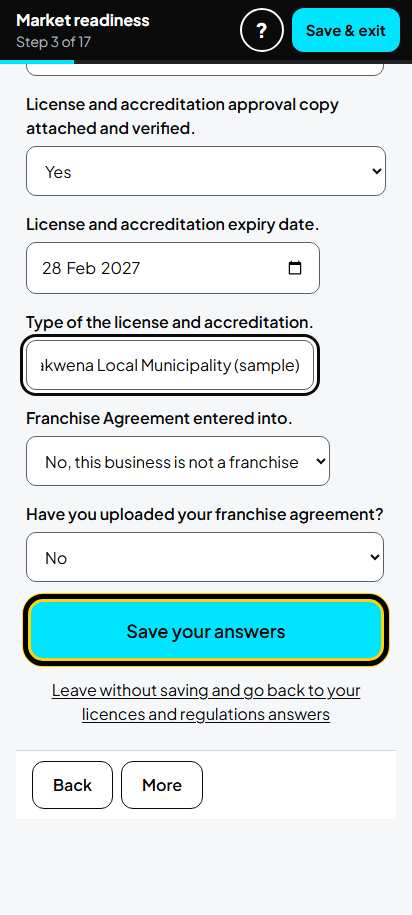
Screen 3. Licences and regulations
If your business does not need an environmental, safety (OHS), SABS or food (HACCP) approval, choose No, this business does not need one. Trading licence: Yes, the date it runs out, and its name (example: Trading licence, Mogalakwena Local Municipality). Franchise: No. Tap Save your answers.
Part A, part 2 of 5. Can you deliver? (operations)
-
Step 11 of 61
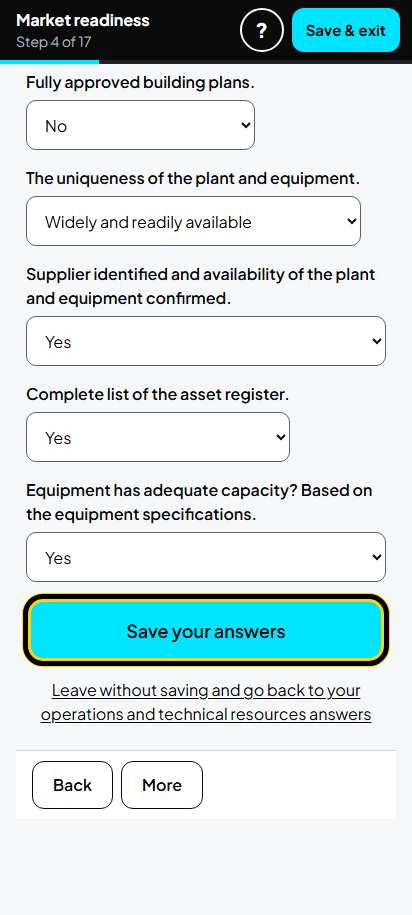
Screen 4. Operations and technical resources
Stock easy to get (within 5 working days), the room is secured with a lease, equipment easy to buy, you keep a list of what you own: Yes. Tap Save your answers.
-
Step 12 of 61
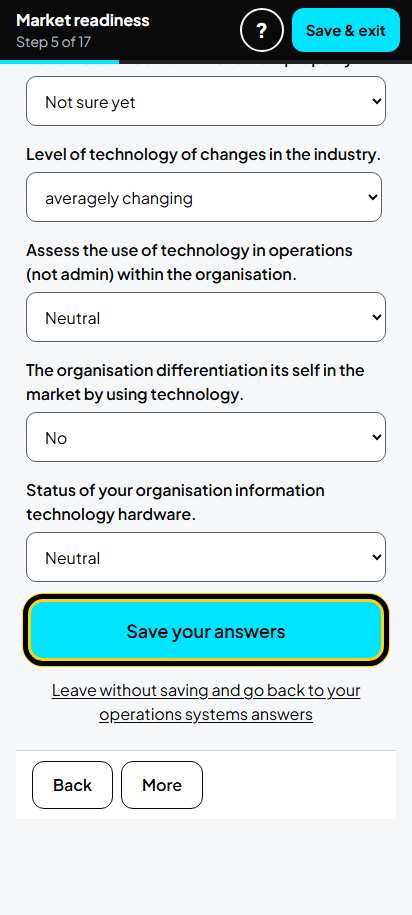
Screen 5. Operations systems
How you work. A shop: batch process, no special skill needed, gross profit below 40%, one shift, no trademark or patent. Tap Save your answers.
-
Step 13 of 61
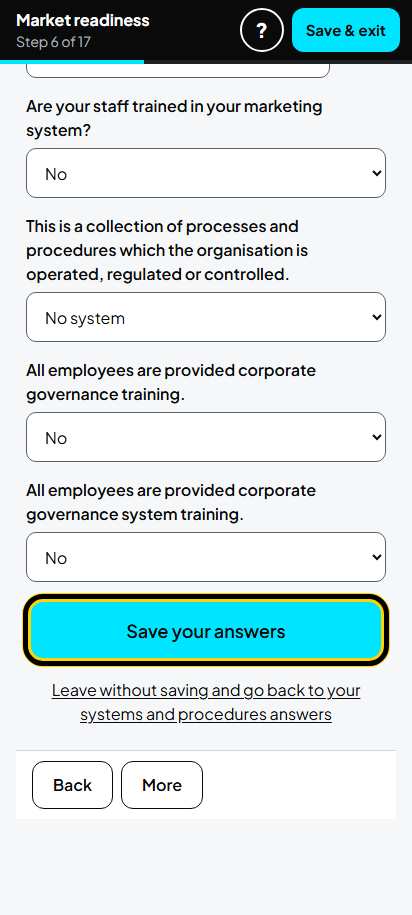
Screen 6. Systems and procedures
Are your ways of working written down? Example: stock and money "insufficiently documented"; staff, marketing and governance "No system". Tap Save your answers.
Part A, part 3 of 5. Your people
-
Step 14 of 61
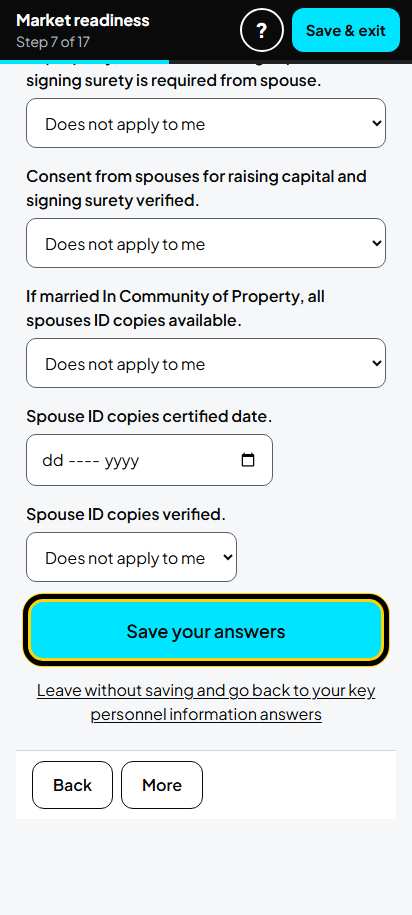
Screen 7. Key personnel information
About the owner: ID copy, proof of address, share certificate: Yes if you have them. Uploaded yet? No until you upload them. Not married in community of property? Then the spouse questions are Does not apply to me. Tap Save your answers.
-
Step 15 of 61
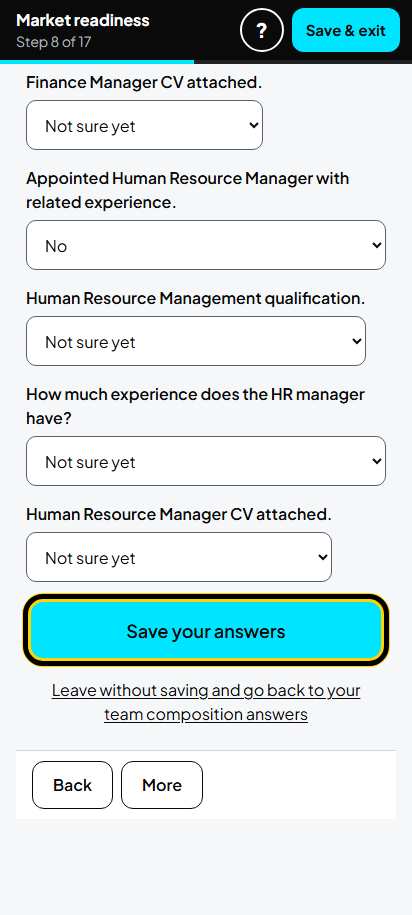
Screen 8. Team composition
The owner runs the shop: general manager Yes, Matric, more than 7 years of experience. No separate operations, marketing, money or staff manager: No. Tap Save your answers.
Tip: A small shop gets a low score here. That is normal: answer honestly.
-
Step 16 of 61
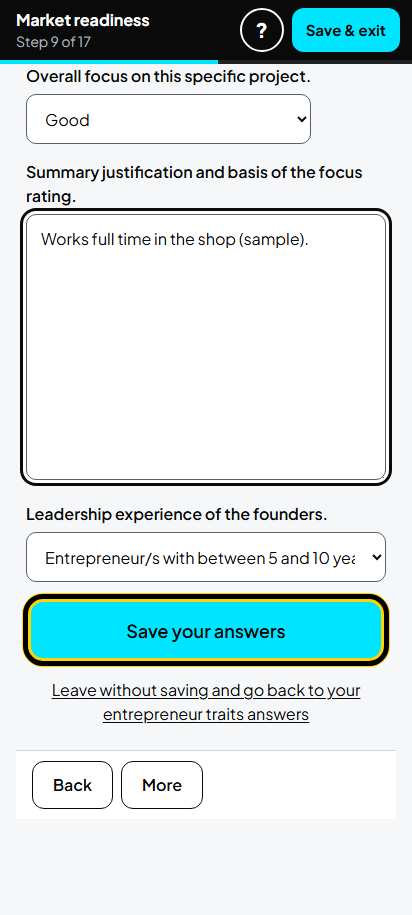
Screen 9. Entrepreneur traits
Say how strong you are in each thing (example: vision Averagely, the rest Good). Write one short sentence for each, for example "Started the shop in 2022 with R30 000 of own money". Tap Save your answers.
-
Step 17 of 61
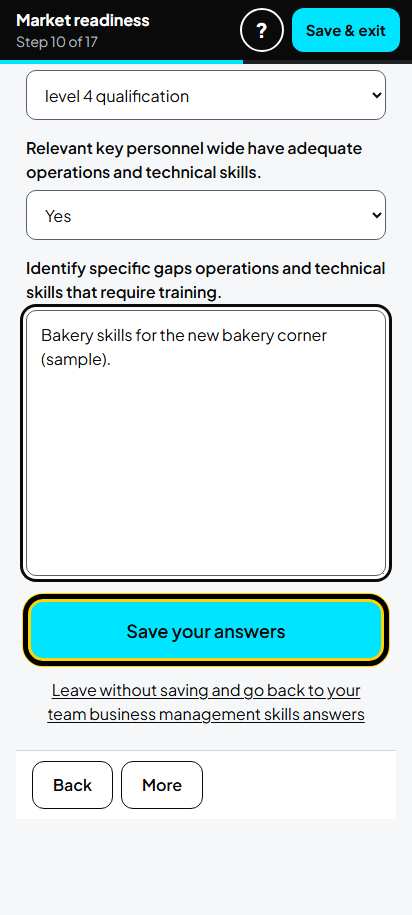
Screen 10. Team business management skills
For each skill choose the highest school level in the business (Matric is level 4) and say in a few words what is missing. Tap Save your answers.
Part A, part 4 of 5. Your market
-
Step 18 of 61
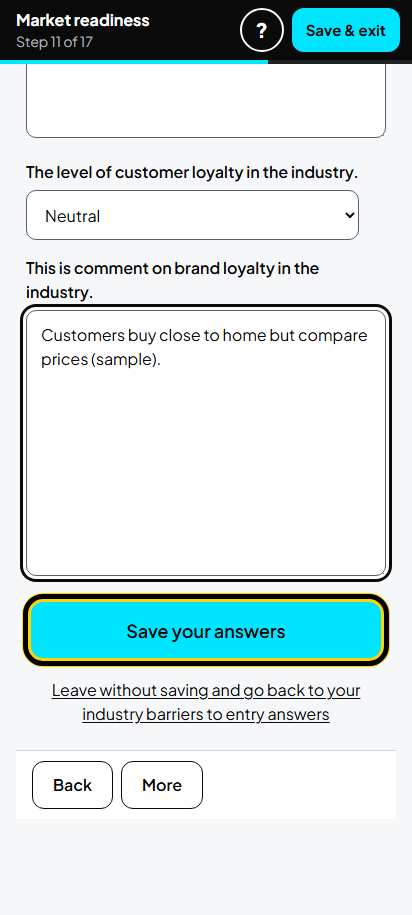
Screen 11. Industry barriers to entry
How hard is it for a new shop to start? Example: licence takes less than 6 months, low profits in this trade, customers compare prices (Neutral). Choose the closest answer when yours is not listed. Tap Save your answers.
-
Step 19 of 61
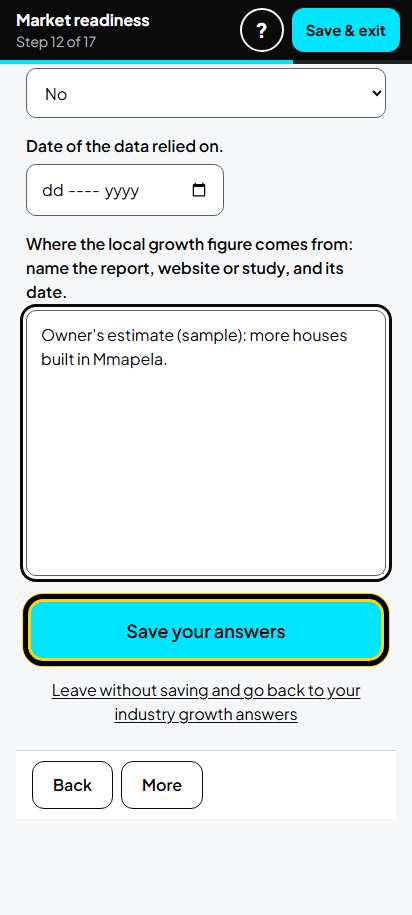
Screen 12. Industry growth
How fast does your trade grow? Example: below 5% in the country and the province, 5% to 10% in your village. Proof from a report: No if it is your own estimate; write "Owner's estimate". Tap Save your answers.
-
Step 20 of 61
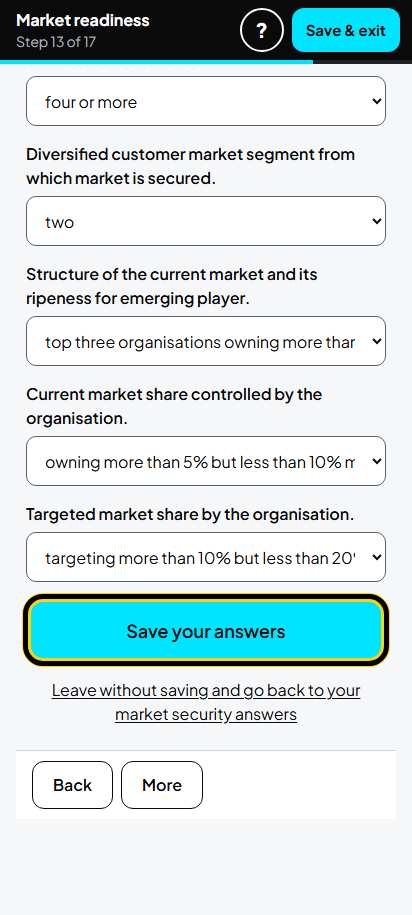
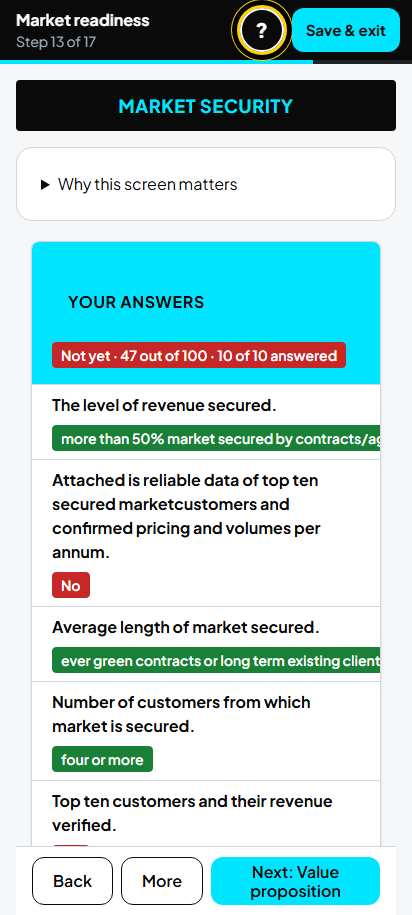
Screen 13. Market security
How sure are your sales? Example: more than 50% from customers you already have, four or more customers and products, two kinds of customers (households, school learners), market share 5% to 10% now, 10% to 20% as the target. Tap Save your answers.
-
Step 21 of 61
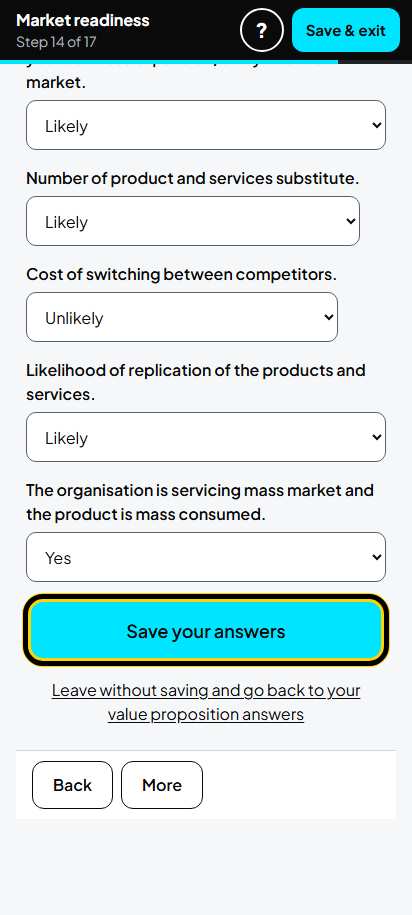
Screen 14. Value proposition
Why customers choose you. Example: some uniqueness, quality Good, competitors likely to react. Tap Save your answers.
Part A, part 5 of 5. B-BBEE and jobs
-
Step 22 of 61
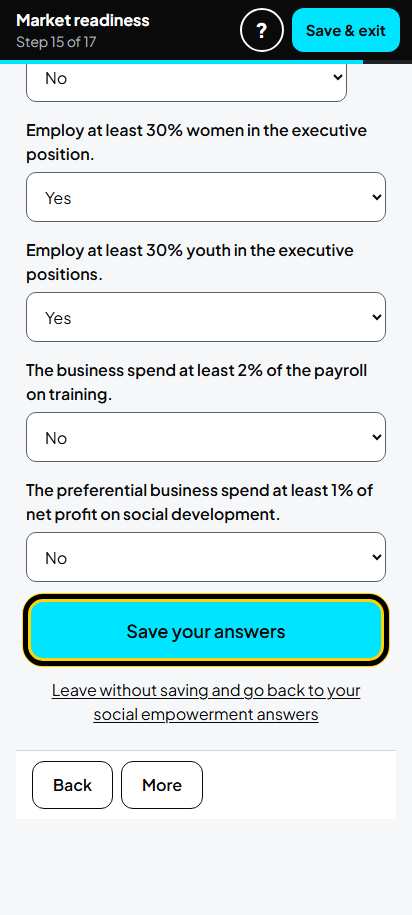
Screen 15. Social empowerment
Small business (EME). Black, women and youth ownership: 51% or more. Women and youth in leadership: Yes. Tap Save your answers.
-
Step 23 of 61
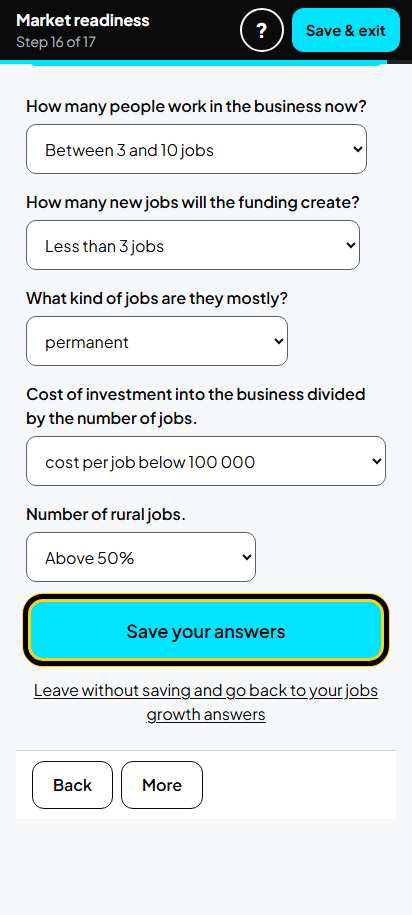
Screen 16. Jobs growth
Jobs now: between 3 and 10. New jobs: fewer than 3. Permanent jobs, cost per job below R100 000, more than 50% rural. Tap Save your answers.
Part A. Your result
-
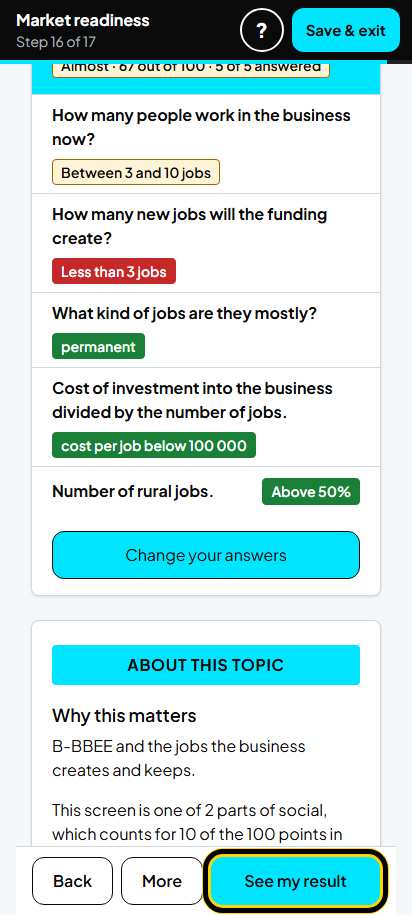
Step 24 of 61
See my result
On the last screen (Jobs growth), tap See my result.
-
Step 25 of 61
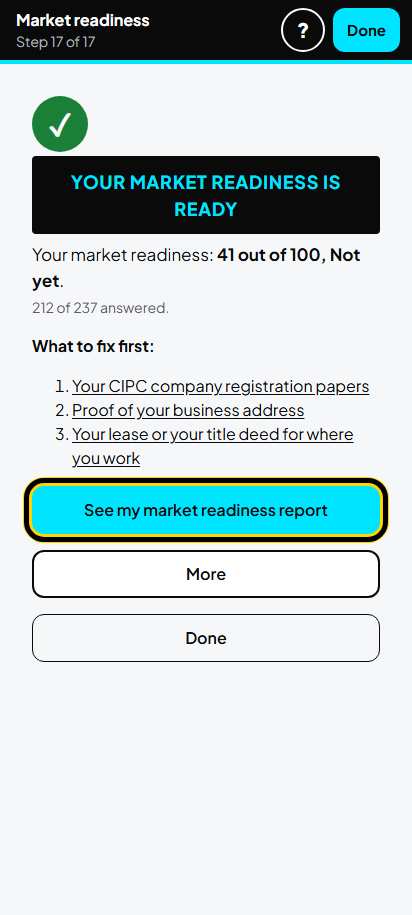
Your market readiness is ready
You see your score and the 3 things to fix first. Tap a thing to fix it. Tap See my market readiness report to read the whole report.
-
Step 26 of 61
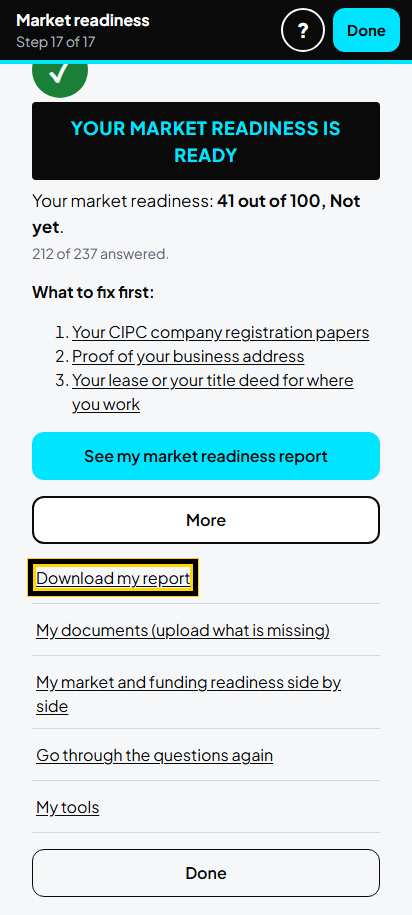
More
Tap More for: Download my report, My documents (upload what is missing), your market and funding readiness side by side, Go through the questions again, My tools.
-
Step 27 of 61
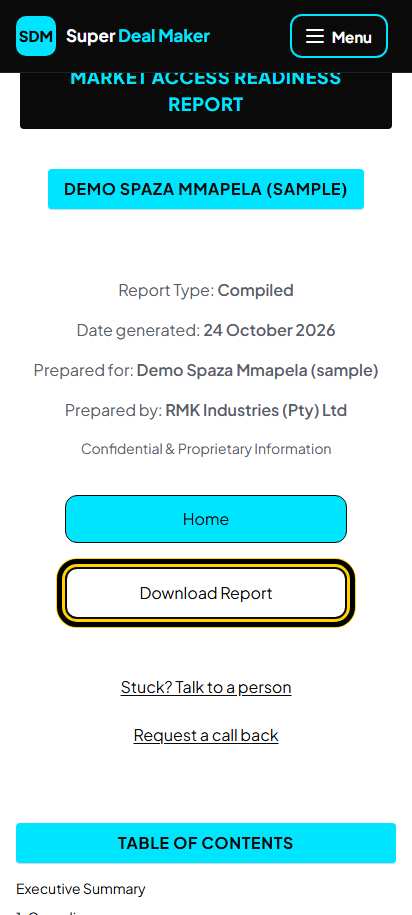
Your report on screen
The report shows the 5 things a buyer looks at, what is missing and what to fix next. Tap Download Report to save the PDF on your phone.
-
Step 28 of 61
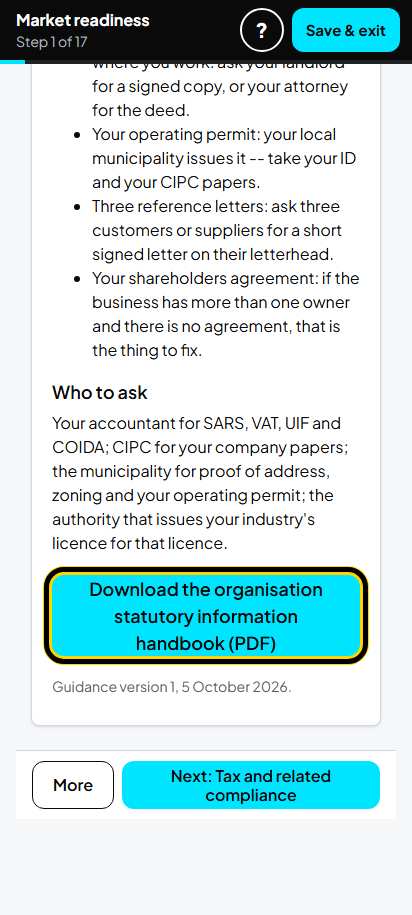
A guide for each screen
Each of the 16 screens has a short guide that explains its questions. Scroll down on the screen and tap Download the ... handbook (PDF).
Tip: The guide explains the questions. It does not hold your answers.
Part A. More on your market readiness page
-
Step 29 of 61
What a buyer looks at
Lower on your market readiness page, What a buyer looks at shows the 5 areas. Each has a score, Ready, Almost or Not yet, and how many questions are answered. Tap an area to check or change its screens.
What to fix next above it lists the 3 things that would lift your score most: tap one to fix it.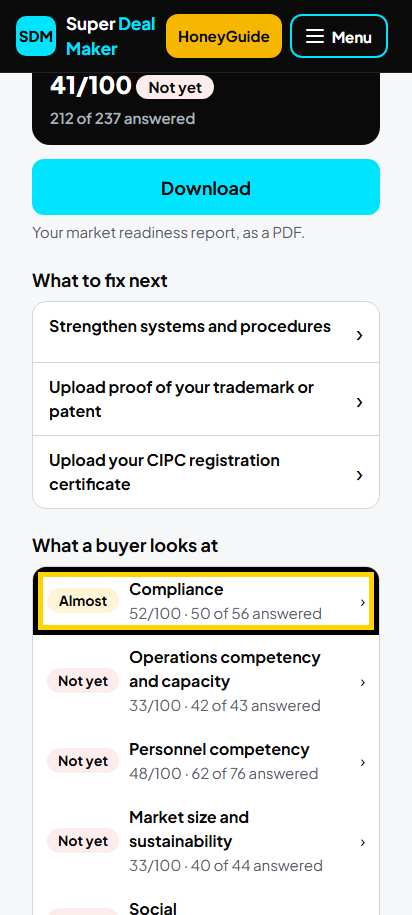
-
Step 30 of 61
Upload a document
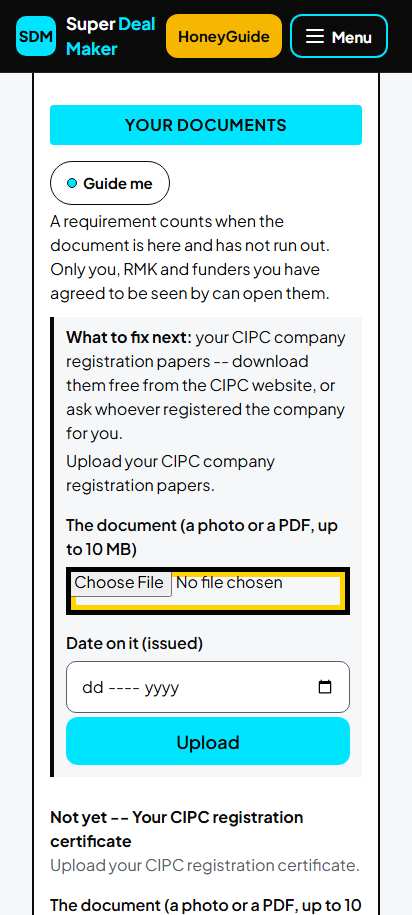
On your market readiness page tap More. Under Your documents, tap Choose File and pick the photo or PDF. Type the date on it and the date it runs out. Tap Upload. It then says "On file".
Tip: A document counts only when it is uploaded and not out of date. Your CIPC papers move your score the most.
-
Step 31 of 61
One question at a time
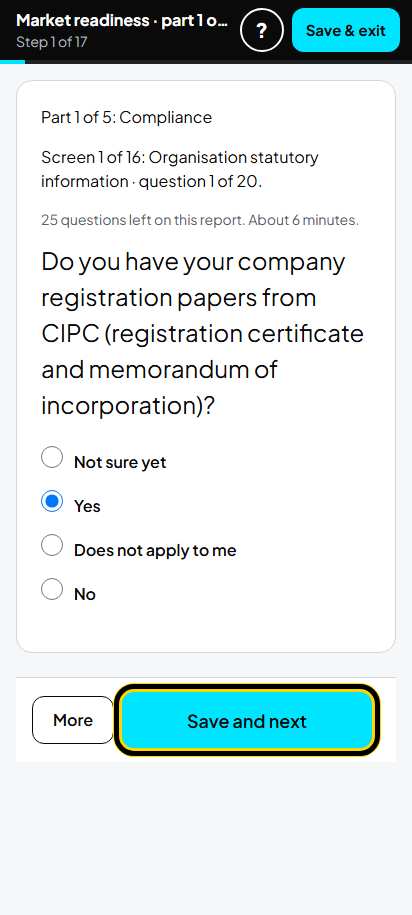
On your market readiness page you can also tap More, then Answer one question at a time. Choose your answer and tap Save and next. It shows the part, the screen, and how many questions are left.
-
Step 32 of 61
Market and funding side by side
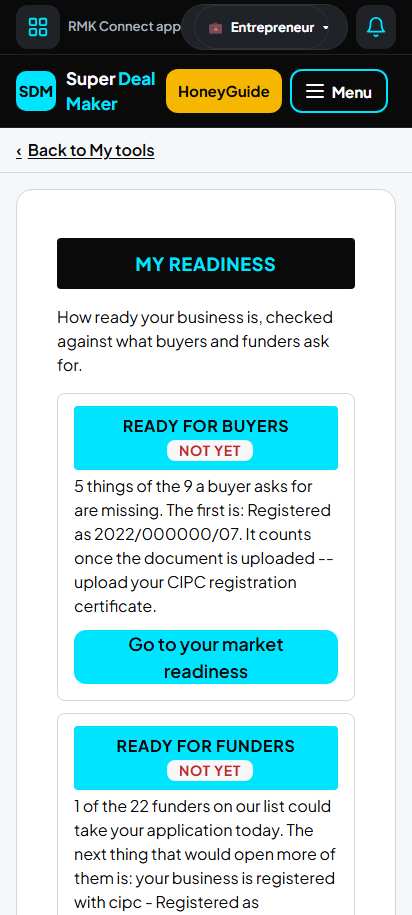
More, then My market and funding readiness side by side shows both. Ready for buyers counts the papers a buyer asks for. Market and funding readiness share the same questions: answer once.
-
Step 33 of 61
Help on Home
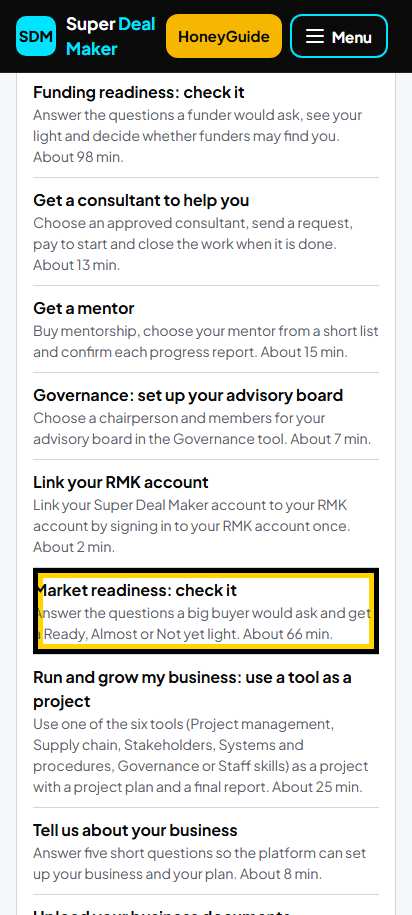
On Home, open More for you. Under "How do I...", Market readiness: check it opens the same page with a guide.
Part B. Market readiness project plan
-
Step 34 of 61
Open the project plan
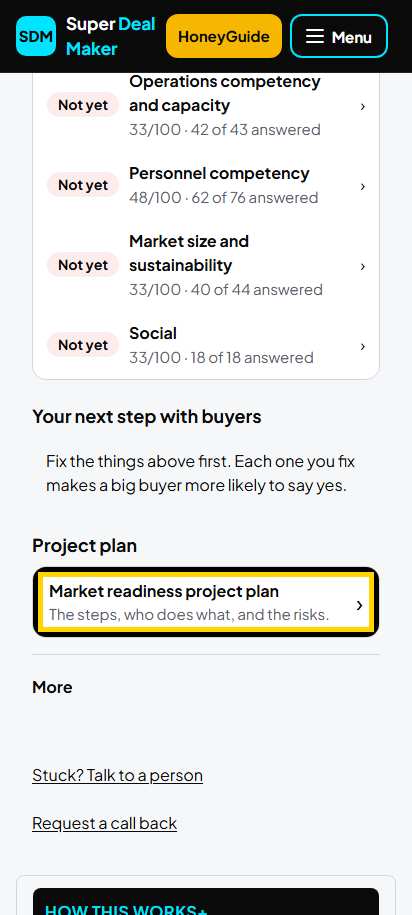
On your market readiness page, under Project plan, tap Market readiness project plan. The first time it is under More: tap Start your market readiness project plan. Your project is made with example rows.
-
Step 35 of 61
Your project home
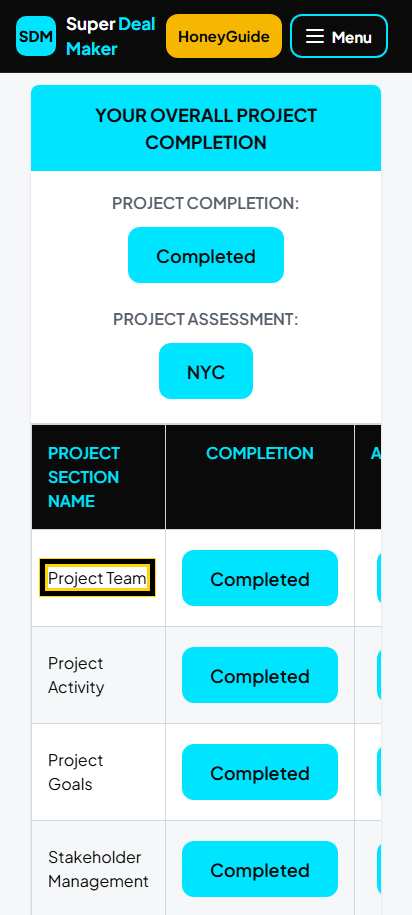
The project has 7 parts: Project Team, Project Activity, Project Goals, Stakeholder Management, Project Resources, Project Risk, Project Monitoring. Tap a part to open it. Each part says Incomplete until you confirm it.
Tip: The example rows ("Identify attractive markets") are for any business. Change them to your own, or delete them.
-
Step 36 of 61
1. Project team: the list
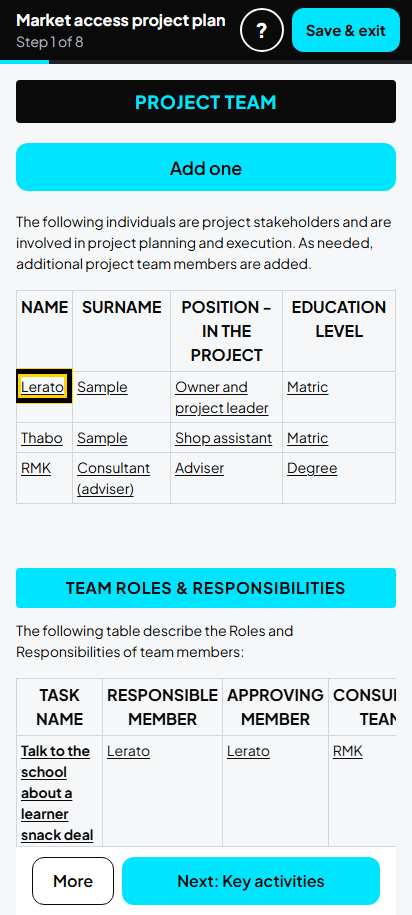
Tap Edit on a person to change it. Tap Add one to add a person. Delete example people you do not have.
-
Step 37 of 61
1. Project team: one person
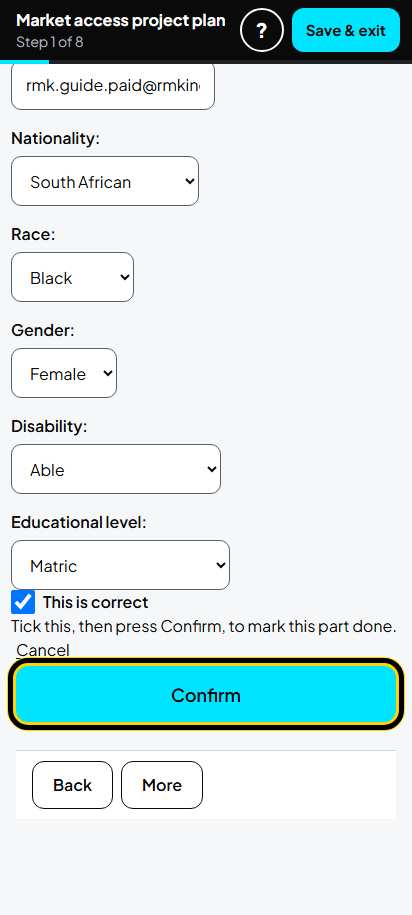
Type the name, the position in the project and the education. Example: Lerato Sample, Owner and project leader, Matric. Tick This is correct. Tap Confirm.
-
Step 38 of 61
2. Project activities: the list
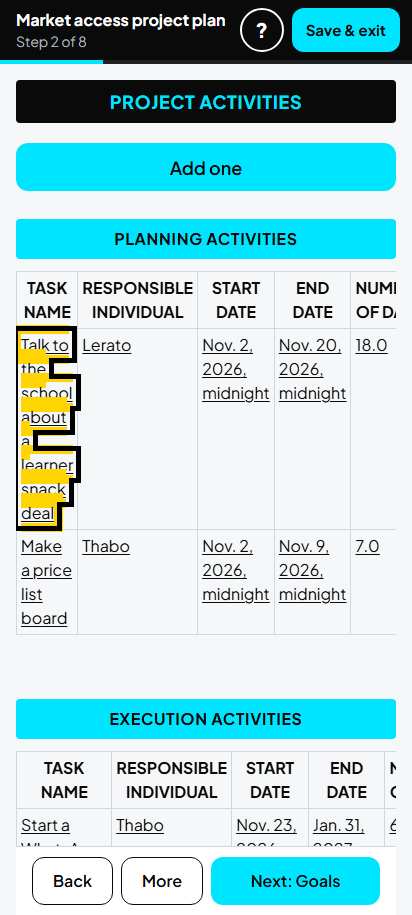
The tasks are grouped by stage: Planning, Execution, Feedback and Reporting. Tap a task to edit it. Tap Add one for a new task. Delete the example tasks you do not need.
-
Step 39 of 61
2. Project activities: one task
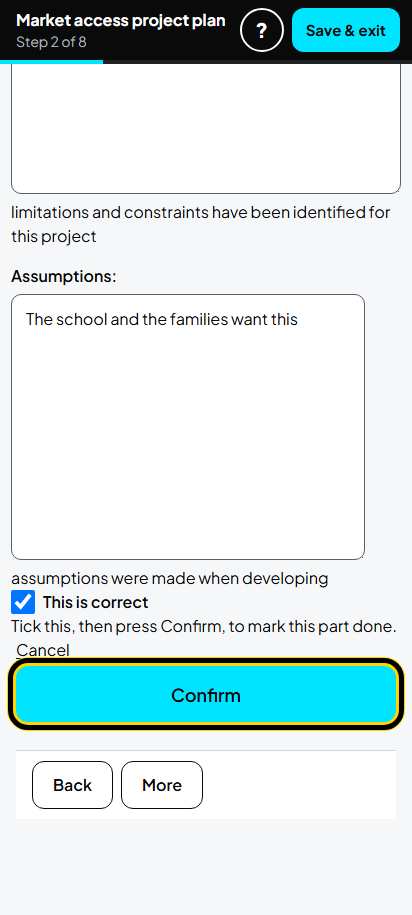
Choose the stage. Type the task, what it is for, the start and end dates, and who does it. Example tasks for reaching buyers: Talk to the school about a learner snack deal (2 to 20 Nov 2026, Lerato); Make a price list board (Thabo); Start a WhatsApp order list for neighbours; Start the learner snack packs; Check what sells and report. Tick This is correct. Tap Confirm.
-
Step 40 of 61
3. Project goals: the list
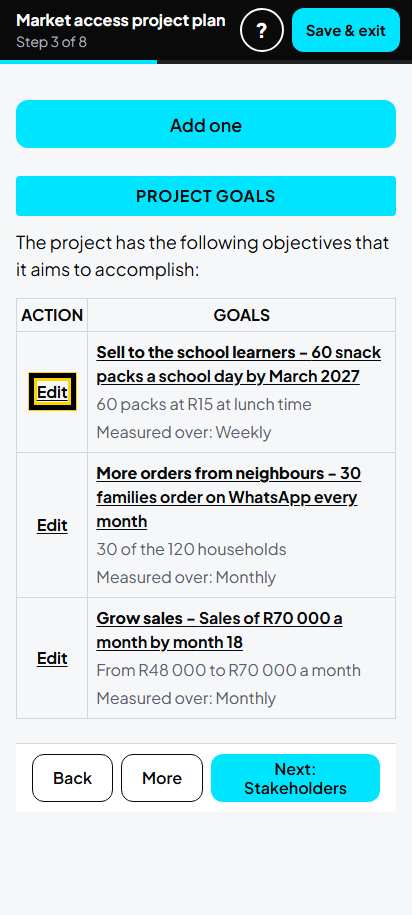
Tap Edit on each goal. Tap Add one for a new goal.
-
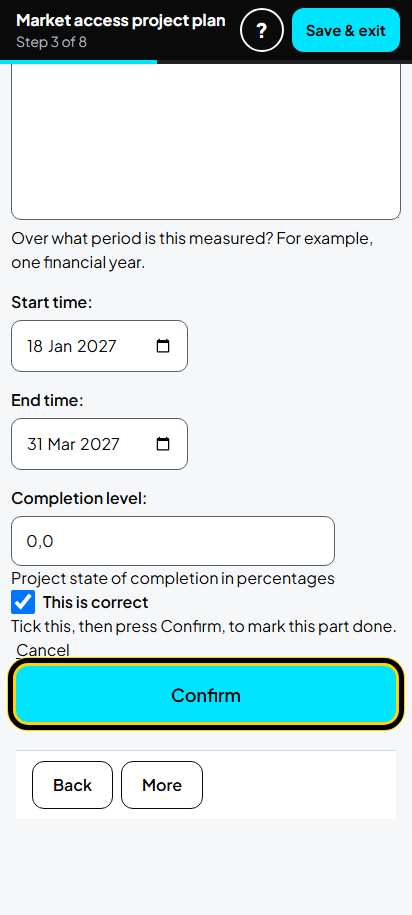
Step 41 of 61
3. Project goals: one goal
Type the goal and how you will measure it. Example: Sell to the school learners, 60 snack packs a school day by March 2027, counted every day. Tick This is correct. Tap Confirm.
-
Step 42 of 61
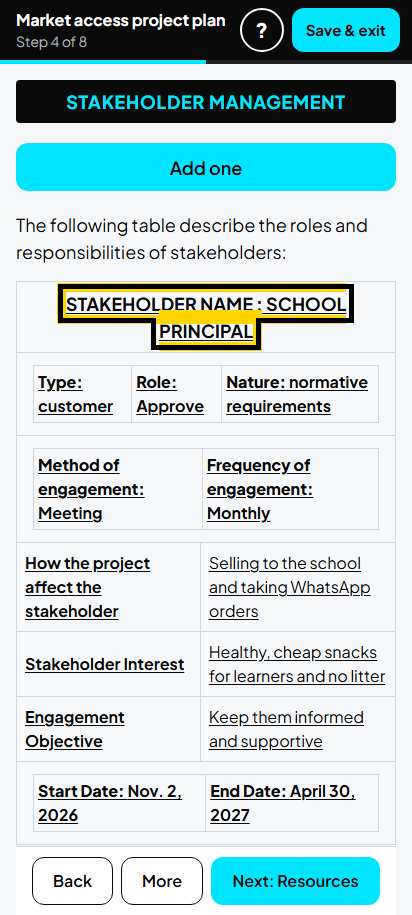
4. Stakeholders: the list
Tap a name to edit it. Tap Add one to add one. Example: the school principal, customers, learners and parents, the wholesaler, the ward councillor.
-
Step 43 of 61
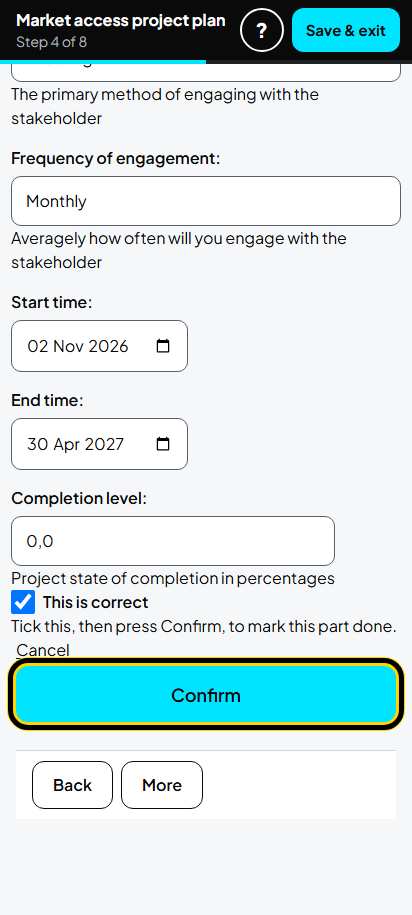
4. Stakeholders: one stakeholder
Type the name, choose the type and role, say what they want and how often you meet. Example: School principal, customer, Approve, "Healthy, cheap snacks for learners and no litter", monthly. Tick This is correct. Tap Confirm.
-
Step 44 of 61
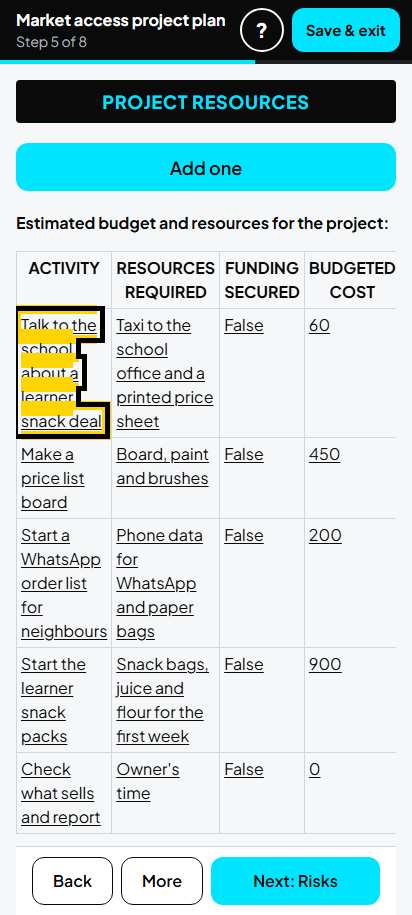
5. Project resources: the list
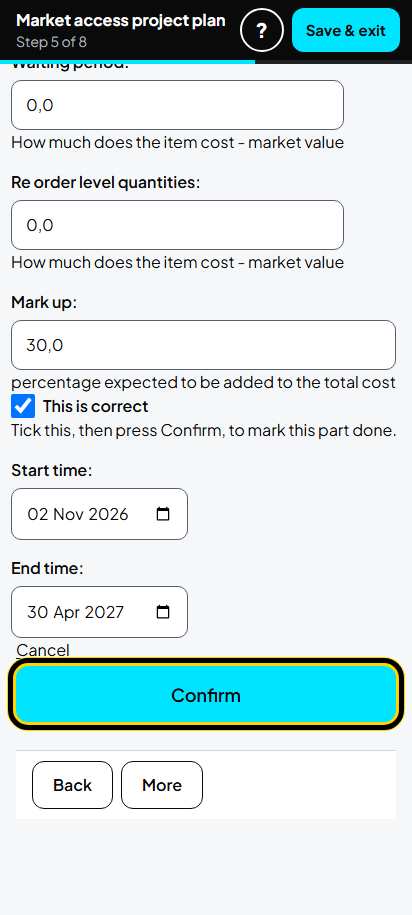
One row for each task. Tap the task to edit it. The total cost shows at the bottom (example R1 610).
-
Step 45 of 61
5. Project resources: one row
Type what the task needs and what it costs. Example: Make a price list board, board, paint and brushes, 450. Tick This is correct. Tap Confirm.
-
Step 46 of 61
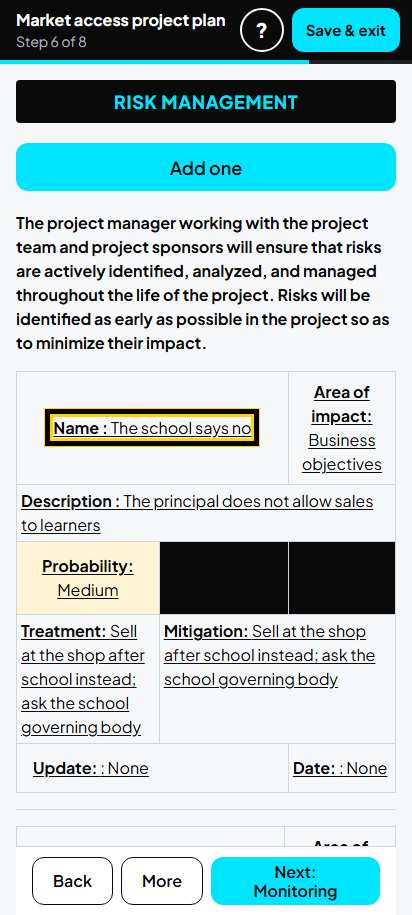
6. Project risks: the list
Tap a risk name to edit it. Tap Add one for a new risk.
-
Step 47 of 61
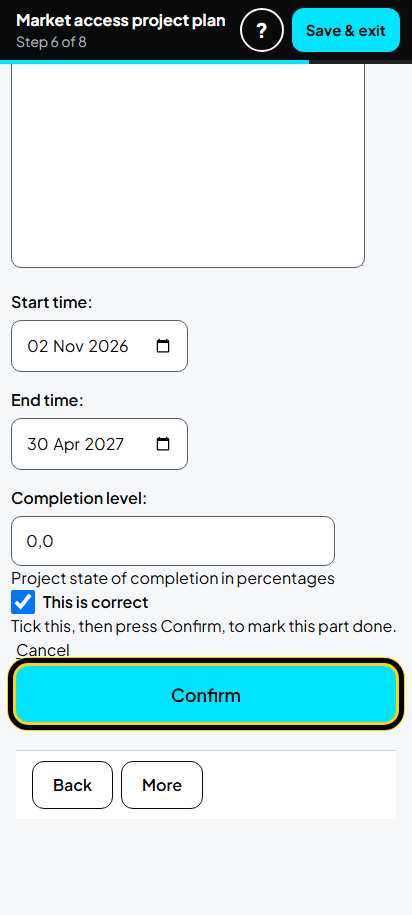
6. Project risks: one risk
Type the risk and what you will do about it. Example: The school says no; sell at the shop after school instead. Choose every box: area, impact, likelihood, ranking and action. Tick This is correct. Tap Confirm.
Tip: If you leave a box empty, the page tells you which one. Choose it, then tap Confirm again.
-
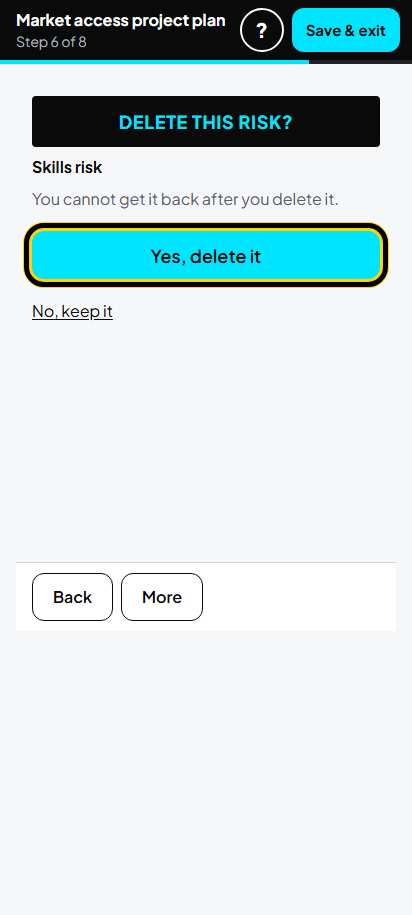
Step 48 of 61
6. Delete an example risk
To remove an example risk you do not need, open it and delete it. The page asks "Delete this risk?". Tap Yes, delete it, or No, keep it.
-
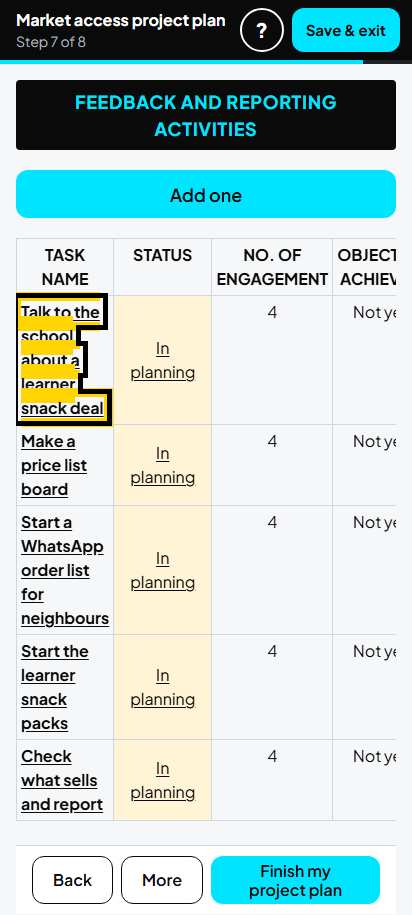
Step 49 of 61
7. Monitoring: the list
One row for each task. Tap the task to edit it.
-
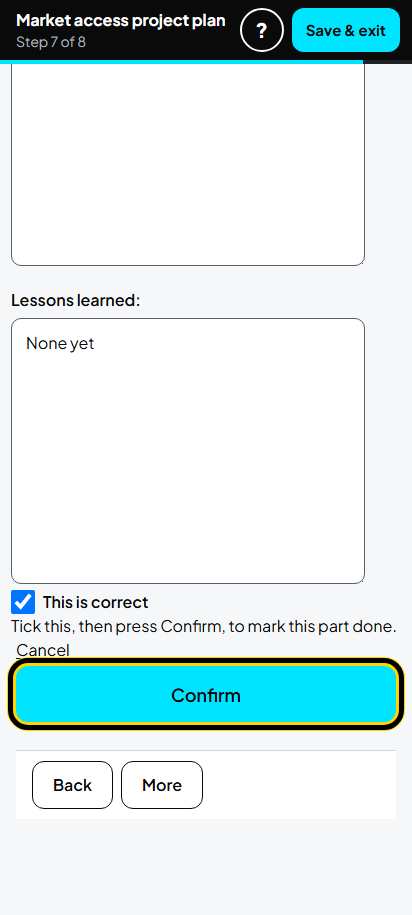
Step 50 of 61
7. Monitoring: one row
Say how you check the task. Example: meeting; count orders and snack packs every Sunday and review with the consultant once a month. Tick This is correct. Tap Confirm.
-
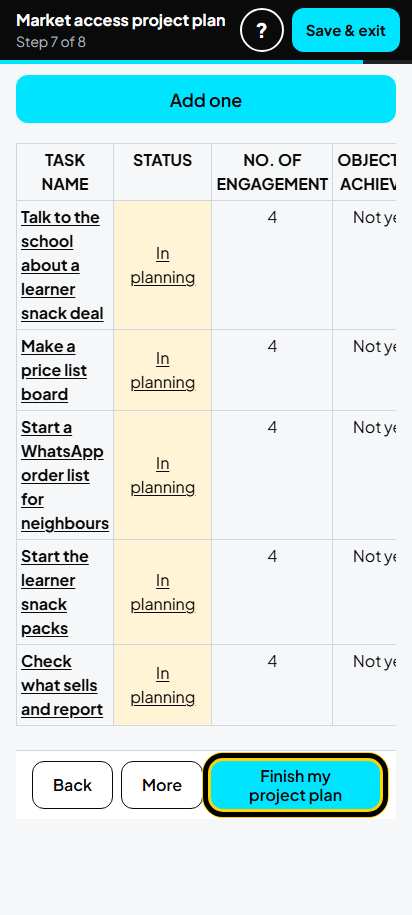
Step 51 of 61
Finish my project plan
On the Monitoring list, tap Finish my project plan.
-
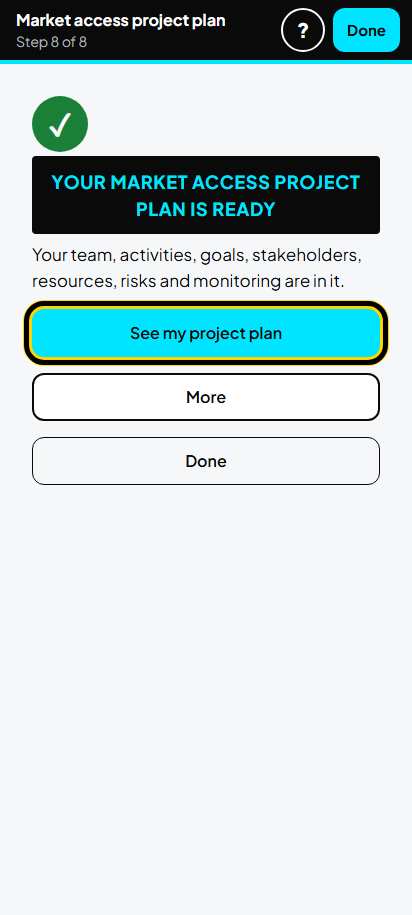
Step 52 of 61
Your project plan is ready
This page says your Market readiness project plan is ready. Tap See my project plan to read it. More has the download, where the project is, and the final report.
Tip: If a part is still empty, this page says which one. Open it, fill it in, and tap Finish my project plan again.
-
Step 53 of 61
See your project plan
On your project home every part now says Completed. Tap See my project plan.
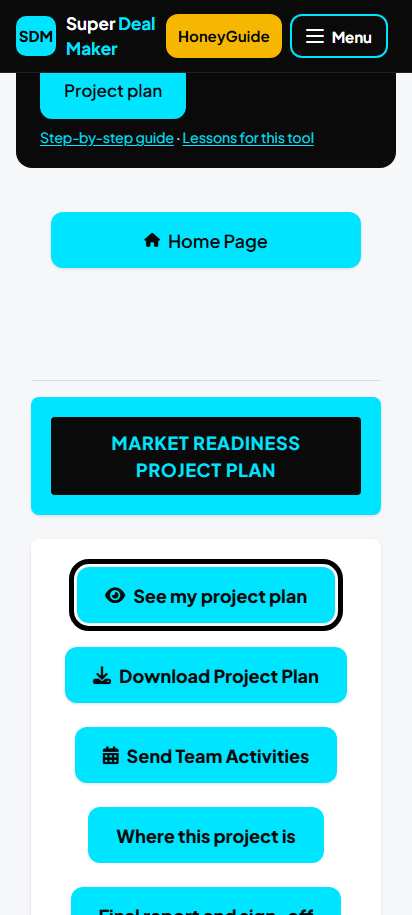
-
Step 54 of 61
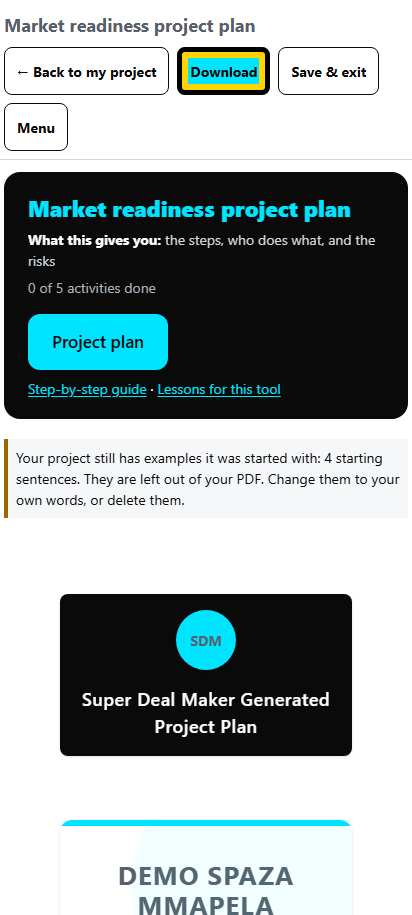
Your project plan on screen
Read it on your phone. Tap Download at the top to save the PDF, or Back to my project.
-
Step 55 of 61
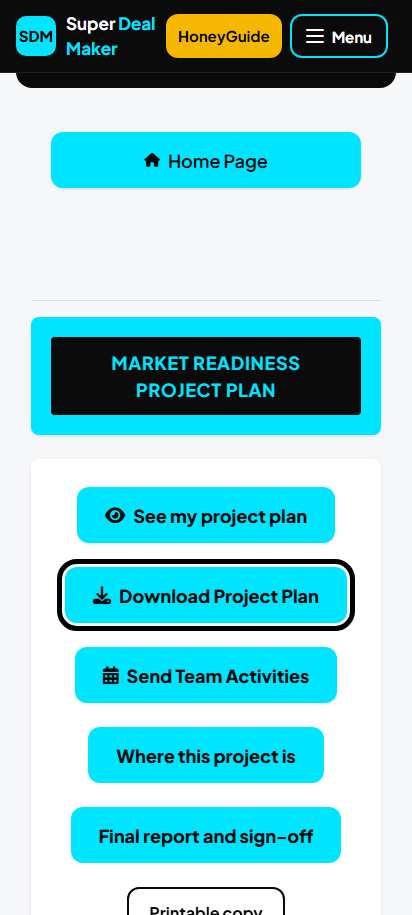
Download the project plan
On your project home you can also tap Download Project Plan.
Stop, carry on, and get help
-
Step 56 of 61
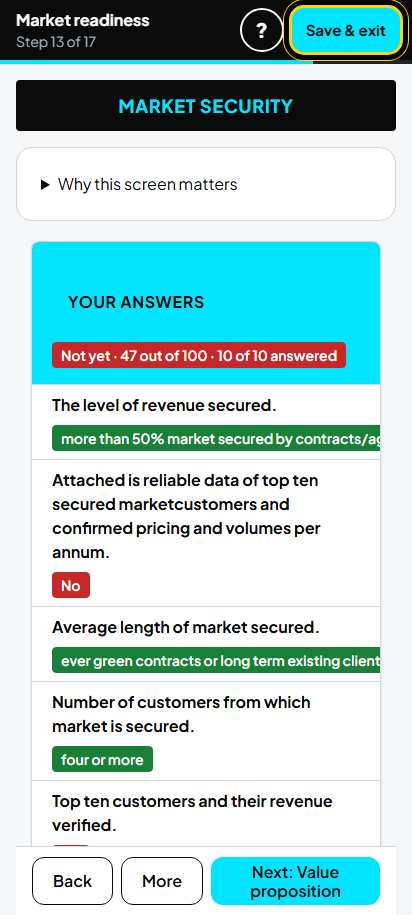
Stop for now
Tap Save & exit at the top. First tap Save your answers so your last answers are saved.
-
Step 57 of 61
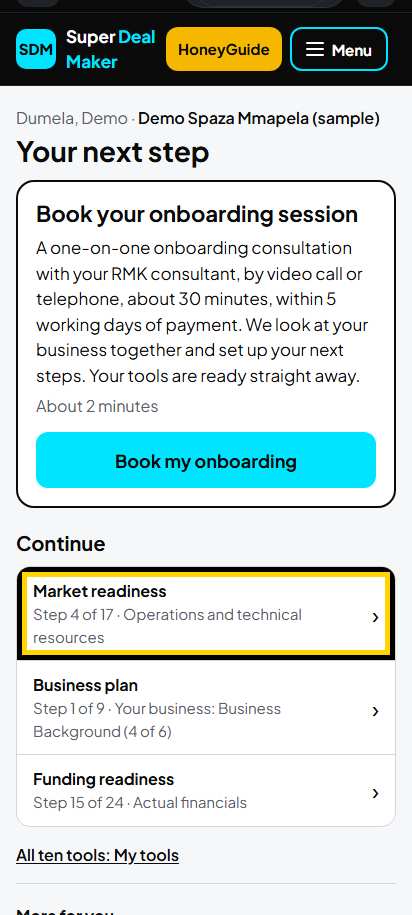
Carry on later
On Home, under Continue, tap Market readiness. It says where you stopped, for example "Step 4 of 17 · Operations and technical resources".
-
Step 58 of 61
Help for this screen
Tap ? at the top of any screen.
-
Step 59 of 61
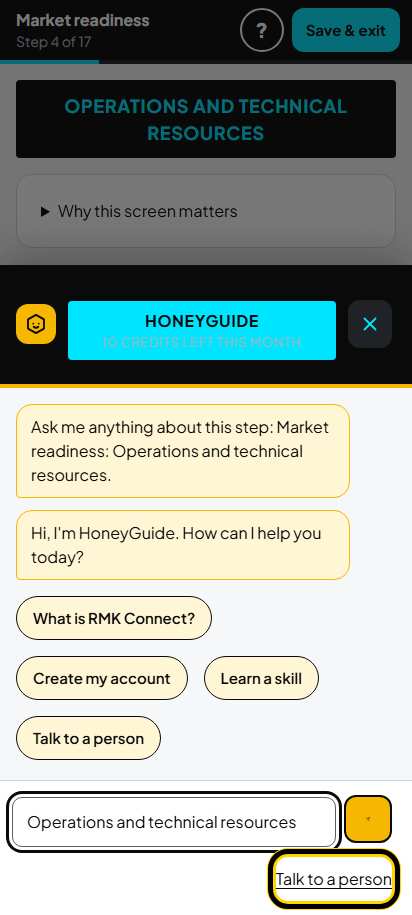
HoneyGuide
HoneyGuide, the RMK assistant, opens over the screen and already knows which step you are on. Type your question, or tap Talk to a person. Tap X to close it.
-
Step 60 of 61
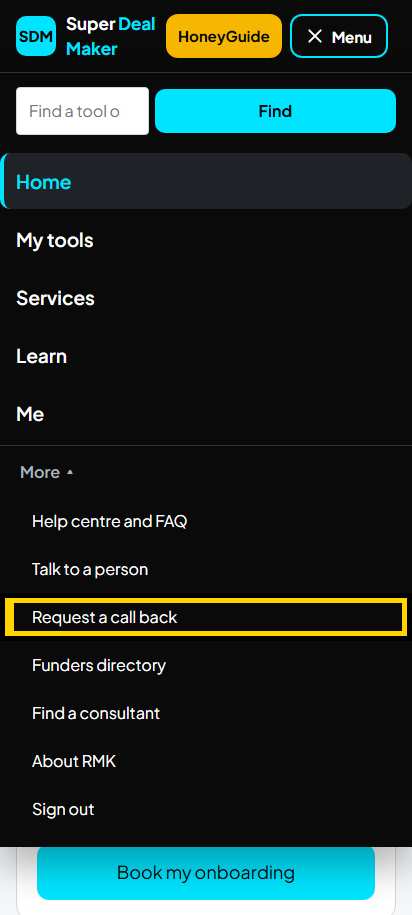
Get help from a person
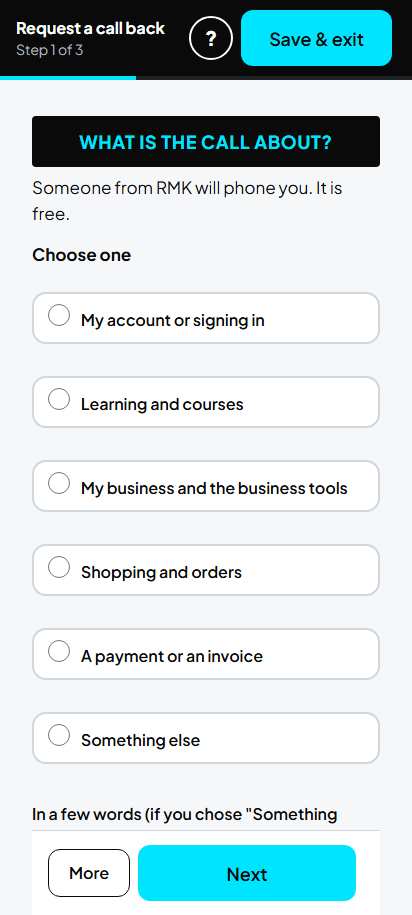
Tap Menu, then More: Talk to a person (WhatsApp) or Request a call back. Many pages also have Stuck? Talk to a person and Request a call back at the bottom.
-
Step 61 of 61
Ask us to phone you
Choose what the call is about, tap Next, and follow the short steps. Someone from RMK will phone you. It is free.
Stop and carry on later
- Tap **Save your answers** first, then **Save & exit** at the top of the screen.
- Next time, on **Home** under **Continue** tap **Market readiness**. Or open **Menu**, **My tools**, Market readiness, and tap **Continue where you left off** or an area.
- Your market readiness page shows each area with "n of m answered": open the ones not yet answered.
- The project plan works the same way: **Save & exit** at the top; next time on your market readiness page tap **Market readiness project plan**.
Download your work
- Market readiness report: on your result page tap **More**, then **Download my report**. Or open the report and tap **Download Report** (Standard and up). About 3 seconds, 9 pages.
- Guide for one screen: on that screen tap **Download the ... handbook (PDF)** (everybody).
- Project plan: on your project home tap **Download Project Plan**, or **See my project plan** and then **Download** (Standard and up). About 4 seconds, 14 pages.
- Free account: you see your score and report on screen; to download you see a note that it is part of Standard.
- You can download up to 10 documents a day. After that a page says to come back tomorrow.
If something goes wrong
- "Something went wrong on our side": tap **Go back**, check your last answers and save again. If it happens again, ask us to phone you.
- Your answer is not in the list (for example a municipal licence or a start-up cost below R250 000): choose the closest answer and write the real one in the comment box.
- A screen says "0 out of 100" although you answered: some screens count only when the document is uploaded. Read the line "Scored 0 until this is fixed" and upload that document.
- Your answers look empty after you start the project plan, or a screen shows "Your answers" twice: ask us to phone you. Do not answer everything again; RMK can fix it.
- A project risk will not save: choose the area, impact, likelihood, ranking and action, then tap Confirm.
- "Finish my project plan" says a part is not ready: open that part, check every row, tick **This is correct** and tap **Confirm**.
Ask for help
- Tap **?** at the top of any screen for help on that screen (HoneyGuide).
- Tap **Menu**, then **More**: **Talk to a person** on WhatsApp, or **Request a call back** (free).
- On many pages: **Stuck? Talk to a person** and **Request a call back**.
- With Standard: your RMK consultant helps you in the onboarding session and the monthly group session.
Still stuck?
Ask HoneyGuide (the “?” on every screen of the tool), or a real person answers.