Home / Help / How to use / Business plan
How to use Business plan
This guide shows every screen of the business plan on a phone. The example is a sample spaza shop, Demo Spaza Mmapela (sample). Type your own business where the guide types the example. Part A is the business plan. Part B is its project plan.
Before you start
Have these ready
- You need a Super Deal Maker account and your business name. Sign in first.
- Have these ready: what you sell and your prices, how many you sell a month, your monthly costs (rent, electricity, wages), what you own (fridge, shelves), and how much money you need.
- It takes long. Do one part at a time. Everything you save stays saved.
- On every screen: **Save & exit** at the top stops for now. **?** gives help for that screen. **Next:** at the bottom takes you to the next part.
- The plan has 8 parts. The bar at the top says where you are, for example "Step 3 of 9" and "part 2 of 6".
- On each form, tick **This is correct**, then tap the button at the bottom (**Confirm**, **Save** or **Submit**). The tick marks that part as done.
Step by step
Part A. Start: open your business plan
-
Step 1 of 98
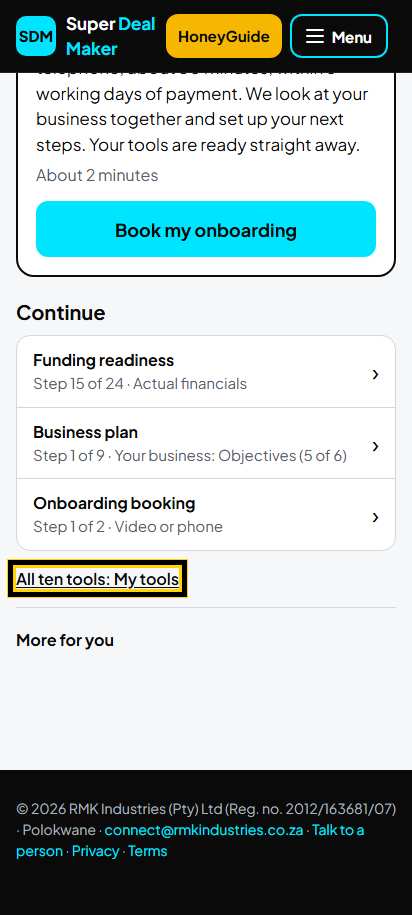
Open My tools
On Home, tap All ten tools: My tools. (Or tap Menu, then My tools.)
Tip: Already started? Home shows Business plan under Continue: tap it to go straight back.
-
Step 2 of 98
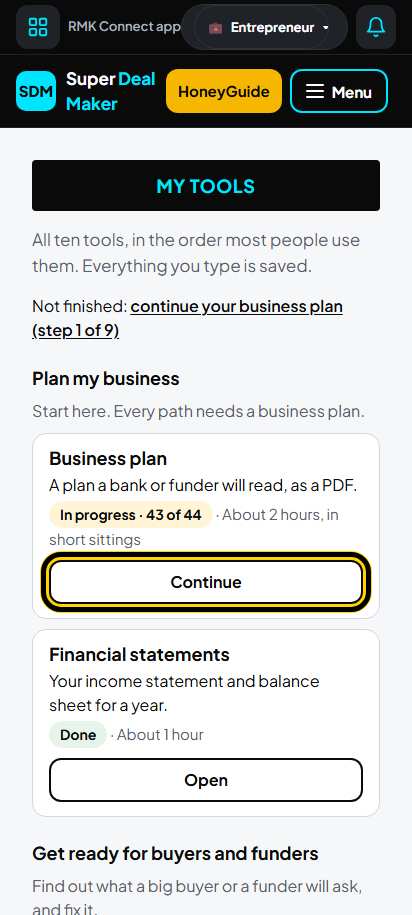
Open Business plan
Under Plan my business, on the Business plan card, tap Start (later the button says Continue).
-
Step 3 of 98
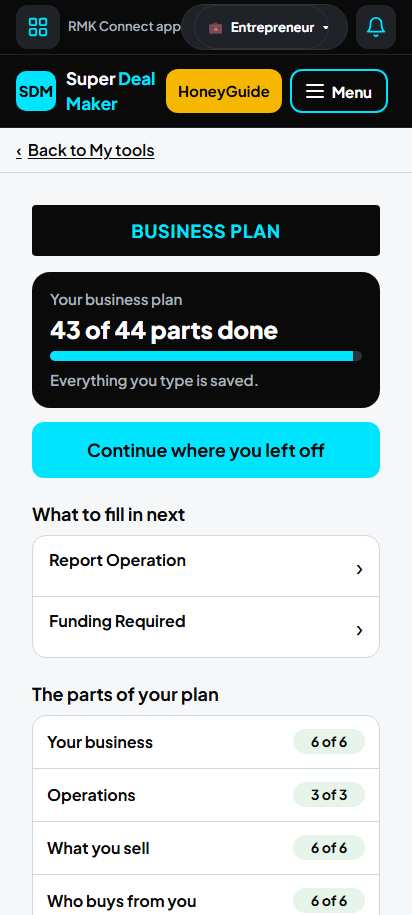
Your business plan page
This is the home of your plan. At the top it says how many parts are done, for example "43 of 44 parts done".
-
Step 4 of 98
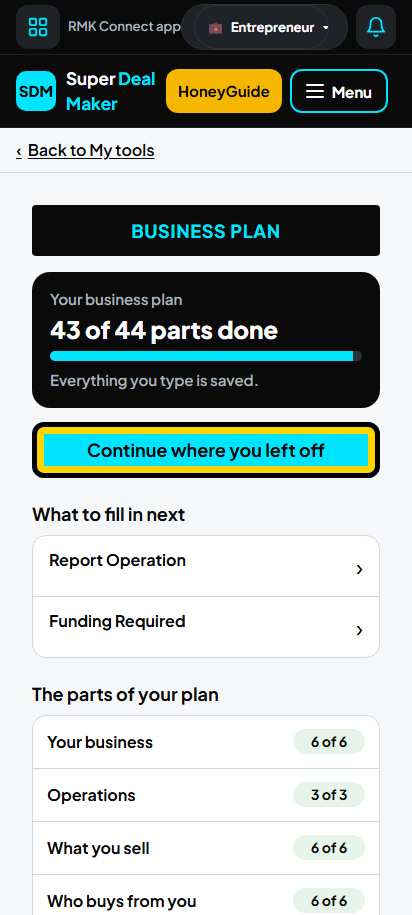
Continue where you left off
Tap the big button Continue where you left off. It opens the next part to fill in.
Below it, What to fill in next lists the next parts: tap one to open it.Tip: The very first time the big button says Tell us who buys from you or Tell us when your plan starts: answer that first, because your figures are worked out from it.
-
Step 5 of 98
The 8 parts of your plan
Under The parts of your plan are the 8 parts: Your business, Operations, What you sell, Who buys from you, Your people, Expenses, Assets and Funding Structure, What could go wrong. Each says how many are done (for example 6 of 6).
Tap a part to open it. Each tab says Done, Almost or To do. Tap a tab to open it.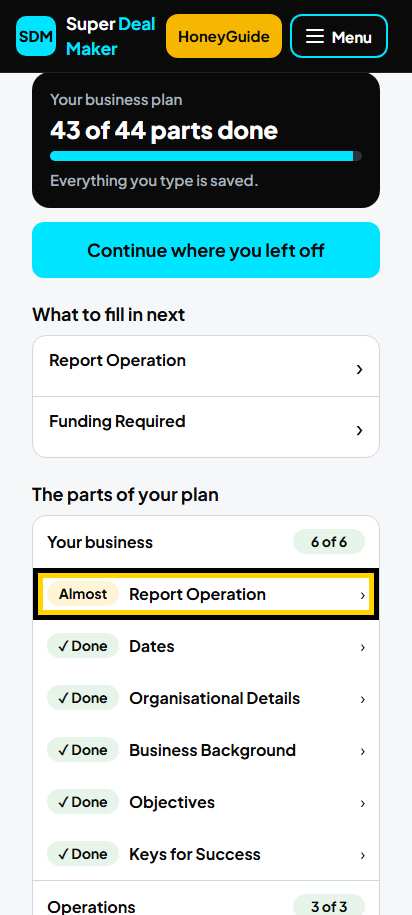
-
Step 6 of 98
Who buys from you?
Tick everyone who pays you. The spaza ticks Individuals only. Tap Save.
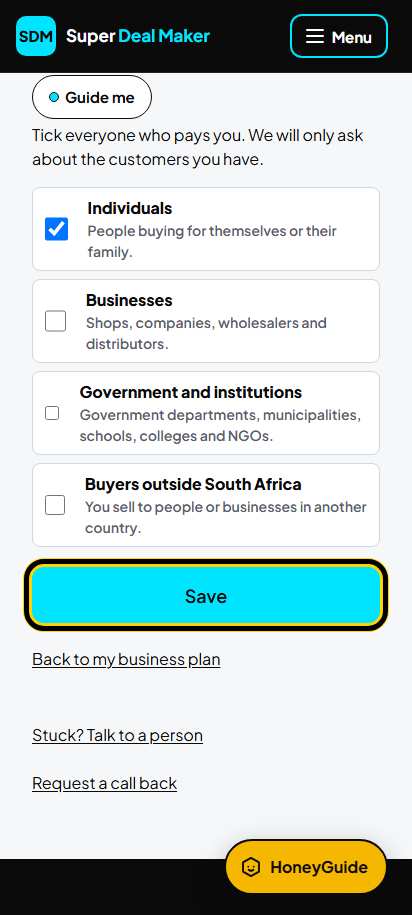
Part A, part 1 of 8. Your business
-
Step 7 of 98
What we know about your business
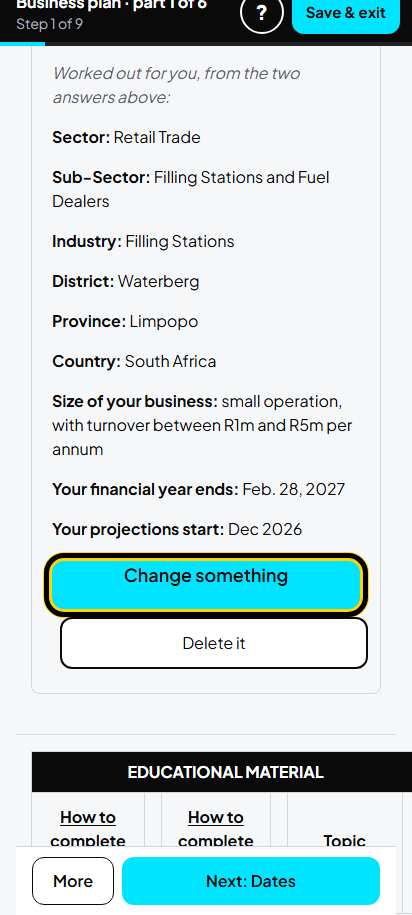
Check your business name, what it does and where you are. To change something, tap Change something.
-
Step 8 of 98
Change one answer
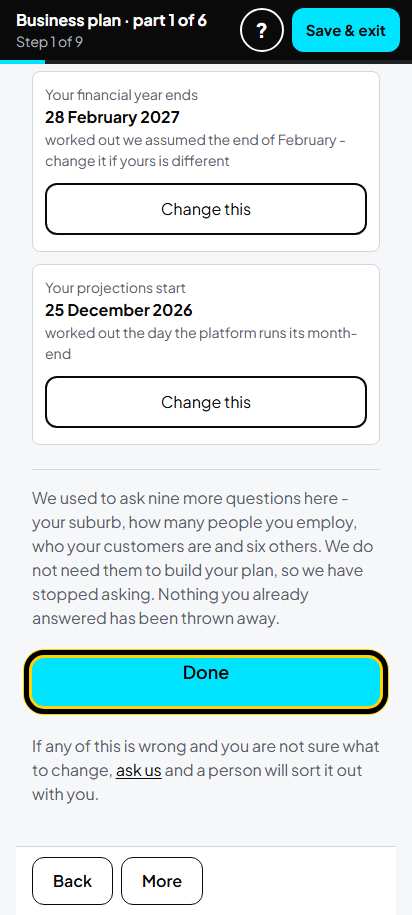
Each answer has its own Change this button. When all is right, tap Done.
Tip: If the kind of business is wrong (the example says "Filling Stations with Convenience Stores"), tap ask us at the bottom of this screen and a person will put it right.
-
Step 9 of 98
Dates
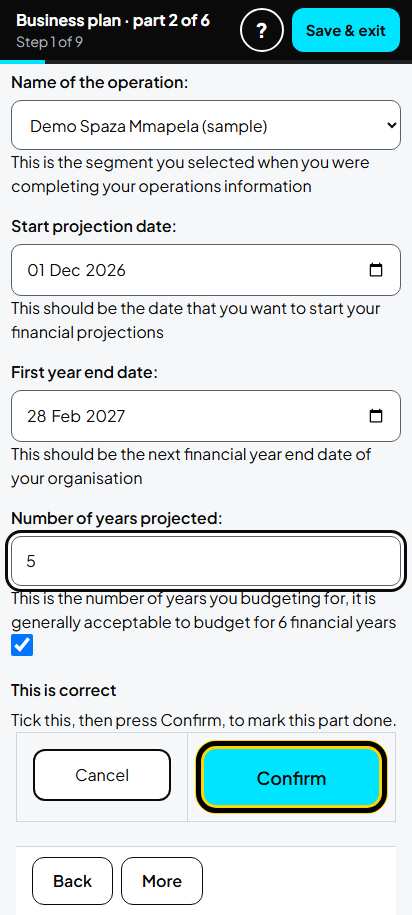
Type the month your plan starts and the end of your first year. Example: start 01 Dec 2026, first year end 28 Feb 2027, 5 years. Tick This is correct. Tap Confirm.
-
Step 10 of 98
Organisational Details: open it
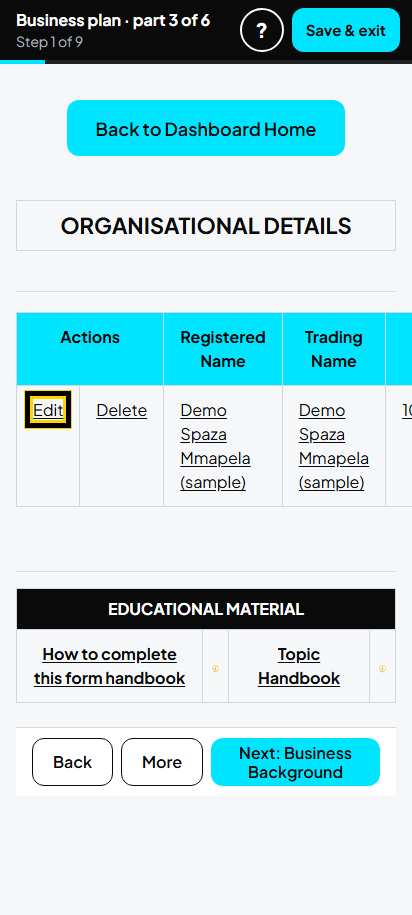
Tap Edit next to your business.
-
Step 11 of 98
Organisational Details: fill in
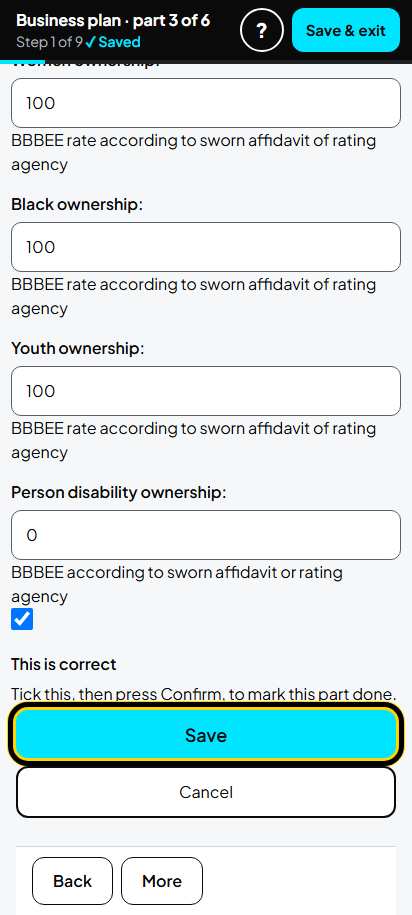
Type your registration number (example 2022/000000/07), the date registered, your address, phone and e-mail.
Choose your Province first, then your District, then your Municipality, one after the other. Each list fills in after the one before it.
Type your B-BBEE level and ownership (example: women 100, black 100, youth 100). Tick This is correct. Tap Save.Tip: If the Province box is empty, choose it again, then choose the District again.
-
Step 12 of 98
Business Background
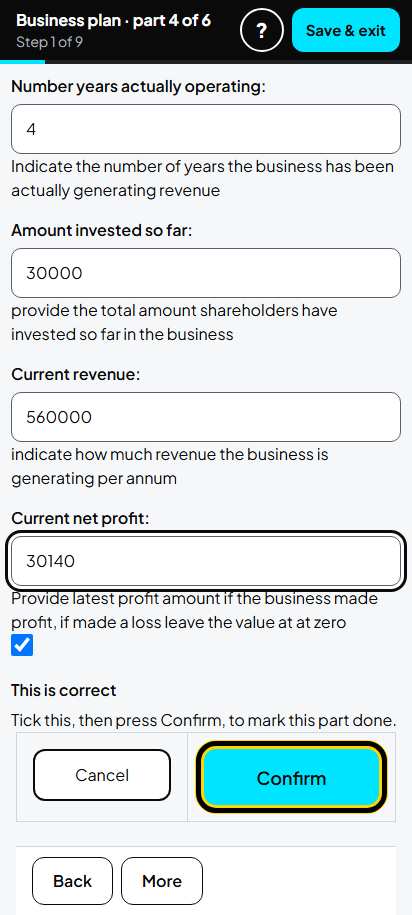
Write in short sentences what the owner has done and what you have achieved. Example: "Trading since March 2022, 7 days a week. About 120 households buy from us." Type the years trading (4), the money put in (30000), last year's sales (560000) and profit (30140). Tick This is correct. Tap Confirm.
-
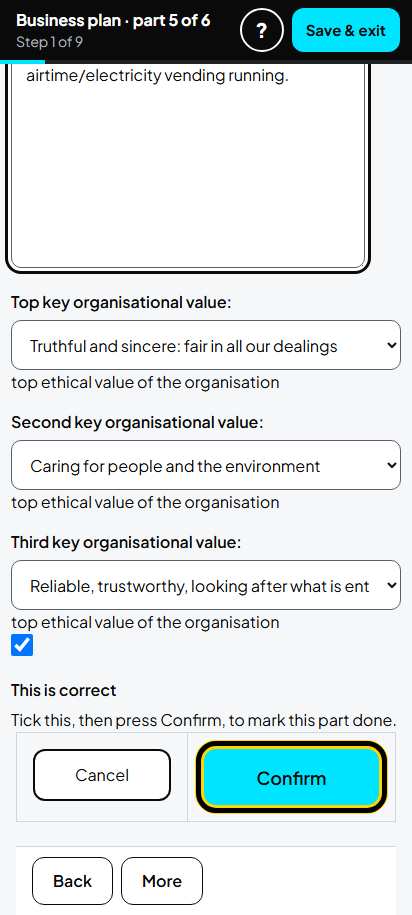
Step 13 of 98
Objectives
Say why the business exists and what you want to reach. Example: turnover target 840000, gross profit 25%, 4 employees. Choose your values from the lists. Tick This is correct. Tap Confirm.
-
Step 14 of 98
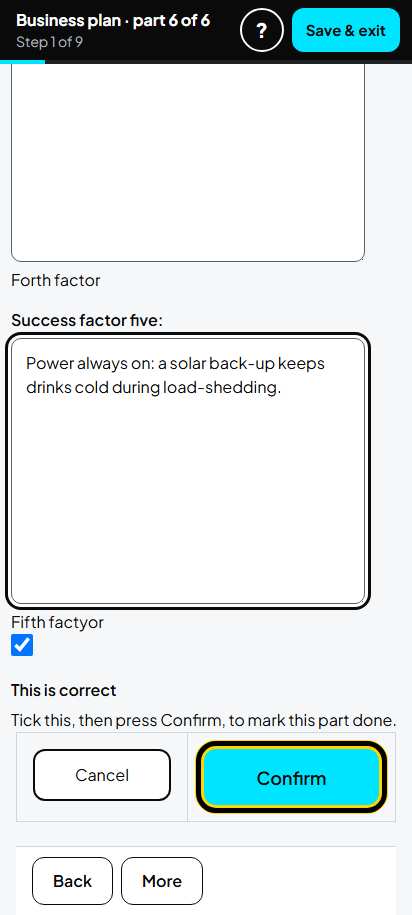
Keys for Success
Write five reasons customers choose you. Example: "Close to home: open 7 days a week." Tick This is correct. Tap Confirm.
-
Step 15 of 98
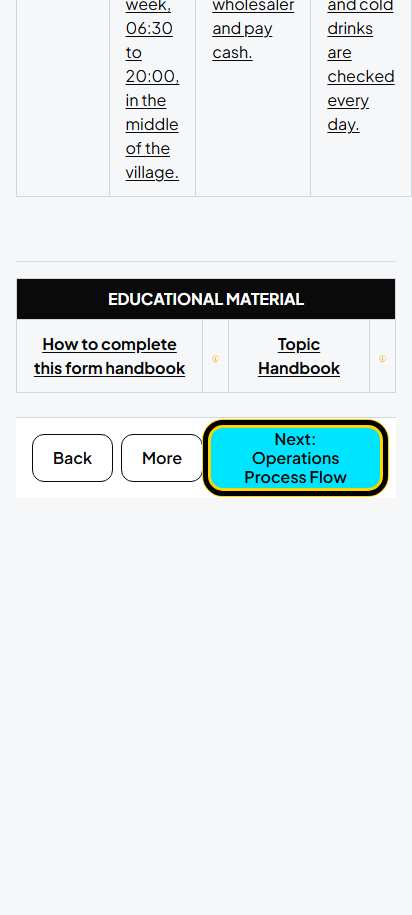
Go to the next tab
After a save you see the list again. Tap Next: at the bottom (here Next: Operations Process Flow). Do this after every tab.
Part A, part 2 of 8. Operations
-
Step 16 of 98
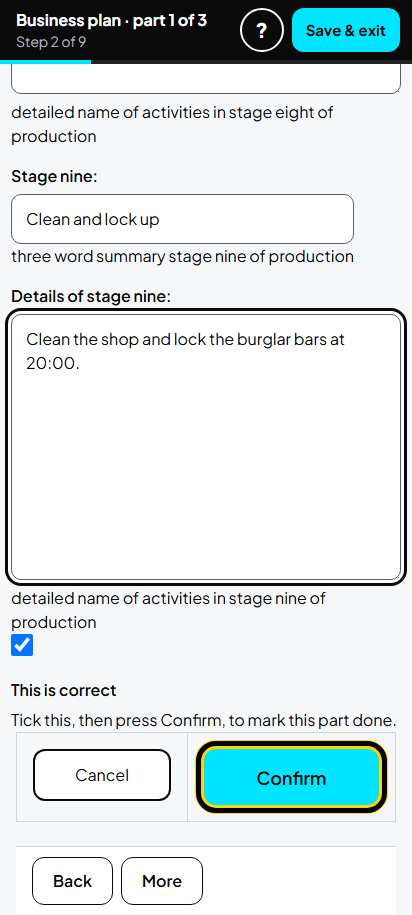
Operations Process Flow
Type how many hours a shift (13.5) and shifts a day (1). Give each stage of your work a short name and one sentence, for example "Buy stock", "Sell at the till", "Count stock". Tick This is correct. Tap Confirm.
-
Step 17 of 98
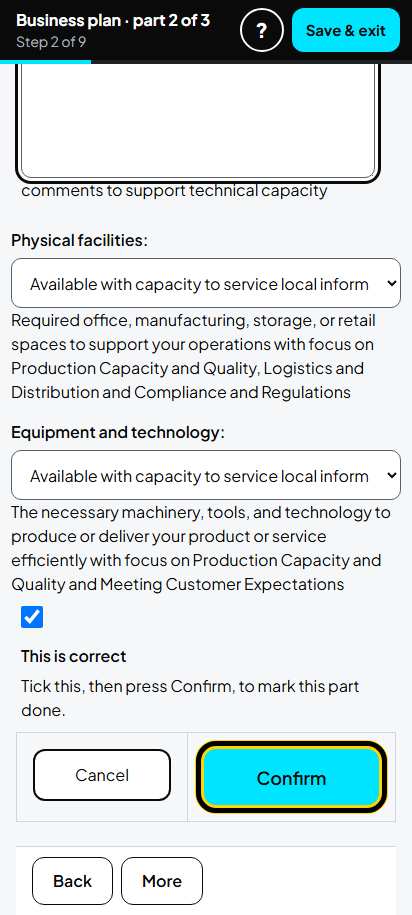
Operational Requirements
Say what licences you need (example: a trading licence from the municipality) and choose what facilities you have. Tick This is correct. Tap Confirm.
-
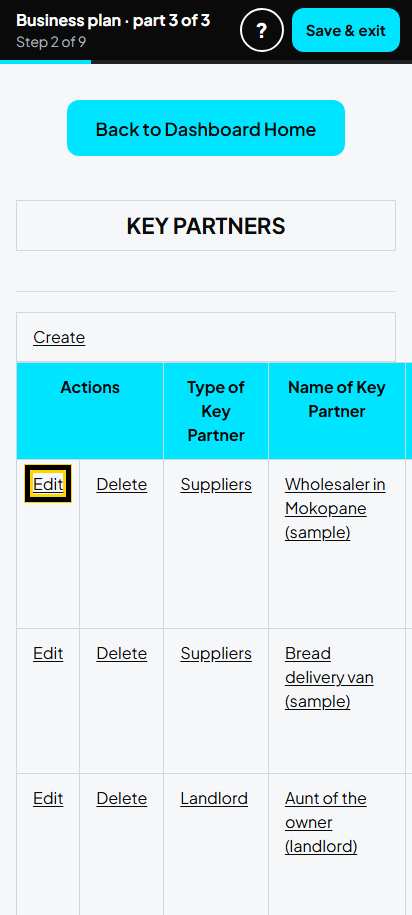
Step 18 of 98
Key Partners: the list
Tap Edit on each partner. Tap Create to add one. The example has 5: the wholesaler, the bread van, the landlord, the funder, the RMK consultant.
-
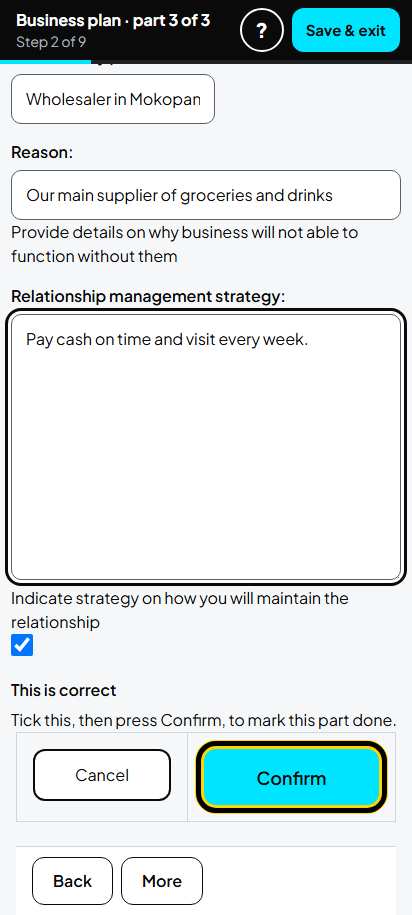
Step 19 of 98
Key Partners: one partner
Choose the type, type the name, why they matter, and how you work with them. Tick This is correct. Tap Confirm. Do the same for every partner.
Part A, part 3 of 8. What you sell
-
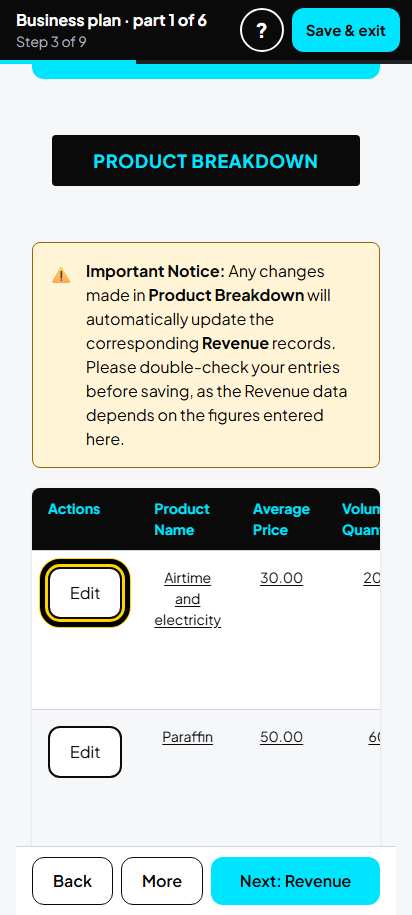
Step 20 of 98
Product Breakdown: the list
Tap Edit on each thing you sell. Tap Create to add one. Delete examples you do not sell.
Tip: Your sales are worked out from this tab. Check the price and how many a month.
-
Step 21 of 98
Product Breakdown: one product
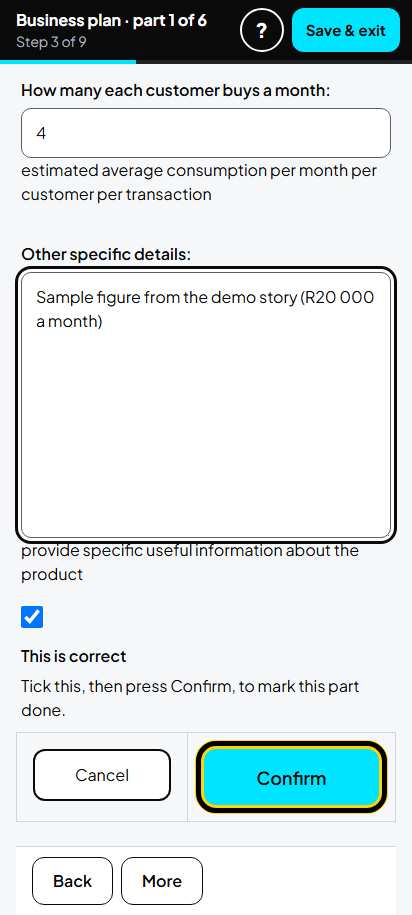
Type what you sell, the price and how many a month. Example: Bread and maize meal, price 40, 500 a month. Type who buys it and what problem it solves. Tick This is correct. Tap Confirm. Do the same for every product.
-
Step 22 of 98
Revenue
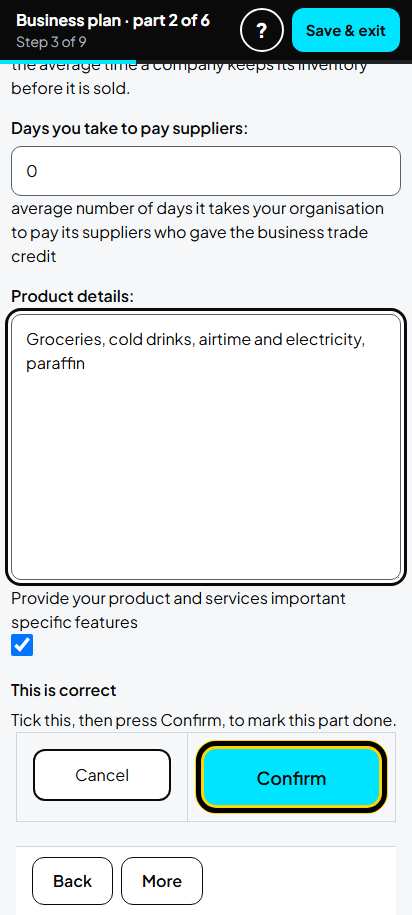
Type your gross profit % (example 25), days customers take to pay (0 if they pay cash), days stock stays on the shelf (18) and days you take to pay suppliers (0). Tick This is correct. Tap Confirm.
-
Step 23 of 98
Seasonality: the list
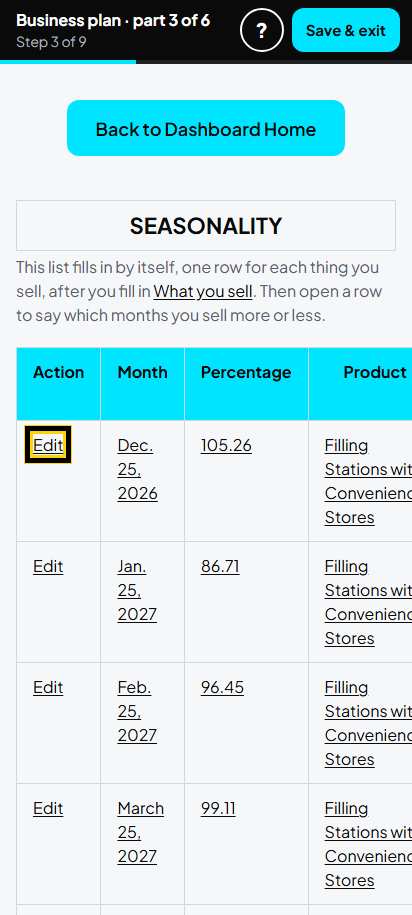
This list fills in by itself, one row for each month. Tap Edit on each row.
-
Step 24 of 98
Seasonality: one month
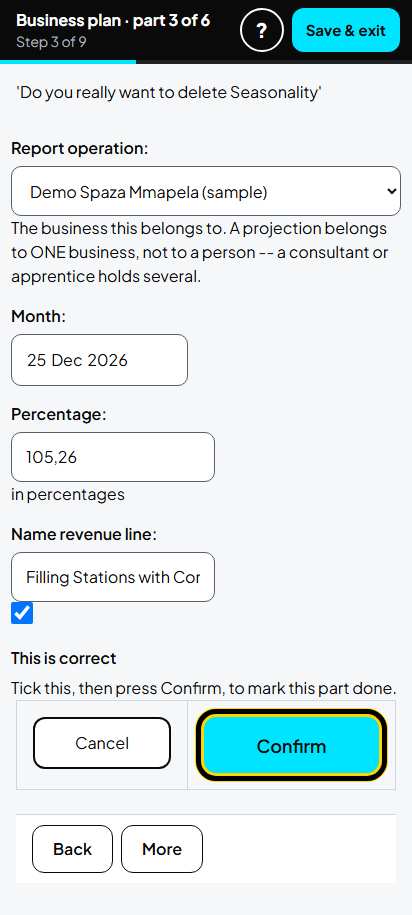
Change the percentage if that month is busier (more than 100) or quieter (less than 100). Tick This is correct. Tap Confirm. Do the same for every row.
Tip: The screen says "Do you really want to delete" at the top. Do not worry: Confirm saves the row, it does not delete it.
-
Step 25 of 98
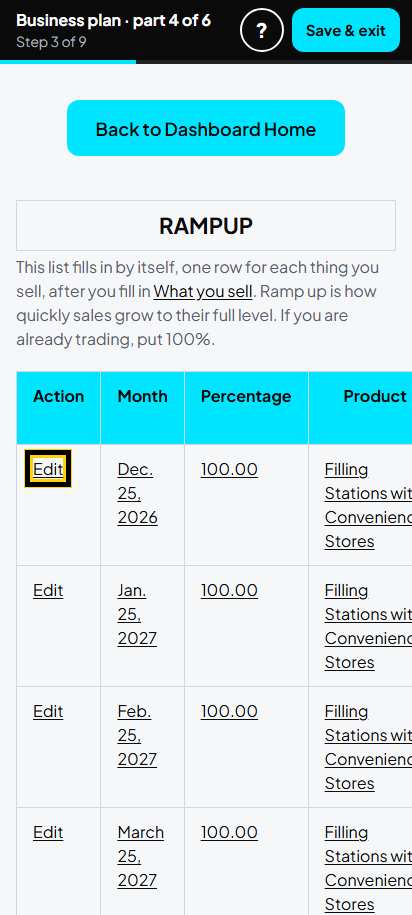
Ramp Up: the list
This list also fills in by itself. Tap Edit on each row.
-
Step 26 of 98
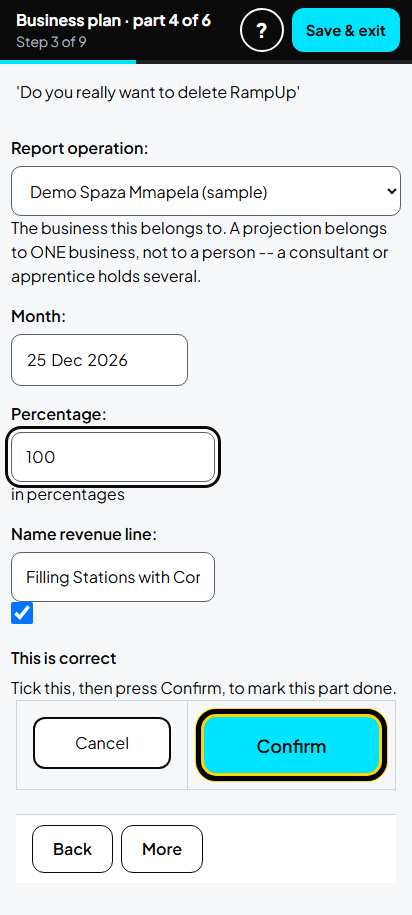
Ramp Up: one month
If you are already trading, type 100. Tick This is correct. Tap Confirm. Do the same for every row.
-
Step 27 of 98
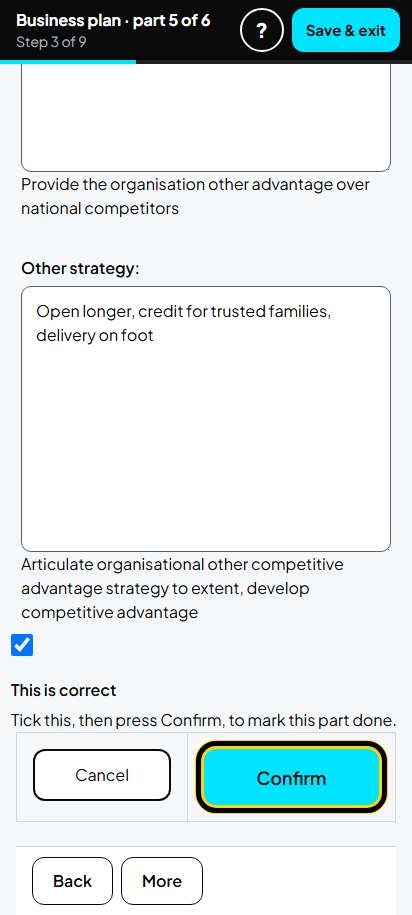
Local Competitive Advantage
For each advantage choose Yes, Neutral or No. Choose Yes for one only: your main advantage (example: location). Set the others to Neutral or No. Tick This is correct. Tap Confirm.
-
Step 28 of 98
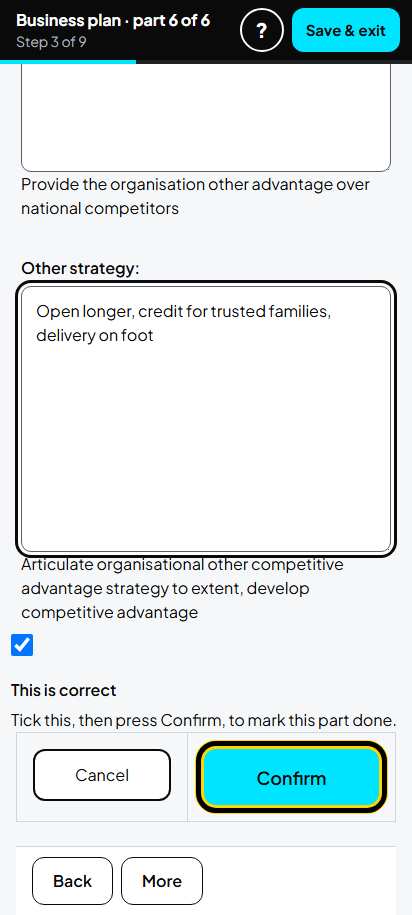
National Competitive Advantage
The same, compared with big shops in the whole country. A village shop can choose Neutral. Tick This is correct. Tap Confirm.
Part A, part 4 of 8. Who buys from you
-
Step 29 of 98
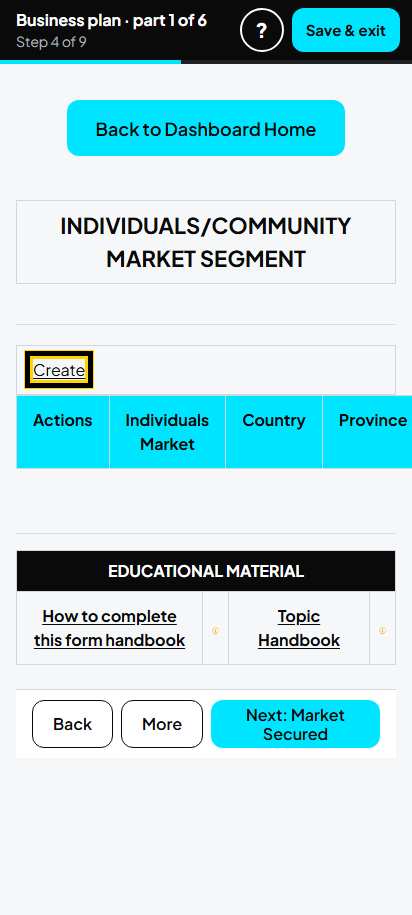
Individuals Market Segment: the list
Tap Create.
-
Step 30 of 98
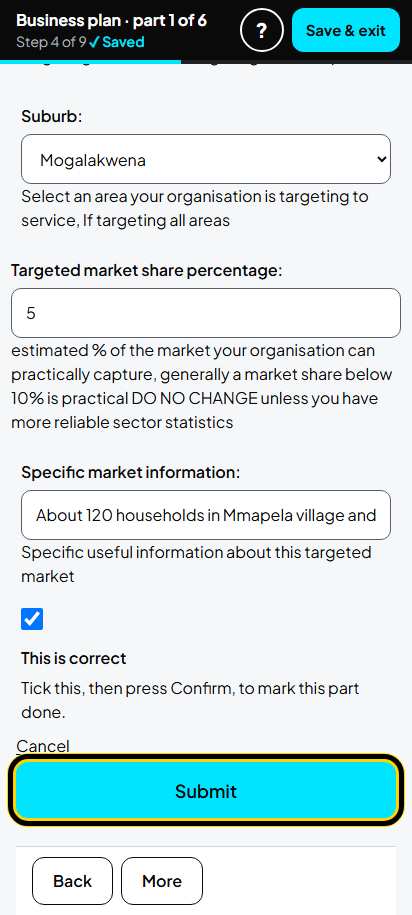
Individuals Market Segment: the form
Choose who your customers are (example: Households (families)). Choose South Africa, then your Province, District, Municipality and Suburb, one after the other. Type your share of the market (example 5) and one sentence about your customers. Tick This is correct. Tap Submit.
-
Step 31 of 98
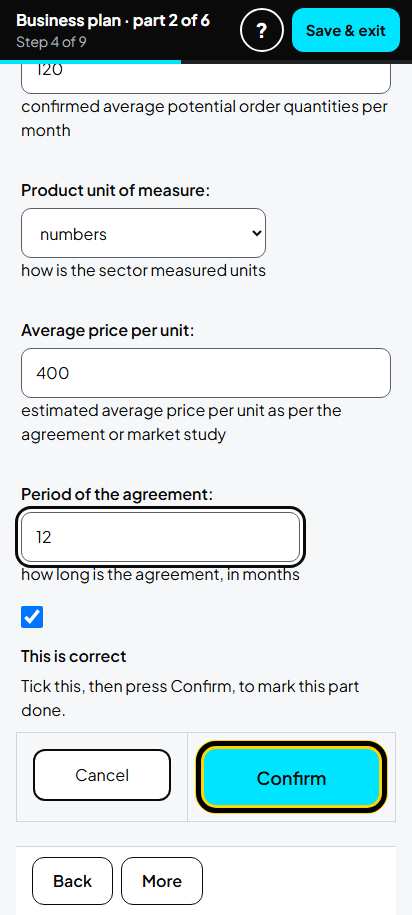
Market Secured
Type the customers you already have. Example: Mmapela households, current customers, 120 customers, R400 each a month, for 12 months. Tick This is correct. Tap Confirm.
-
Step 32 of 98
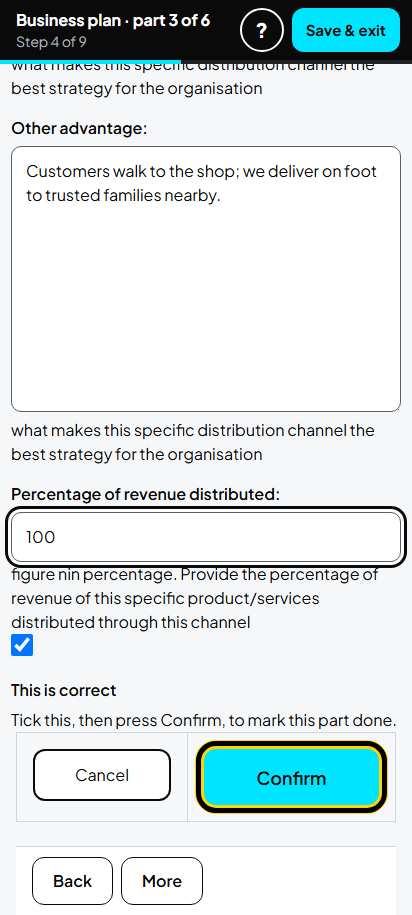
Distribution
Choose how customers get your goods (example: customer collect) and type 100 for the share of sales. Tick This is correct. Tap Confirm.
-
Step 33 of 98
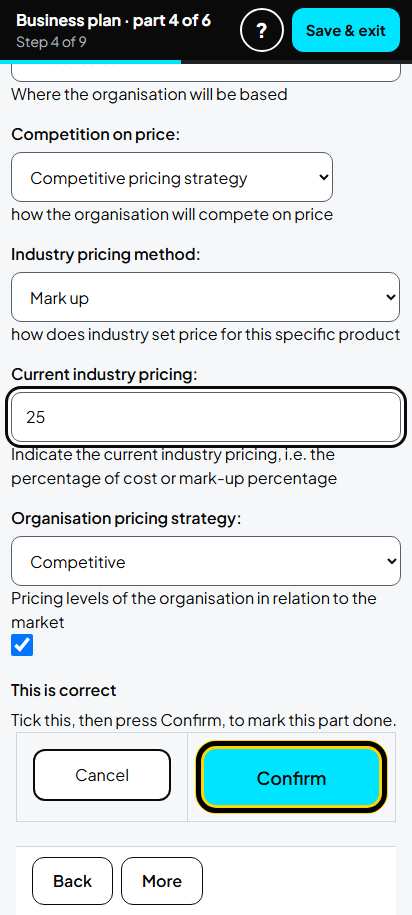
Marketing Plan
Choose how you tell people about the shop (example: posters, WhatsApp) and how you set prices (example: mark up 25). Tick This is correct. Tap Confirm.
-
Step 34 of 98
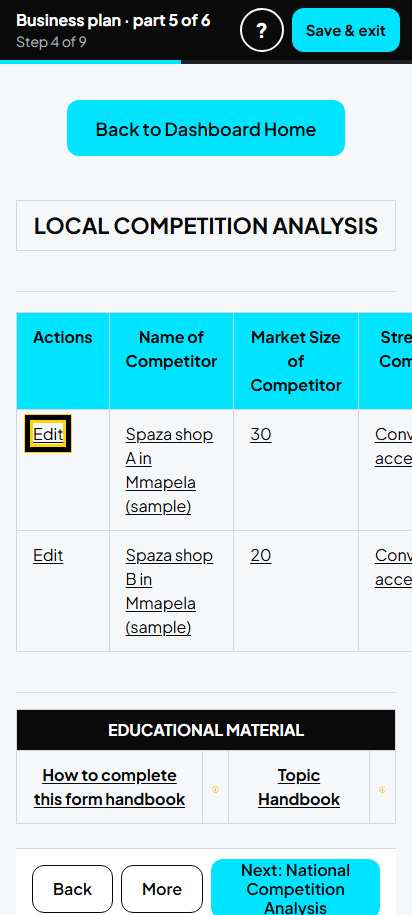
Local Competition Analysis: the list
Tap Edit on each competitor. Tap Delete on examples you do not need.
-
Step 35 of 98
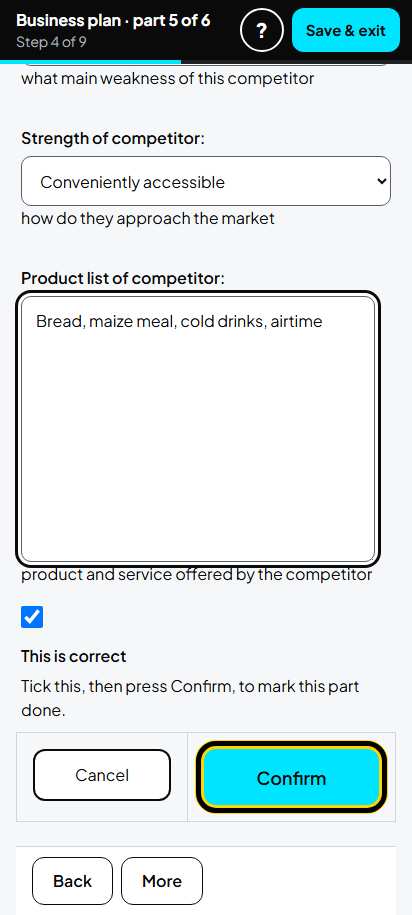
Local Competition Analysis: one competitor
Type the name (example: Spaza shop A in Mmapela), its share of the market, its strength and weakness, and what it sells. Tick This is correct. Tap Confirm.
-
Step 36 of 98
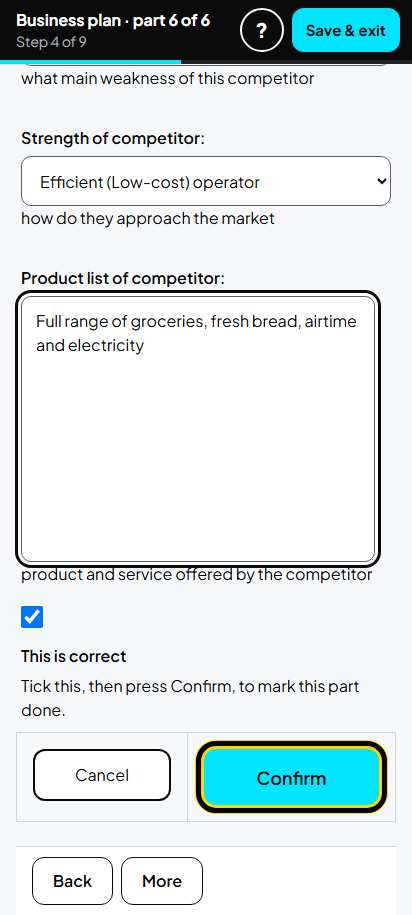
National Competition Analysis
Do the same for a big competitor further away (example: Supermarket in Mokopane, 40%). Tick This is correct. Tap Confirm.
Part A, part 5 of 8. Your people
-
Step 37 of 98
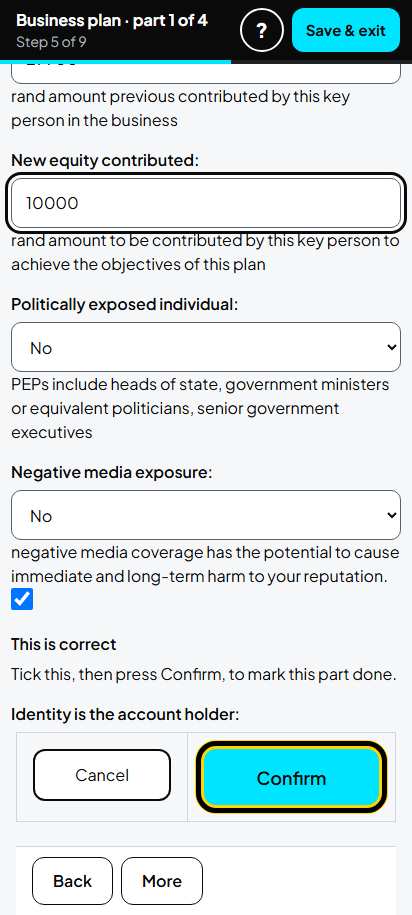
Key Personnel
Type the owner's details: name, the 13 numbers of the ID, phone, position, shareholding (100%), education and experience. Tick This is correct. Tap Confirm.
Tip: Leave the ID number empty if you do not have it now.
-
Step 38 of 98
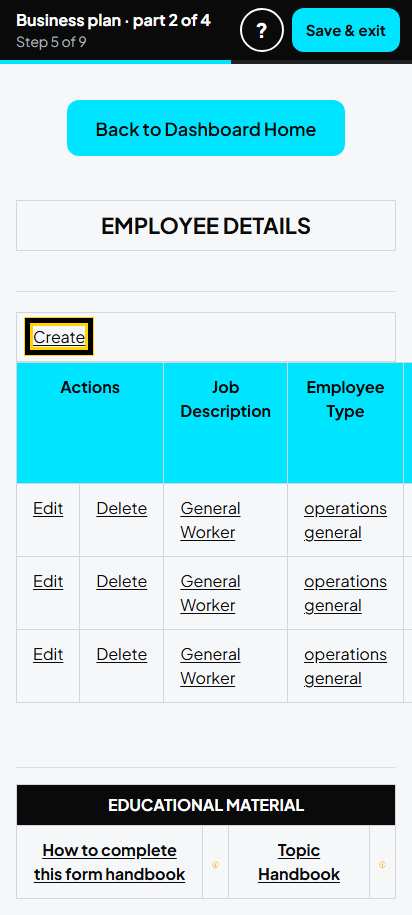
Add New Employee: the list
Tap Edit on each worker. Tap Create for a new worker, also for one you will hire later.
-
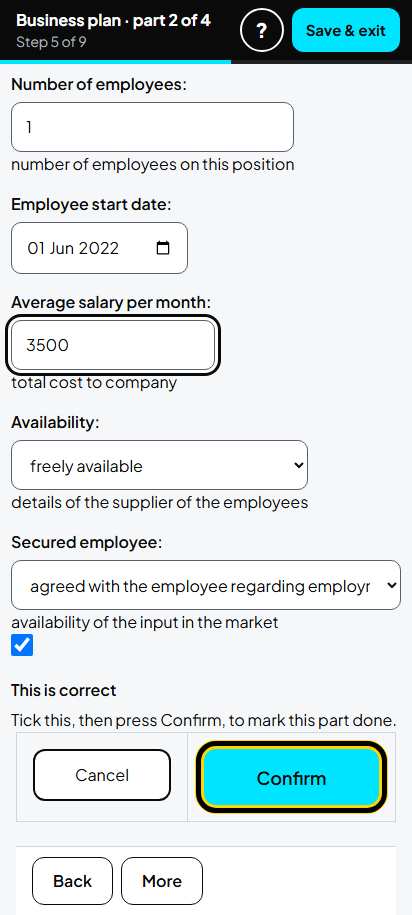
Step 39 of 98
Add New Employee: one worker
Choose the job (example: General Worker), type the start date and the pay a month (example 3500). Tick This is correct. Tap Confirm. Do the same for every worker.
-
Step 40 of 98
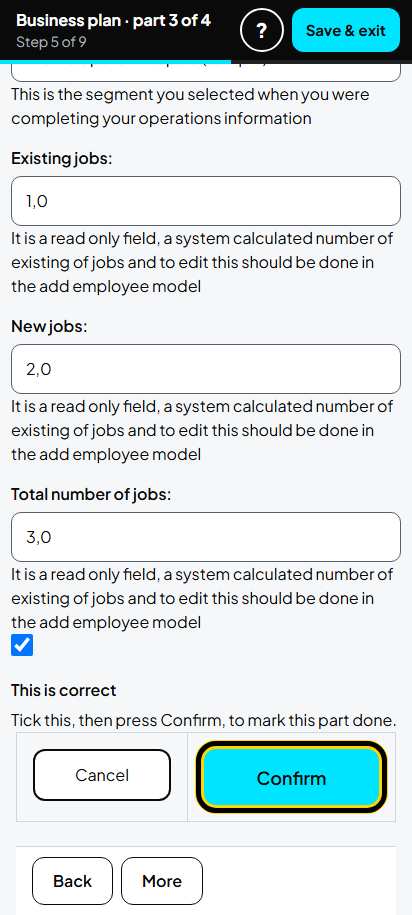
Jobs
These numbers are worked out from your workers. Check them. Tick This is correct. Tap Confirm.
-
Step 41 of 98
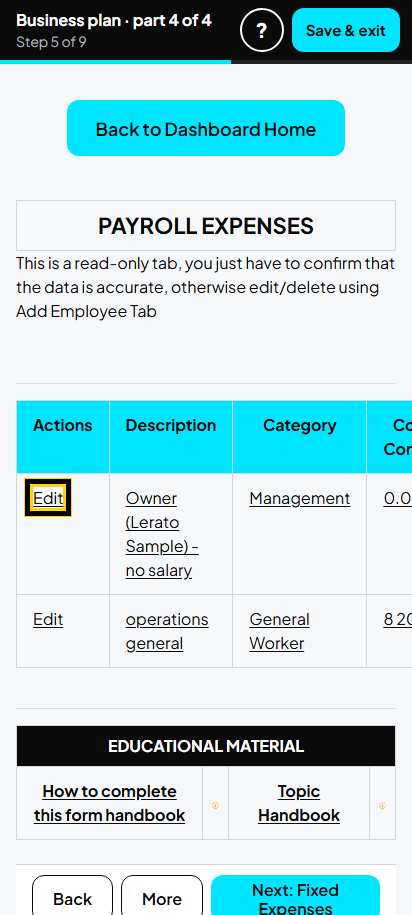
Payroll Expenses: the list
This list is made from your workers. Tap Edit on each row to check it.
-
Step 42 of 98
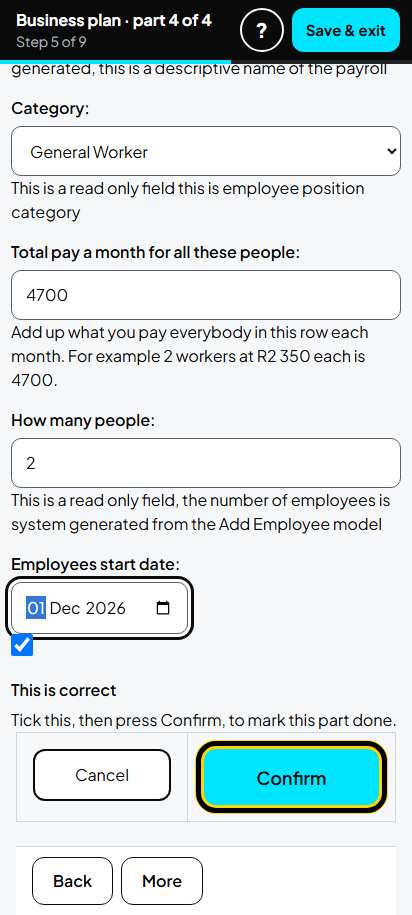
Payroll Expenses: one row
"Total pay a month for all these people" is the pay of everybody in the row together. Example: 2 workers, 4700. Type how many people. Tick This is correct. Tap Confirm.
Tip: Saving a worker again rebuilds this list. Check it once more at the end.
Part A, part 6 of 8. Expenses
-
Step 43 of 98
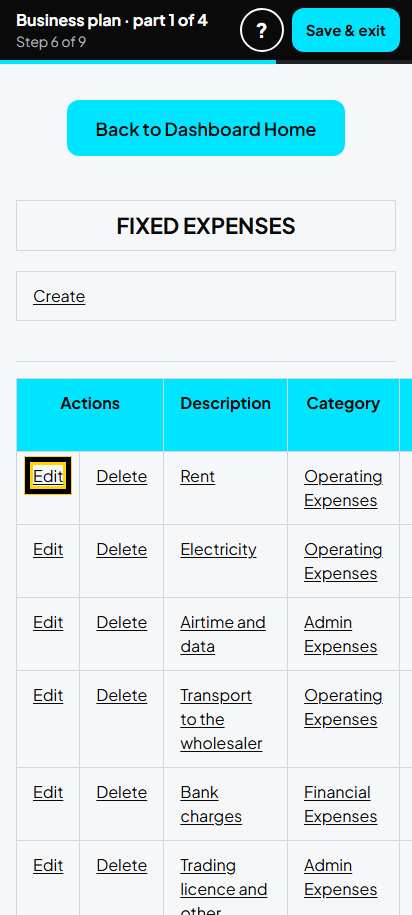
Fixed Expenses: the list
Tap Edit on each cost. Tap Delete on examples you do not pay.
-
Step 44 of 98
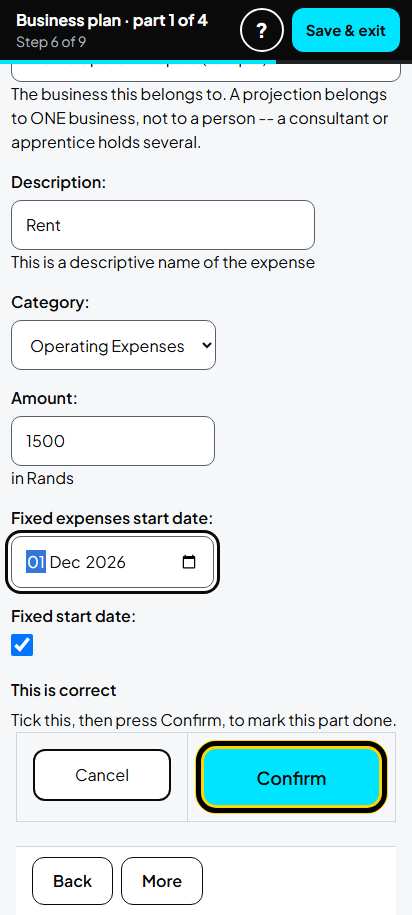
Fixed Expenses: one cost
Type the name and the amount a month. Example: Rent, 1500. Choose the start month. Tick This is correct. Tap Confirm. Do the same for electricity (900), airtime and data (200), transport (1200), bank charges (150) and licence (250).
-
Step 45 of 98
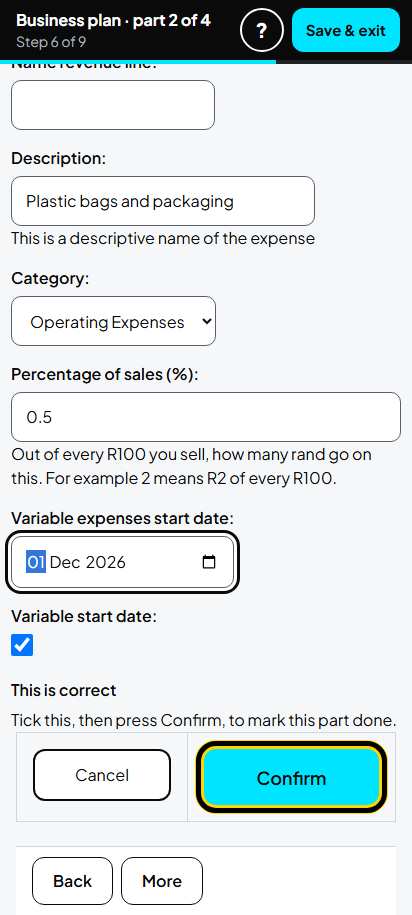
Variable Expenses
Costs that grow with your sales. Type the percentage of sales. Example: plastic bags, 0.5 (that is 50 cents of every R100 you sell). Tick This is correct. Tap Confirm.
-
Step 46 of 98
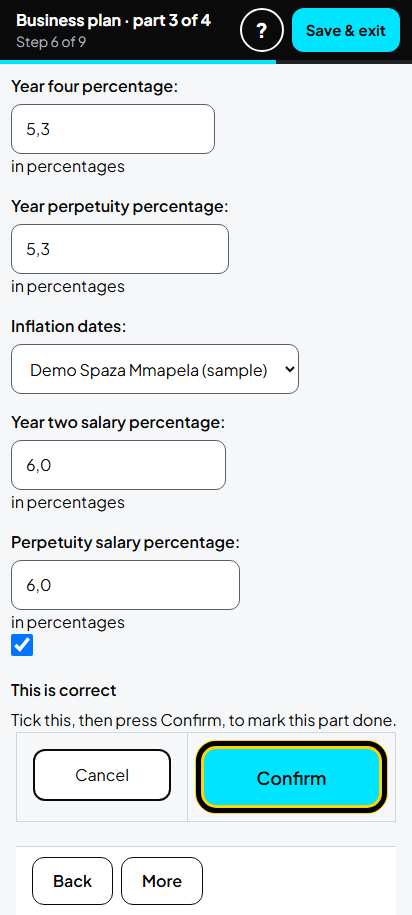
Inflation
The price and salary increases are filled in for you. Check them. Tick This is correct. Tap Confirm.
-
Step 47 of 98
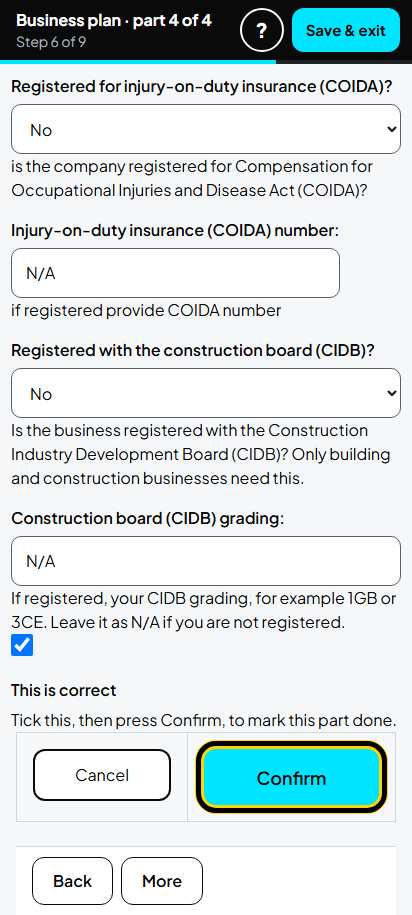
Income Taxation
Type your tax number and say Yes or No for VAT, UIF, PAYE, COIDA and CIDB. Tick This is correct. Tap Confirm.
Part A, part 7 of 8. Assets and Funding Structure
-
Step 48 of 98
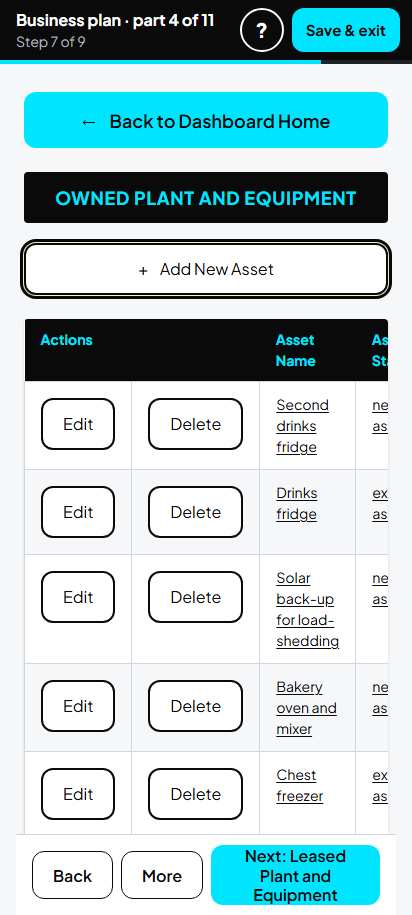
Owned Plant and Equipment: the list
Tap Edit on each item you own. Tap + Add New Asset for an item you will buy.
-
Step 49 of 98
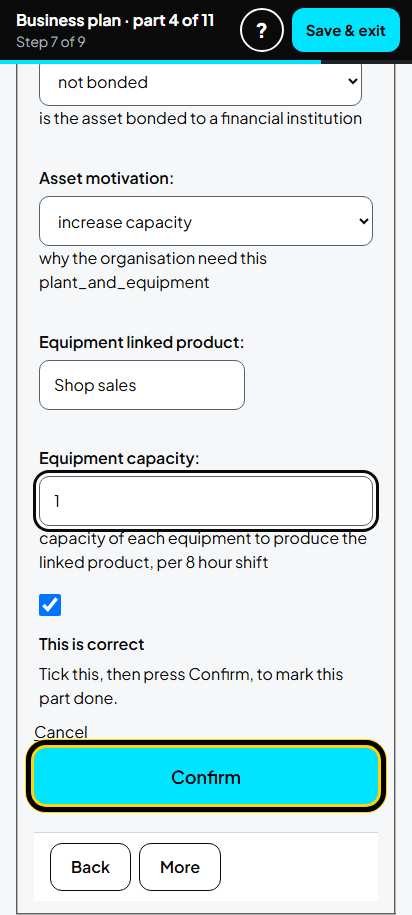
Owned Plant and Equipment: one item
Type the name, cost and start date. Say if it is an existing or a new asset and if funding is needed. Example: Second drinks fridge, 9000, January 2027, funding is required. Tick This is correct. Tap Confirm. Do the same for every item.
-
Step 50 of 98
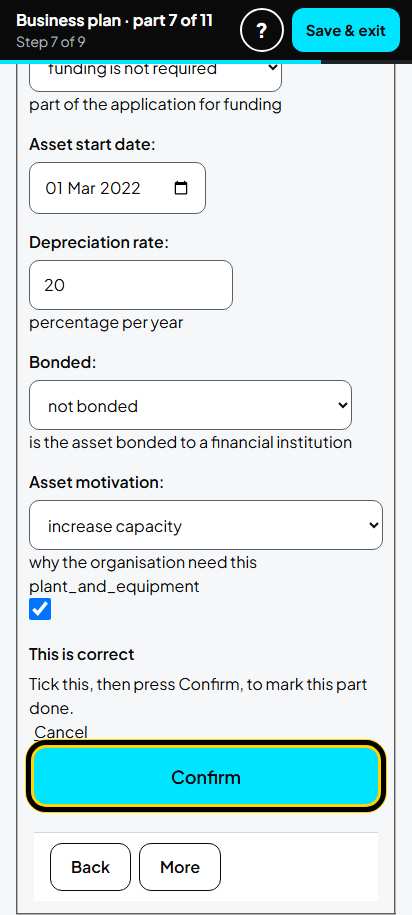
Owned Furniture and Fittings
The same for shelves and furniture. Example: Shelving 3000 (have it), More shelves 6000 (to buy). Tick This is correct. Tap Confirm.
-
Step 51 of 98
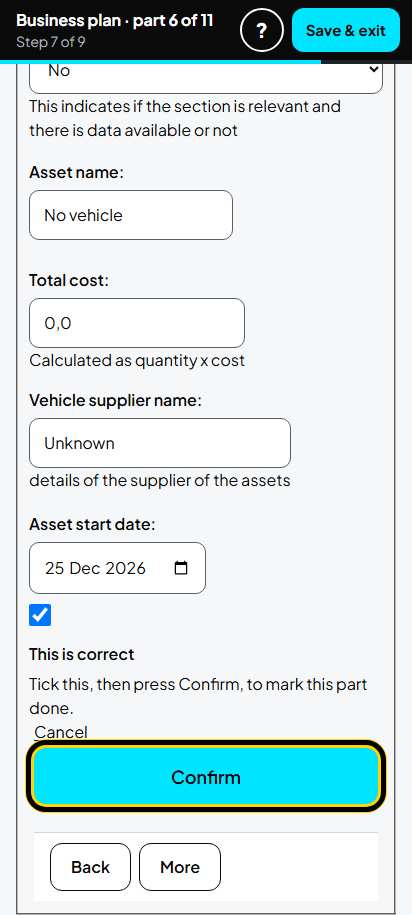
Things you do not have
No vehicle, computer or property? Open the tab, tap Edit, choose No in the first box. Tick This is correct. Tap Confirm. Do this for Owned Vehicle, Owned Computer, Owned Property and Leased Plant and Equipment.
-
Step 52 of 98
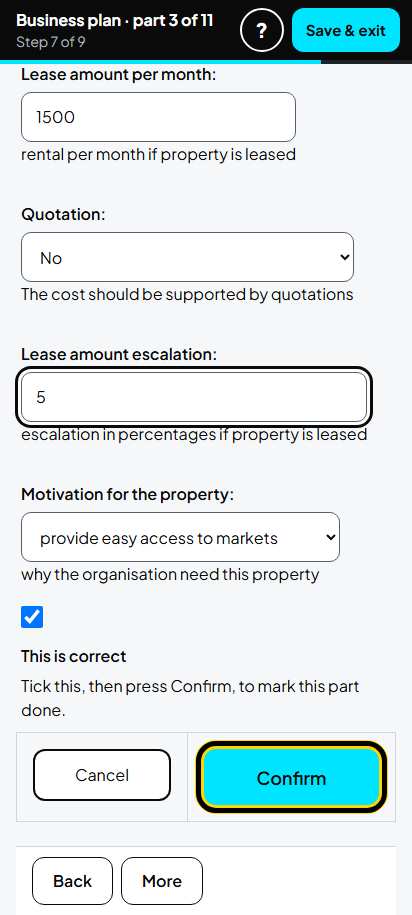
Leased Property
If you rent your shop, type the size (24 m²), the landlord, the rent a month (1500), the start date, the lease period and the yearly increase (5%). Tick This is correct. Tap Confirm.
-
Step 53 of 98
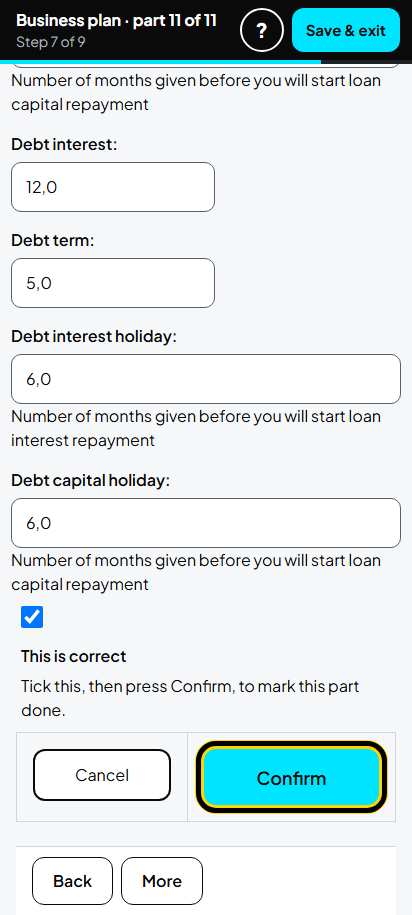
Funding Required
Type what the money is for and how much: example equipment 54000, furniture 6000, working capital 25000 (total 85000). Type your own money (10000) and the grant you ask for (75000). Type 0 for loans you do not want. Tick This is correct. Tap Confirm.
-
Step 54 of 98
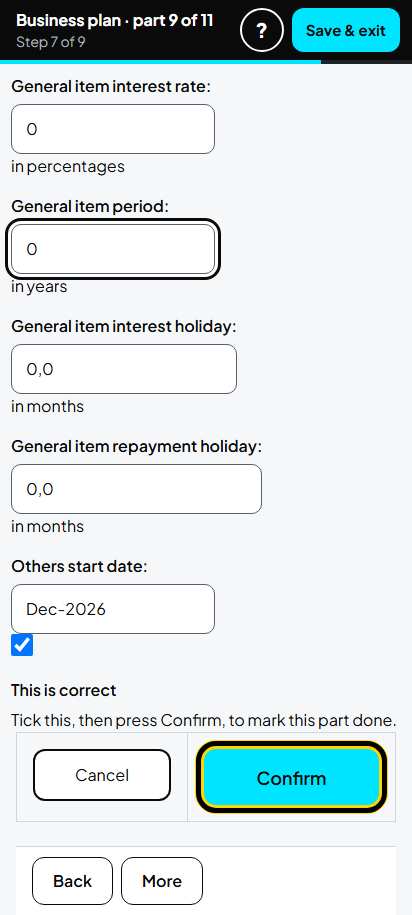
Balance Sheet Items
Type what the business has and owes on the start day, one row each. Example: owner's loan 29900, share capital 100, cash in bank 6500. Tick This is correct. Tap Confirm.
Tip: If you also made your financial statements, rows marked "take-on" are already here. Do not type the same amount twice.
-
Step 55 of 98
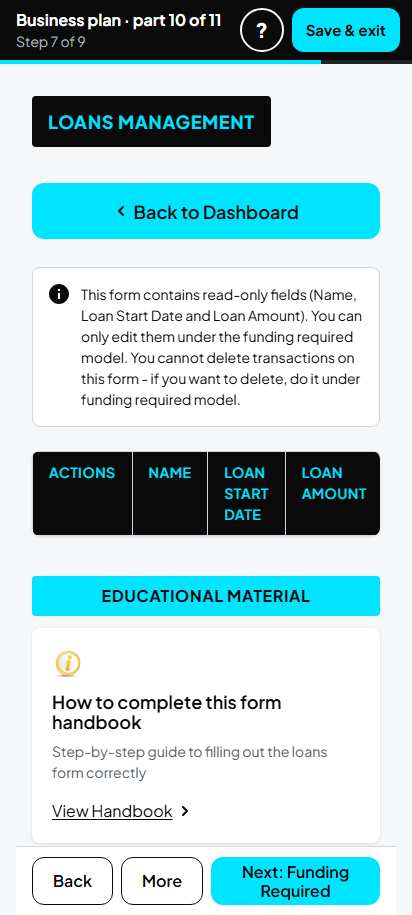
Loans
Loans come from Funding Required. With no loan this list is empty. Nothing to do.
-
Step 56 of 98
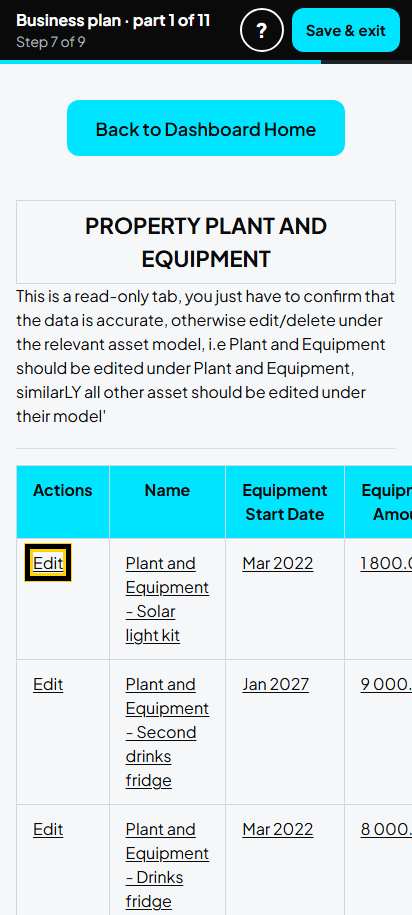
Property Plant and Equipment: the list
This list is made from your assets. Tap Edit on each row.
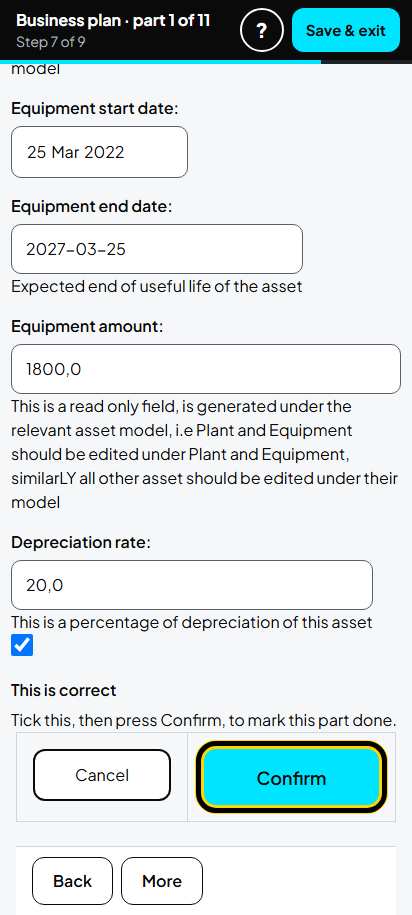
-
Step 57 of 98
Property Plant and Equipment: one row
Check the amount and date. Tick This is correct. Tap Confirm. Do the same for every row.
Part A, part 8 of 8. What could go wrong
-
Step 58 of 98
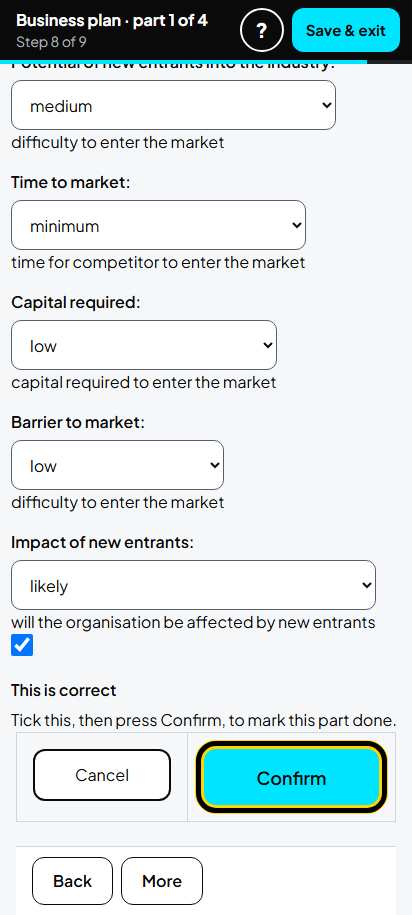
Industry Sector Analysis
Type how fast your industry grows (example 4 and 5), your two biggest risks and what you do about them (example: theft, burglar bars and a camera). Choose the answers about competitors, customers and suppliers. Tick This is correct. Tap Confirm.
-
Step 59 of 98
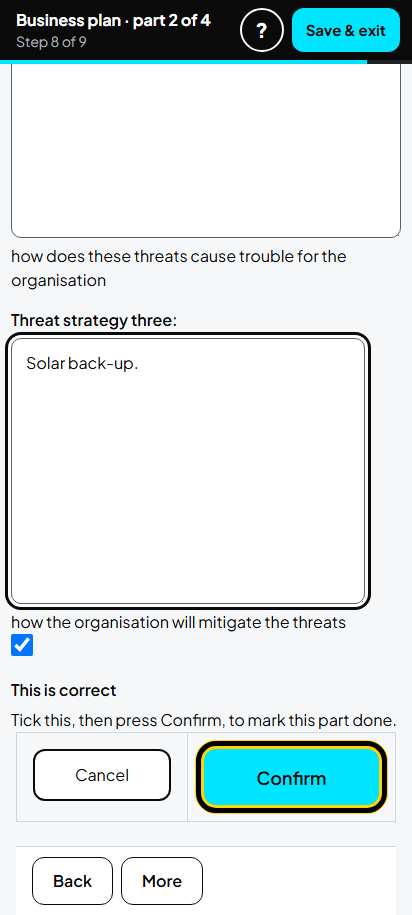
SWOT Analysis
Choose 3 strengths, 3 weaknesses, 3 opportunities and 3 threats. For each, write one sentence on what it means and what you will do. Tick This is correct. Tap Confirm.
-
Step 60 of 98
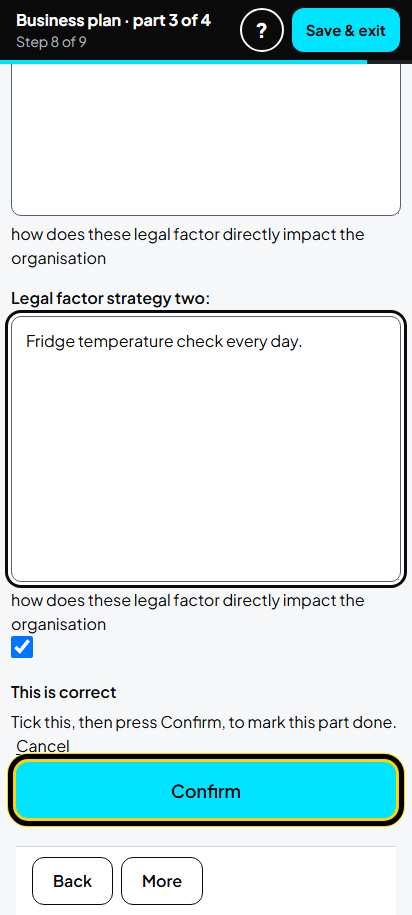
Pestle Analysis
The same for things outside the business: government, money, people, technology, environment and the law. Tick This is correct. Tap Confirm.
-
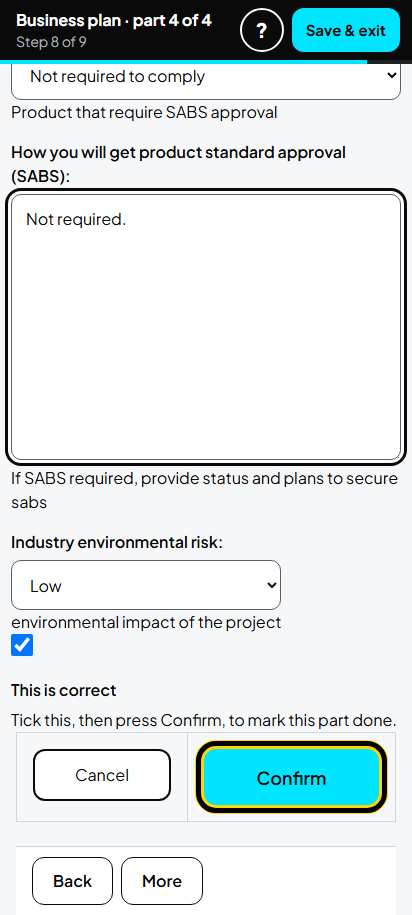
Step 61 of 98
Operational Compliance
Choose your water, electricity and food safety answers (example: food safety, compliant). Choose the environmental risk (Low). Tick This is correct. Tap Confirm.
-
Step 62 of 98
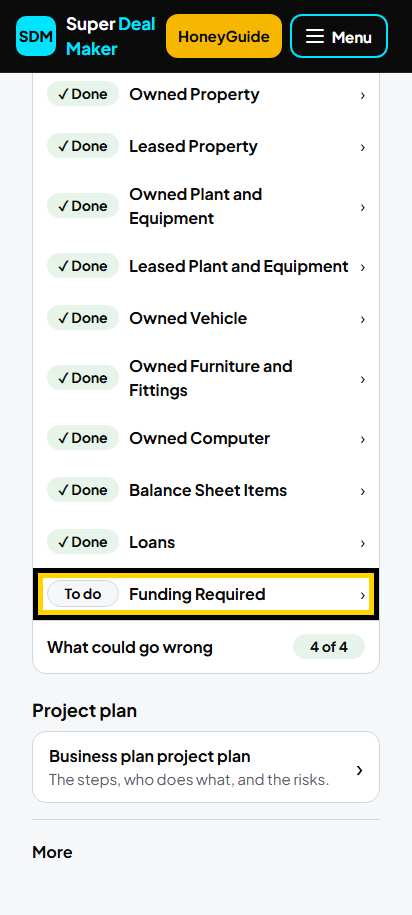
Check your plan
Go back to your business plan page. Open each part: every tab should say Done. A tab that says To do still needs you (here Funding Required). When every part is done, the big button at the top says Download.
Part A. Business plan: make and download it
-
Step 63 of 98
Make your plan
When every part is done, tap Download, the big button at the top of your business plan page.
Not all done yet? Tap More, then Download what you have now.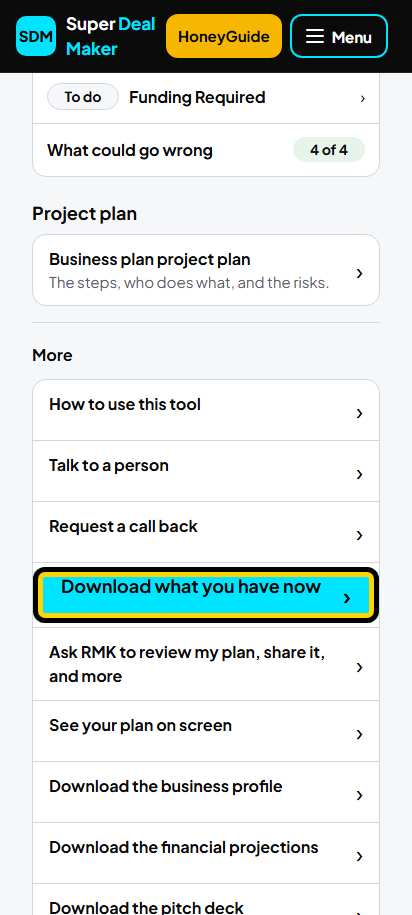
-
Step 64 of 98
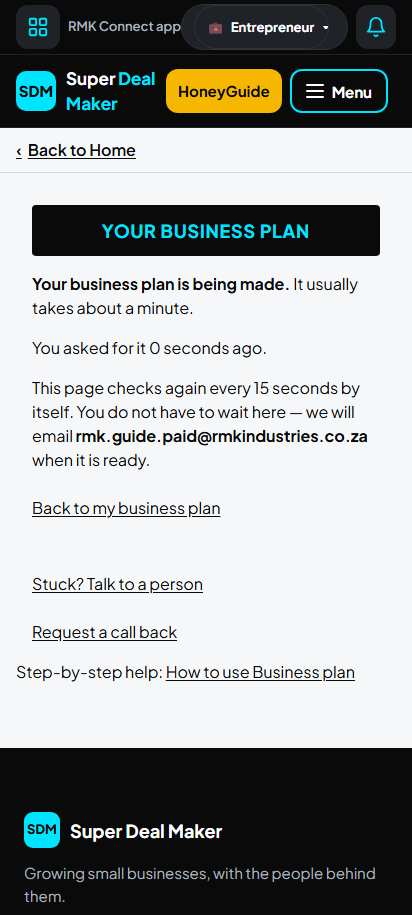
Wait a little
Your plan is being made. It takes about a minute. The page checks by itself. You may leave: we e-mail you when it is ready.
-
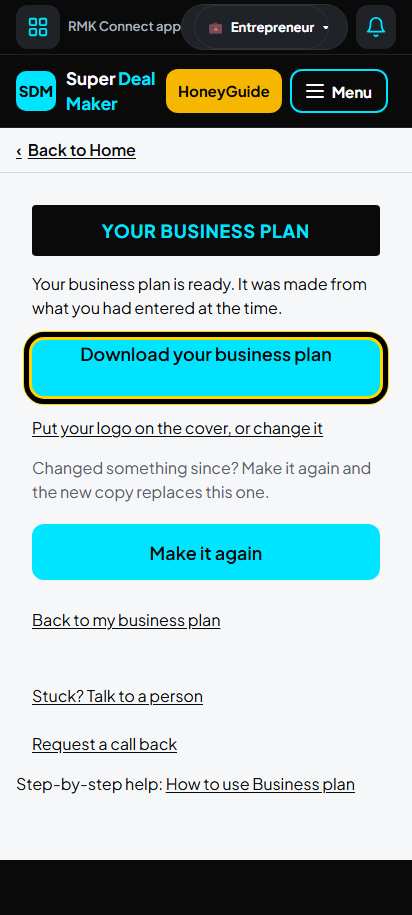
Step 65 of 98
Download it
Tap Download your business plan. The PDF saves on your phone.
-
Step 66 of 98
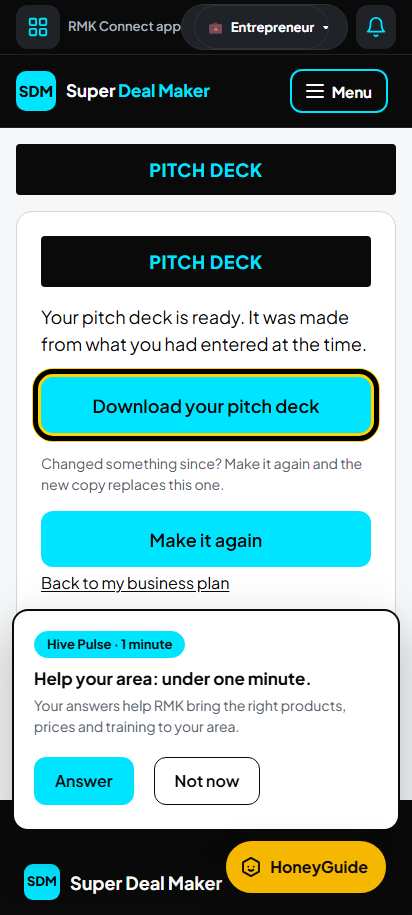
Shorter documents
Under More on your business plan page are three shorter documents: Download the business profile, Download the financial projections and Download the pitch deck. Tap one. When it is ready, tap the button, for example Download your pitch deck.
-
Step 67 of 98
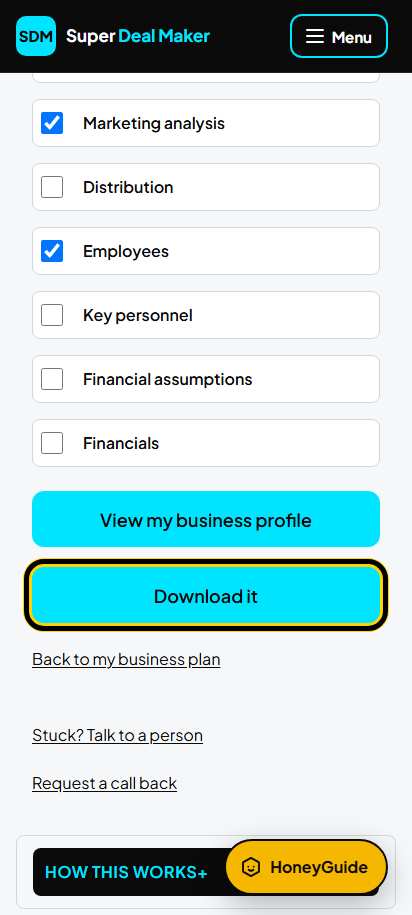
Business profile: choose the parts
Tick the parts you want in your business profile. Tap Download it.
-
Step 68 of 98
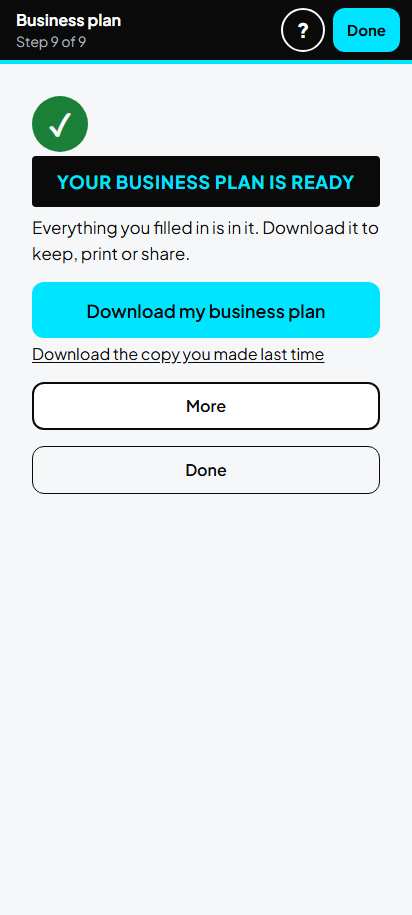
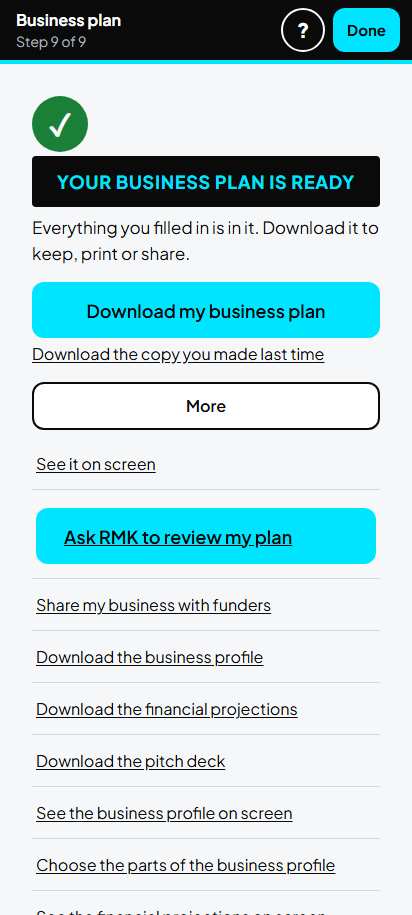
Your business plan is ready
This page says your plan is ready. Tap Download my business plan to get it again.
-
Step 69 of 98
More
Tap More to see it on screen, ask RMK to review it, share it with funders, or download the shorter documents.
Tip: Asking for a review and sharing with funders are part of Standard.
-
Step 70 of 98
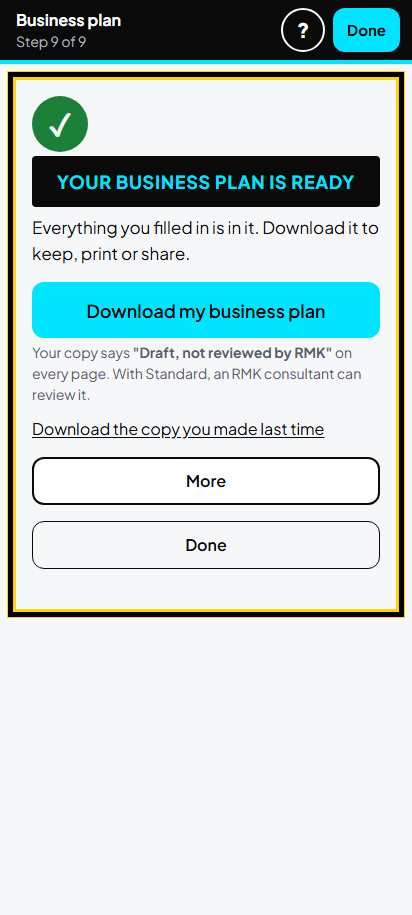
Free account: your copy says Draft
With a free account you can also download your business plan. Every page says "Draft, not reviewed by RMK". With Standard an RMK consultant can review it.
-
Step 71 of 98
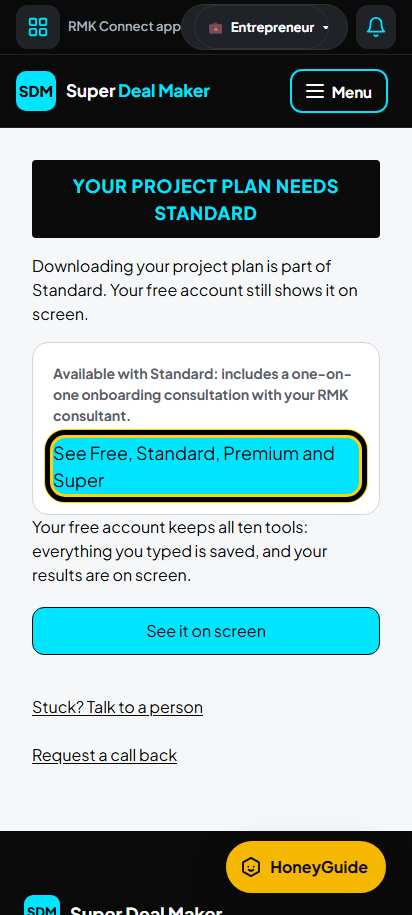
Free account: other downloads need Standard
A free account sees the project plan and the shorter documents on screen. To download them you see this note. Tap See it on screen to read it, or See Free, Standard, Premium and Super to compare.
Part B. Business plan project plan
-
Step 72 of 98
Open the project plan
On your business plan page, under Project plan, tap Business plan project plan.
The first time it is under More: tap Start your business plan project plan. Your project is made with example rows.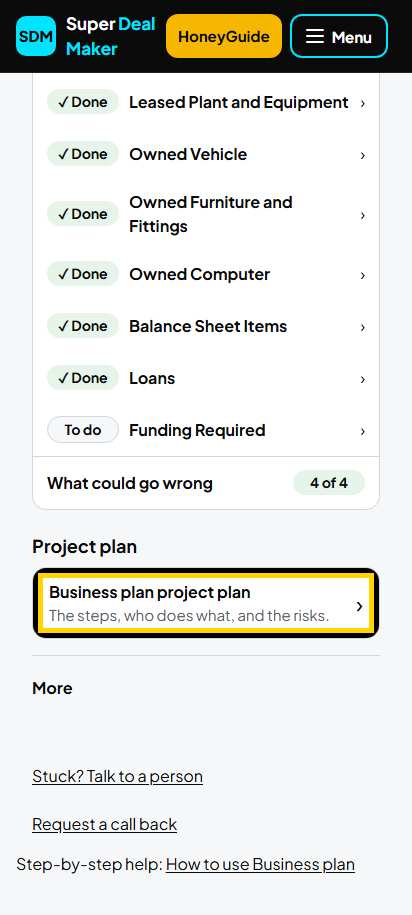
-
Step 73 of 98
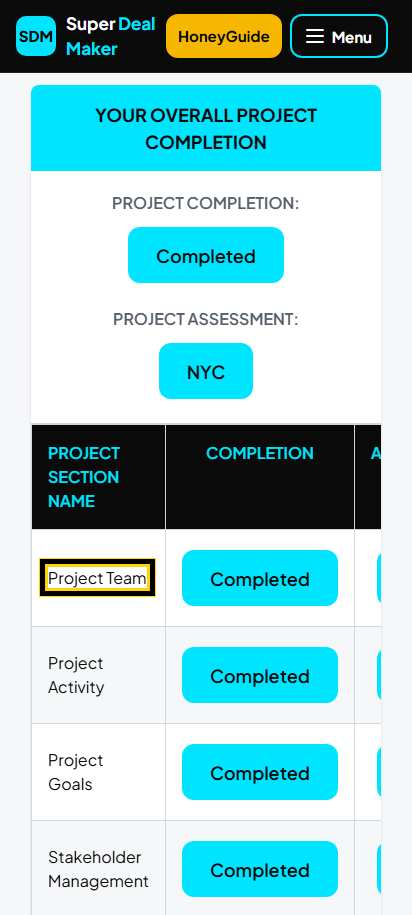
Your project home
The project has 7 parts: Project Team, Project Activity, Project Goals, Stakeholder Management, Project Resources, Project Risk, Project Monitoring. Tap Project Team to begin.
-
Step 74 of 98
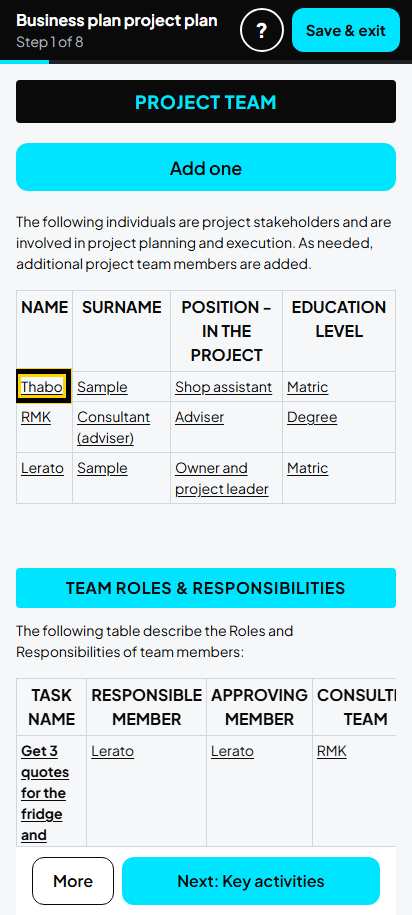
1. Project team: the list
Tap a name to edit it. Tap Add one to add a person. Remove example people you do not have.
-
Step 75 of 98
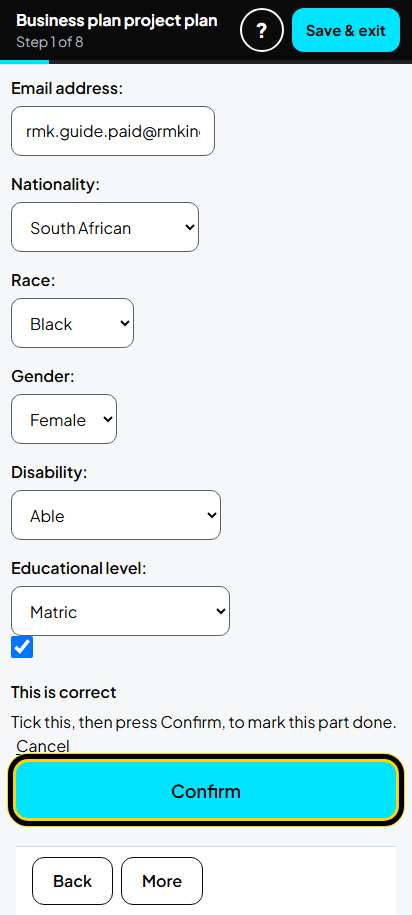
1. Project team: one person
Type the name, the position in the project and the education. Example: Lerato Sample, Owner and project leader, Matric. Tick This is correct. Tap Confirm. The example team: the owner, the shop assistant, the RMK consultant.
-
Step 76 of 98
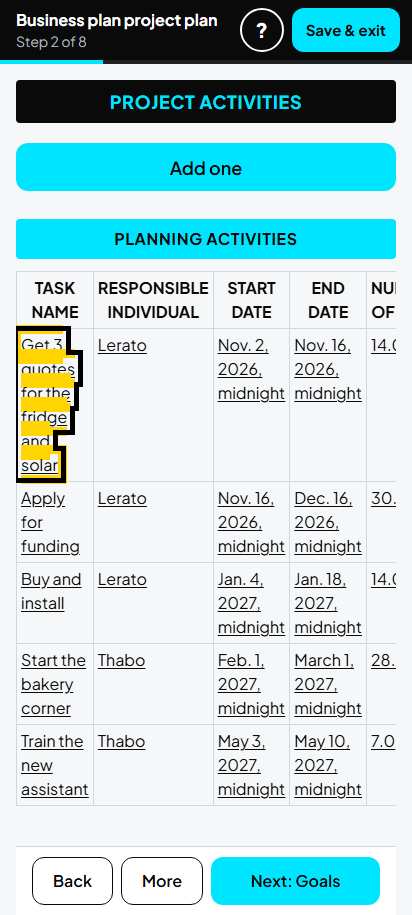
2. Project activities: the list
Tap a task to edit it. Tap Add one for a new task.
-
Step 77 of 98
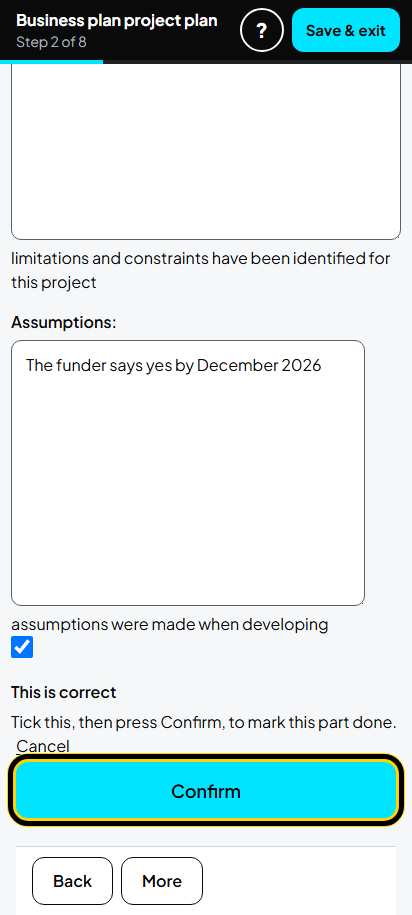
2. Project activities: one task
Type the task, what it is for, the start and end dates, and who does it. Example: Get 3 quotes for the fridge and solar, 2 Nov to 16 Nov 2026, Lerato. Tick This is correct. Tap Confirm.
Tip: Check the dates each time you open a task: type them again before you tap Confirm.
-
Step 78 of 98
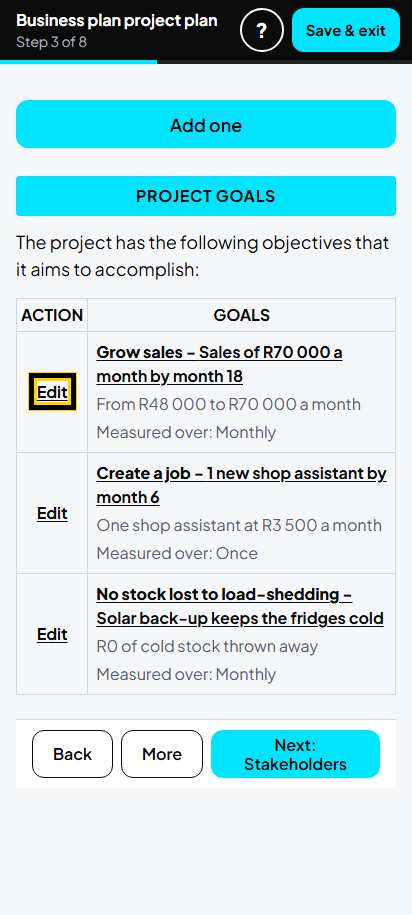
3. Project goals: the list
Tap Edit on each goal. Tap Add one for a new goal.
-
Step 79 of 98
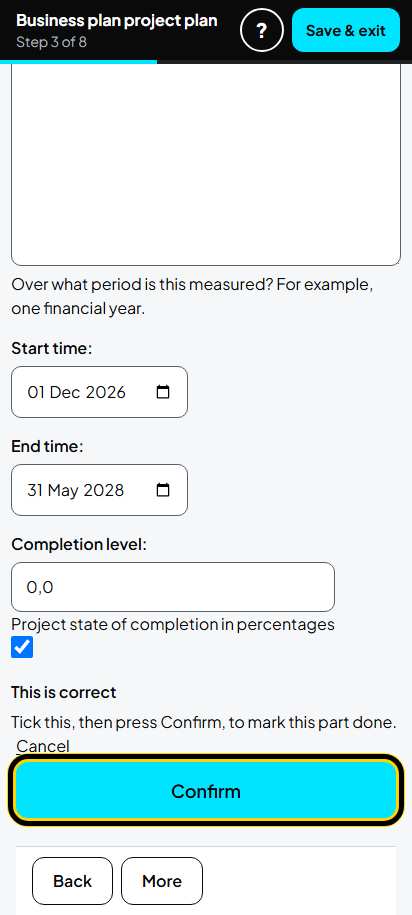
3. Project goals: one goal
Type the goal and how you will measure it. Example: Grow sales to R70 000 a month by month 18. Tick This is correct. Tap Confirm.
-
Step 80 of 98
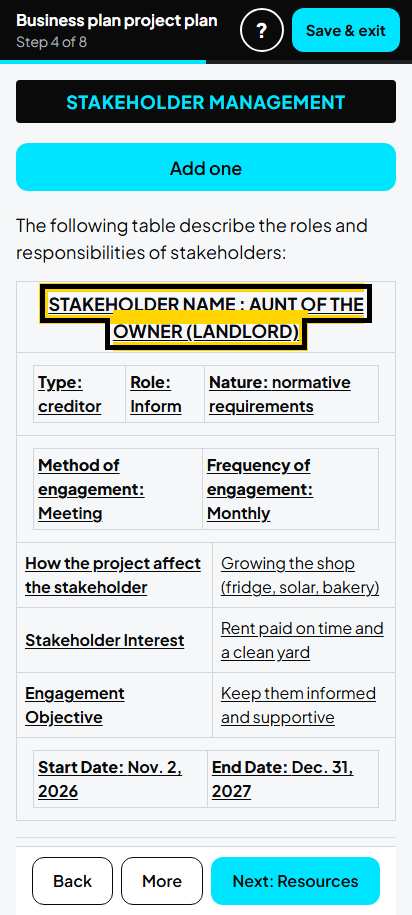
4. Stakeholders: the list
Tap a name to edit it. Tap Add one to add one. Example: customers, the landlord, the wholesaler, the funder, the ward councillor.
-
Step 81 of 98
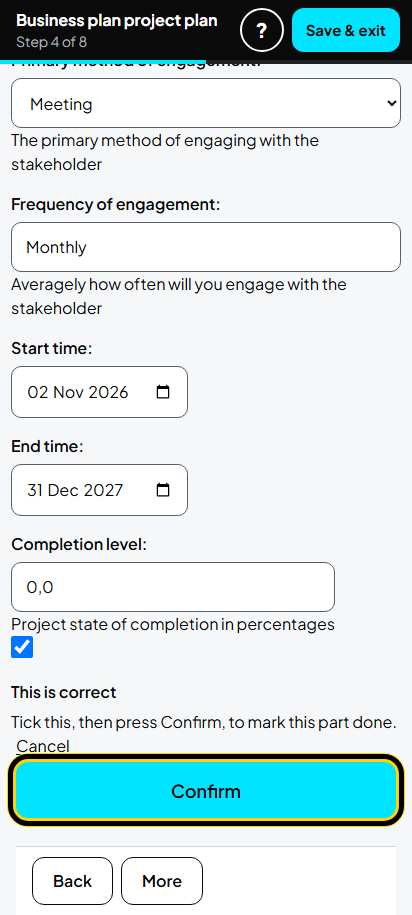
4. Stakeholders: one stakeholder
Type the name, choose the type and role, say what they want and how often you meet. Tick This is correct. Tap Confirm.
-
Step 82 of 98
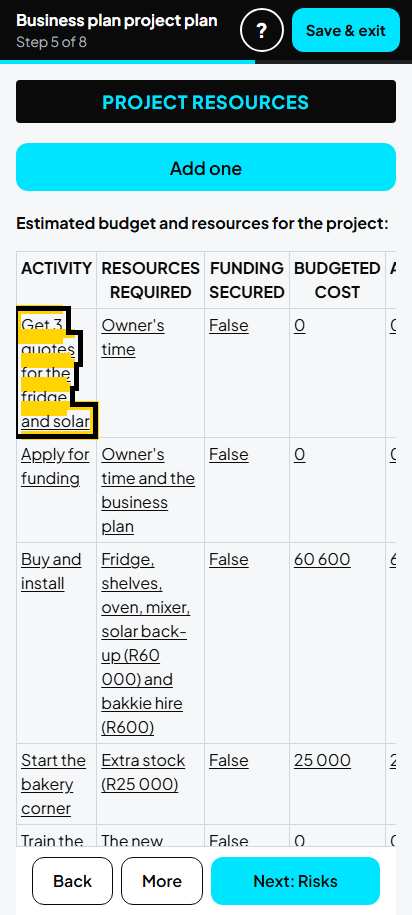
5. Project resources: the list
One row for each task. Tap the task to edit it.
-
Step 83 of 98
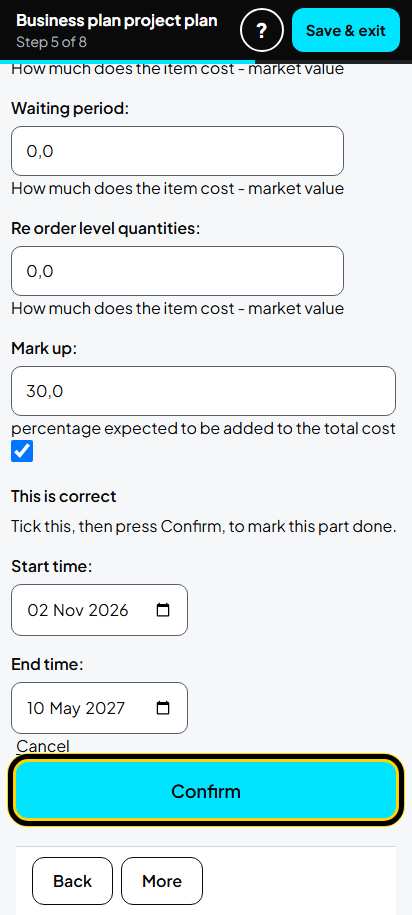
5. Project resources: one row
Type what the task needs and what it costs. Example: Buy and install, fridge, shelves, oven and solar back-up plus bakkie hire, 60600. Tick This is correct. Tap Confirm.
-
Step 84 of 98
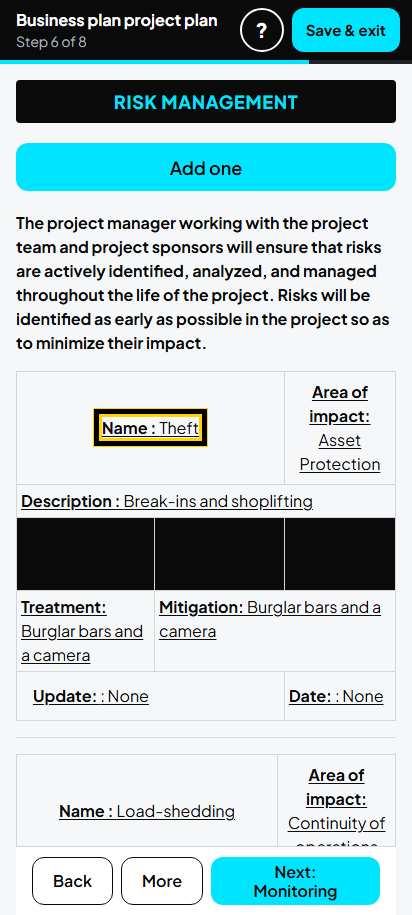
6. Project risks: the list
Tap a risk name to edit it. Tap Add one for a new risk.
-
Step 85 of 98
6. Project risks: one risk
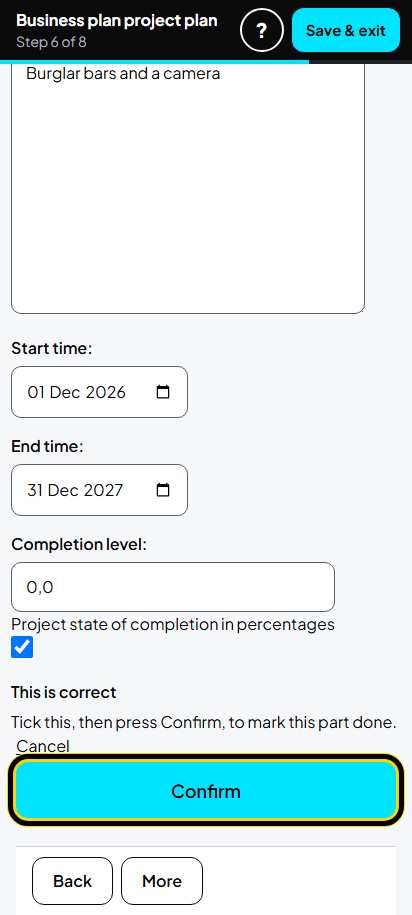
Type the risk, choose the impact, the likelihood and the action, and type what you will do. Example: Theft, burglar bars and a camera. Choose every box before you save. Tick This is correct. Tap Confirm.
-
Step 86 of 98
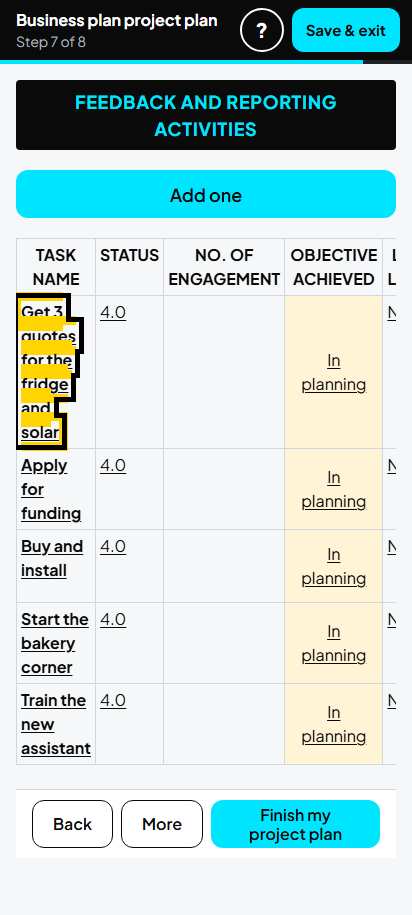
7. Monitoring: the list
One row for each task. Tap the task to edit it.
-
Step 87 of 98
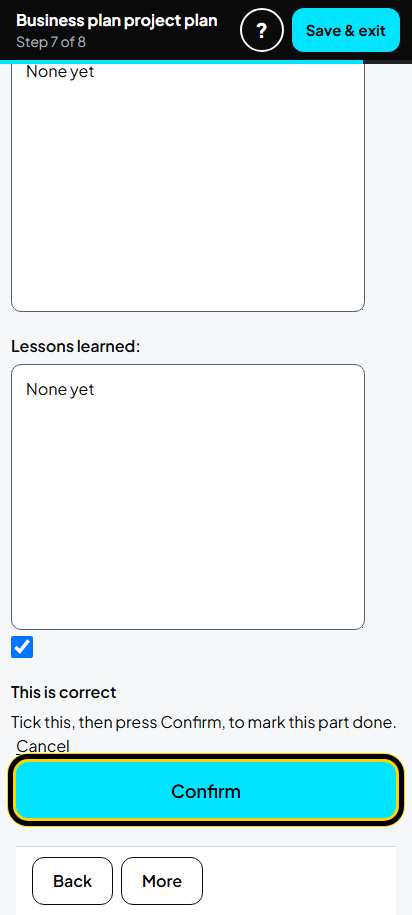
7. Monitoring: one row
Say how you check the task. Example: meeting, weekly sales book check every Sunday and a monthly review with the consultant. Tick This is correct. Tap Confirm.
-
Step 88 of 98
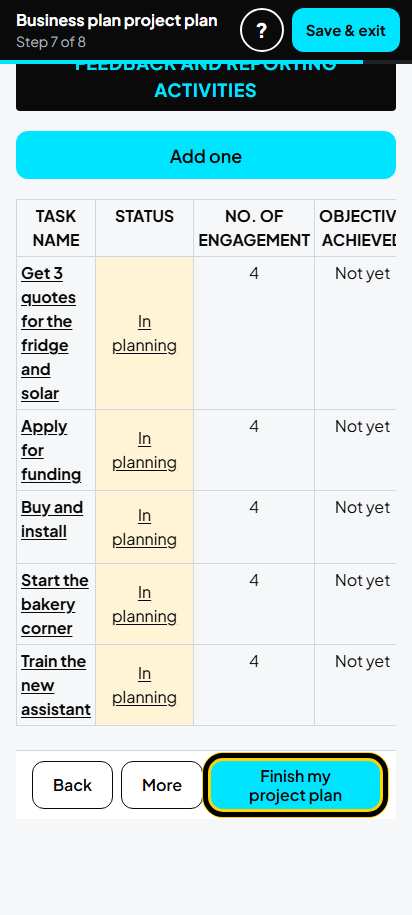
Finish my project plan
On the Monitoring list, tap Finish my project plan.
-
Step 89 of 98
Your project plan is ready
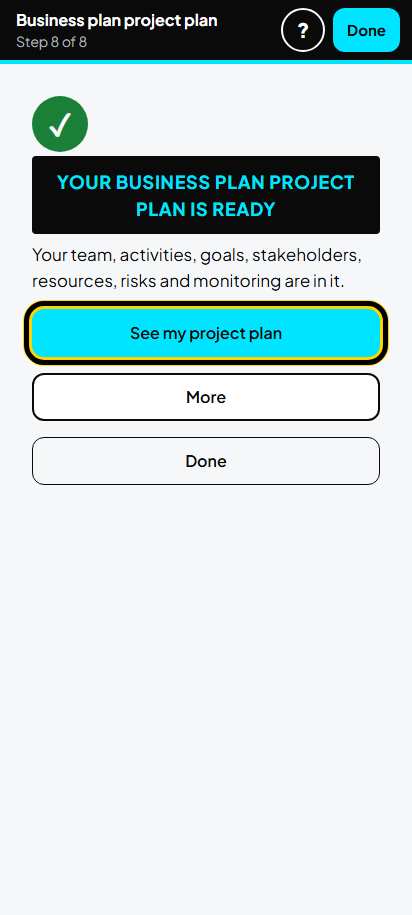
This page says your project plan is ready. Tap See my project plan to read it. More has the download, the status report and the final report.
-
Step 90 of 98
See your project plan
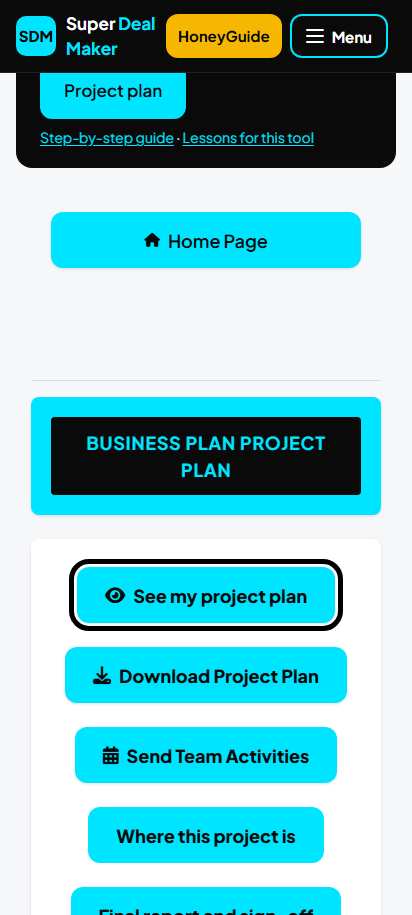
Go back to your project home (on your business plan page tap Business plan project plan). Tap See my project plan.
-
Step 91 of 98
Your project plan on screen
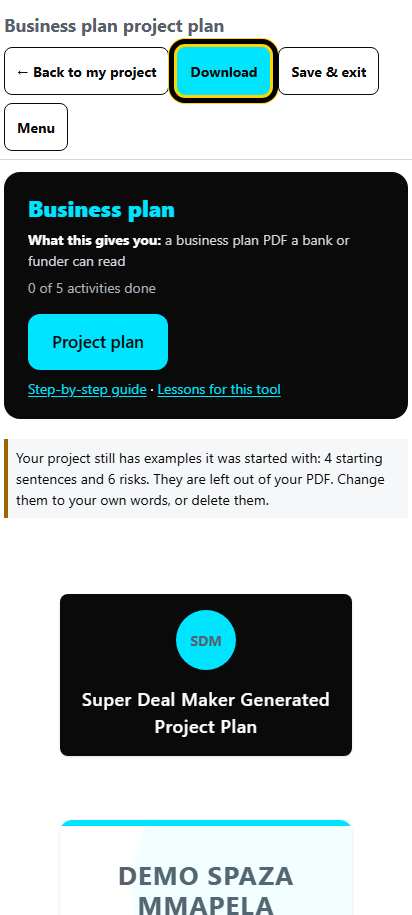
Read it on your phone. Tap Download at the top to save the PDF, or Back to my project.
-
Step 92 of 98
Download the project plan
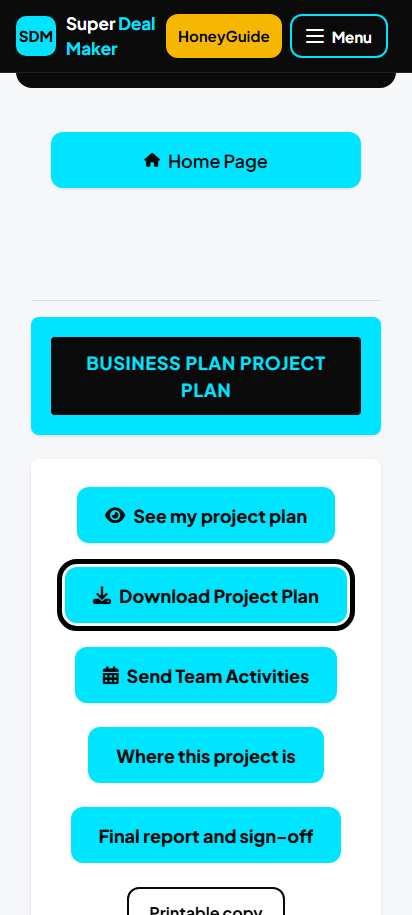
On your project home you can also tap Download Project Plan.
Stop, carry on, and get help
-
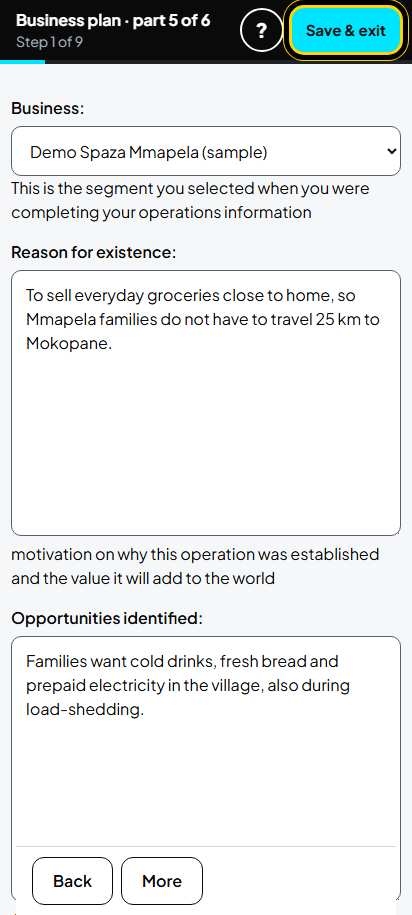
Step 93 of 98
Stop for now
Tap Save & exit at the top. What you saved stays saved.
Tip: Tap the form's own button (Confirm, Save or Submit) first, so your last answers are saved.
-
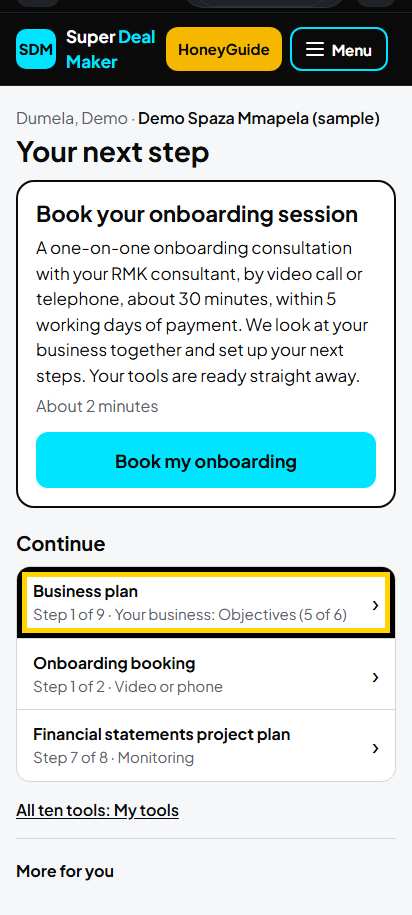
Step 94 of 98
Carry on later
On Home, under Continue, tap Business plan. It says where you stopped, for example "Step 1 of 9 · Your business: Objectives".
-
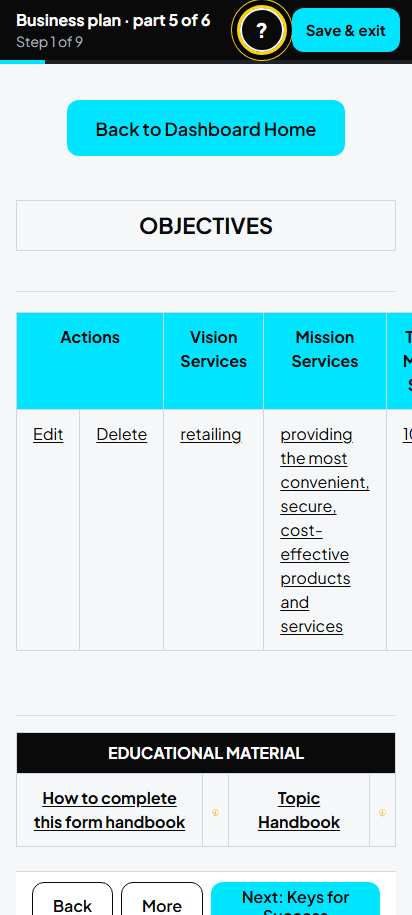
Step 95 of 98
Help for this screen
Tap ? at the top of any screen.
-
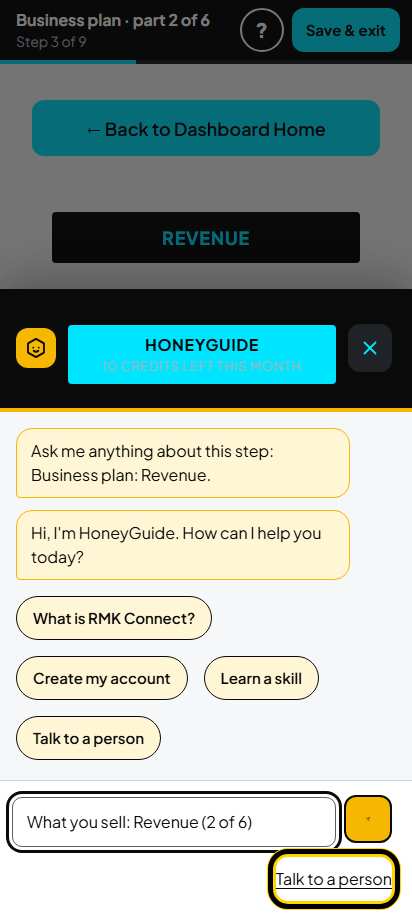
Step 96 of 98
HoneyGuide
HoneyGuide, the RMK assistant, opens over the screen and already knows which step you are on. Type your question, or tap Talk to a person. Tap X to close it.
-
Step 97 of 98
Get help from a person
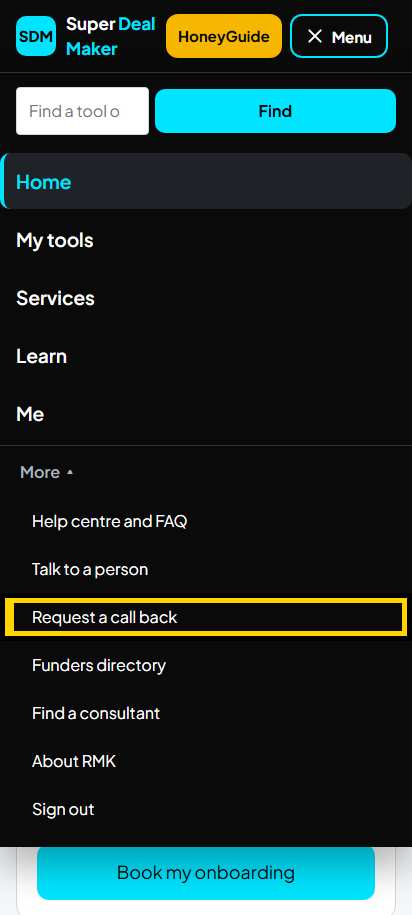
Tap Menu, then More: Talk to a person (WhatsApp) or Request a call back. Many pages also have Stuck? Talk to a person and Request a call back at the bottom.
-
Step 98 of 98
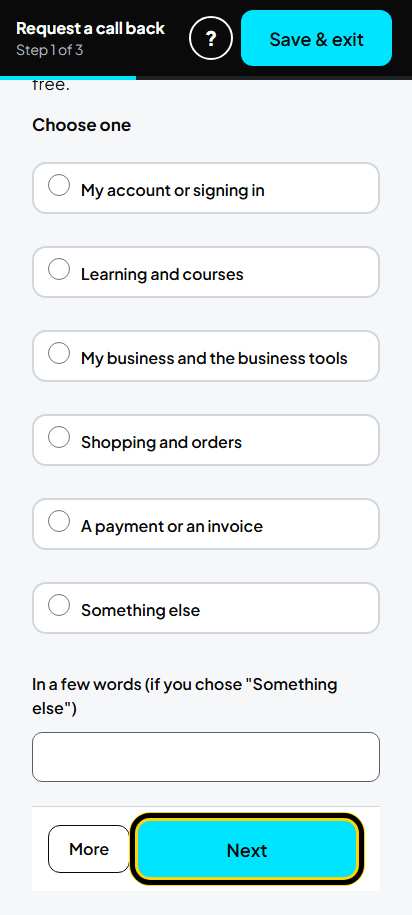
Ask us to phone you
Choose what the call is about, tap Next, and follow the 3 short steps. Someone from RMK will phone you. It is free.
Stop and carry on later
- Tap **Save & exit** at the top of any screen. First tap the form's button (Confirm, Save or Submit) so your last answers are saved.
- Next time, on **Home** under **Continue** tap **Business plan**. Or open **My tools**, tap **Continue** on Business plan, then **Continue where you left off**.
- Your business plan page shows each tab as **Done**, **Almost** or **To do**: open the ones that say To do or Almost.
Download your work
- Business plan: when every part is done, tap **Download** at the top of your business plan page (before that: **More**, **Download what you have now**), wait about a minute, then tap **Download your business plan**.
- Business profile, financial projections, pitch deck: on your business plan page tap **More**, then **Download the business profile**, **Download the financial projections** or **Download the pitch deck** (Standard and up).
- Project plan: on your project home tap **Download Project Plan**, or **See my project plan** and then **Download** (Standard and up).
- Free account: the business plan downloads too, marked "Draft, not reviewed by RMK" on every page. The other documents show a note that they are part of Standard; you can still see them on screen.
- You can download up to 10 documents a day. After that a page says to come back tomorrow.
If something goes wrong
- "Something went wrong on our side": tap **Go back**, check your last answers and save again. If it happens again, tap ask us to phone you.
- A form does not save and shows red words: read the red words next to the box, correct it, and tap the button again.
- "Choose Yes for one only" on Competitive Advantage: set only your main advantage to Yes and the others to Neutral or No.
- A list that should have Province, District, Municipality is empty: choose them again from the top, one after the other.
- A risk will not save: choose the impact, the likelihood, the ranking and the action, then tap Confirm.
- A tab stays **To do** after you saved it (for example Funding Required): your answers are saved. Ask us to phone you and we will check it.
- The plan is taking long: you may leave the page; we e-mail you when it is ready. If it says "This is taking longer than it should", tap **Try again**.
Ask for help
- Tap **?** at the top of any screen for help on that screen (HoneyGuide).
- Tap **Menu**, then **More**: **Talk to a person** on WhatsApp, or **Request a call back** (free).
- On many pages: **Stuck? Talk to a person** and **Request a call back**.
- With Standard: your RMK consultant helps you in the onboarding session and the monthly group session, and can review your plan.
Still stuck?
Ask HoneyGuide (the “?” on every screen of the tool), or a real person answers.